
Before you start
- You need Employee Expenses and View on Expense claims. To decide, also Approve on Expense claims.
- The Employee Expenses module is on for your company.
- You decide claims submitted by other people. Your own claim needs someone else, unless your company's rule allows self-approval.
Steps
Find the claims
-
In the sidebar, select Financial › Expense Claims. "Expense Claims" opens: "Employees' expense claims: approve or reject them, then record the payment. A paid claim becomes a project or company expense."
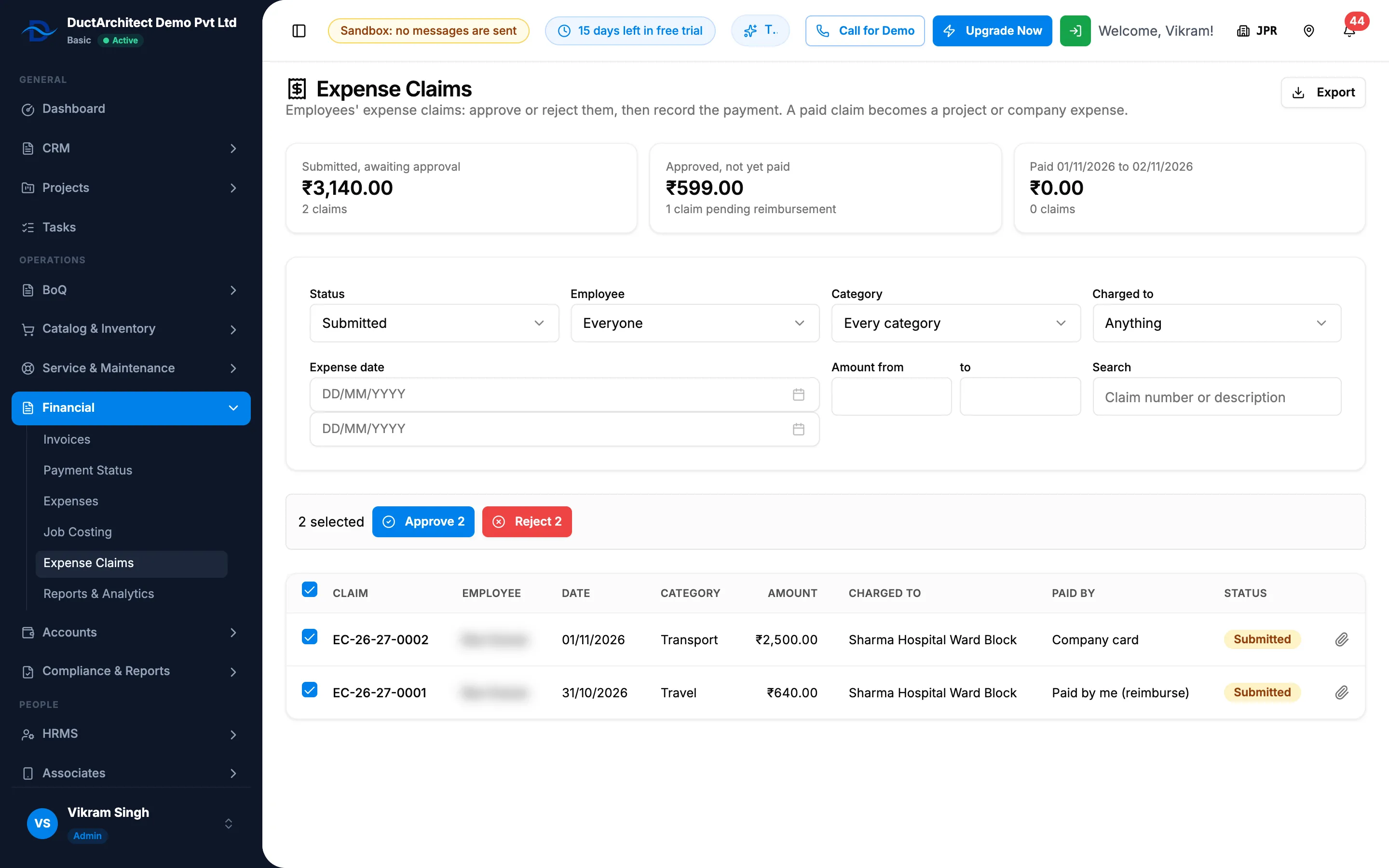
Step 1. Expense Claims with the totals, the filters and the list on Submitted. -
Read the totals, one row per currency: "Submitted, awaiting approval", "Approved, not yet paid" ("[number] claims pending reimbursement") and "Paid [date] to [date]".
-
The Status filter starts on Submitted. To narrow the list, choose an Employee, a Category, Charged to (Anything, A project, A service job, Nothing (company expense)), an Expense date range, Amount from and to, or search by claim number or description.
-
Read Claim, Employee, Date, Category, Amount, Charged to ("Company" when nothing), Paid by and Status. A clip marks a receipt.
-
Select a row to open the claim's sheet and check its Receipt and Timeline.
Approve or reject from this page
- Tick the claims you can decide. The bar shows "[number] selected".
- Select Approve [number] or Reject [number]. The box "Approve the claim" (or "Approve [number] claims") or "Reject …" opens.
- To approve, add a Note if you want. For a company card claim, choose Paid from: "The company card's account". To reject, fill in Reason ("Say why the claim is rejected."): the employee sees it.
- Select Approve or Reject.
The decision is the same approval as on the Approvals page, where you can also ask a question first. See Decide an approval request: approve, partially approve or reject.
Export the list
- Set the filters you want.
- Select Export, then Export Excel or Export PDF. The file is named Expense-Claims.
Result
An approved claim is Approved and waits to be paid: see Mark expense claims paid. A company card claim is marked Paid at once, and its expense is posted from the Paid from account. A rejected claim is Rejected, with the reason on its timeline. The employee is told either way.
If something is different
- No Expense Claims in the sidebar, or "You do not have access to Employee Expenses.": see Financial, Job Costing, Expense Claims or Project Financials is missing.
- No tick box on a claim, or no Approve and Reject: you cannot decide it. It is not submitted, it is your own, or you do not have Approve on Expense claims. See I can't approve a request, or it is not on my To approve list.
- "Only a submitted claim waiting for a decision can be approved or rejected.": someone has decided it, or the employee withdrew it. Refresh the list.
- "Choose the account the company card claim was paid from.": choose Paid from.
- "Could not record the decision.": try again.
- "No claims for these filters.": change the filters. The list starts on Submitted.
- Who is told when a claim is submitted is set on Settings › Approvals. See Set how requests are approved.
- The employee is not in the Employee list: employees are added on HRMS › Employees. See Add an employee.