
Before you start
- You need Financial Management, Add on Expenses and Can see purchase costs. Your company's plan is active.
- The account it was paid from (a bank account, a cash box or a wallet) exists, or you add it as you go.
Steps
Add the expense
-
In the sidebar, select Financial › Expenses, then the Company Expenses tab: "Business costs that aren't tied to a project: rent, bills, salaries and the like."
-
Select Add Company Expense. "Add company expense" opens.
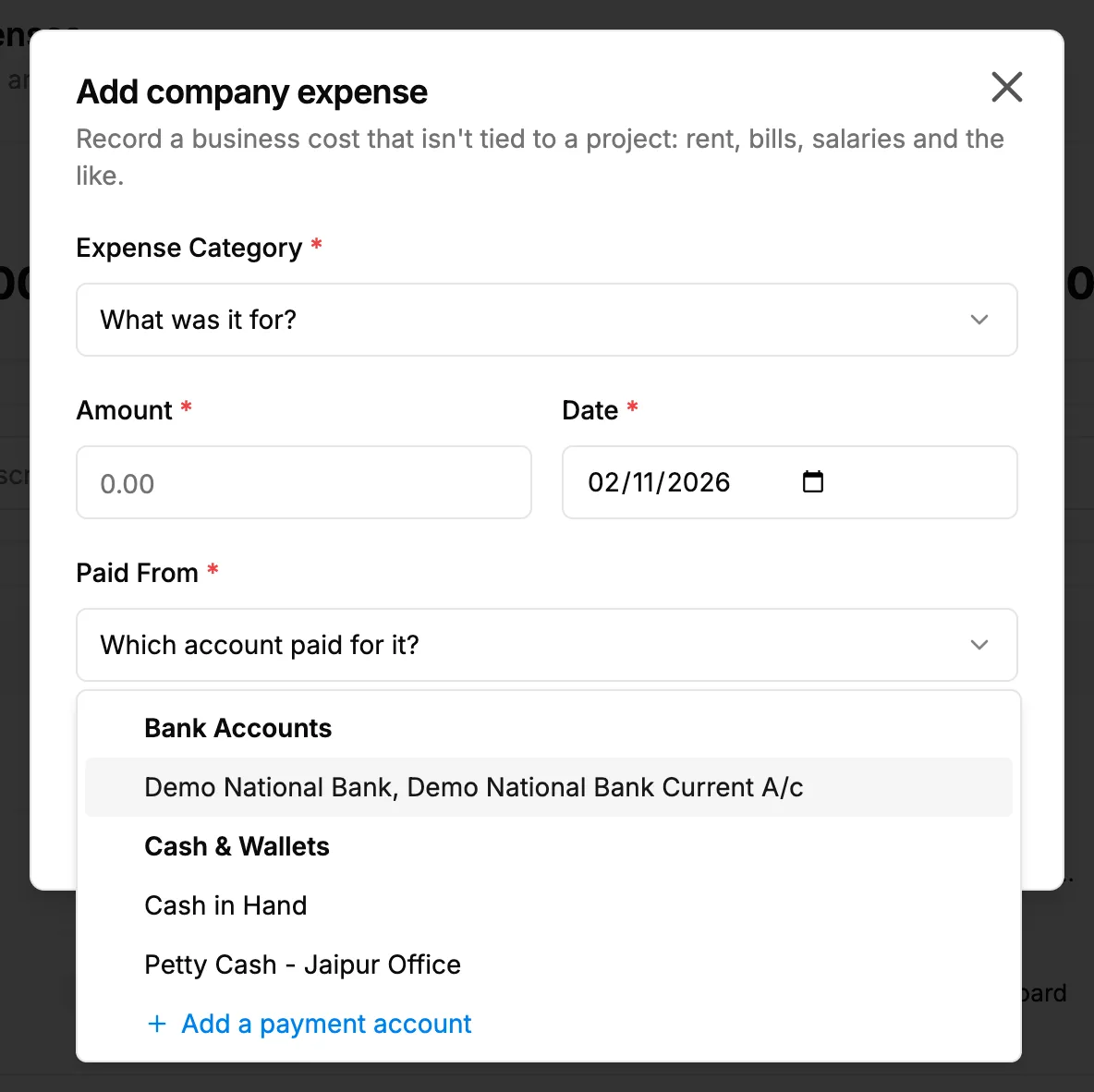
Step 2. The Add company expense box with Expense Category, Amount, Date and Paid From. -
Fill in the expense:
Field Required What to enter Expense Category Yes What was it for? A company category. Create new category adds one. Amount Yes Above 0, with at most 2 decimal places. Date Yes A date. Starts on today. Paid From Yes Which account paid for it: one of your Bank Accounts or Cash & Wallets. -
To add more, select More details (optional) and fill in Description / Notes (for example August office rent), Paid To / Vendor, Reference No. (a cheque or UTR number), Payment Method (Bank Transfer, Cash, UPI, Card, Cheque or Other) and Receipt.
-
Select Save expense.
-
If "Possible duplicate" asks about a similar expense, check it. Select Save anyway to keep this one.
Add a category as you go
- In Expense Category, choose Create new category, the first item.
- Name the category, then select Add category. It is chosen for this expense.
Add a payment account as you go
- In Paid From, choose Add a payment account.
- In "Name this account: cash box, wallet, anything money is paid from", type the name, for example Petty Cash.
- Select Add account. The message "Account added" shows, and the account is chosen.
"For a bank account, add it under Accounts › Banking so statements and reconciliation work too." See Add, edit or delete a bank account.
Result
The message "Expense saved" shows. The expense is on the Company Expenses tab with its Date, Category, Paid From, Paid To and Amount. It is posted to your accounts as it is saved. If it cannot be posted, a warning gives the reason, and the row counts under Not in accounts. See A company expense says Not in accounts.
If something is different
- No Add Company Expense: you need Add on Expenses and Can see purchase costs. See Amounts show Restricted, or invoice and costing buttons are missing.
- A warning after saving, such as "Category isn't linked to an account yet": the expense is saved but not in your accounts. See A company expense says Not in accounts.
- No Add a payment account: only Owner, Admin and holders of Accounts Management can add one. Ask them, or pick an existing account.
- The category you want is not listed: the list shows company categories only (scope Company, or Project and company).
- The box refuses to save: see An expense cannot be saved, edited or voided.
- A plan warning opens: see Create Invoice or Add Expense opens a plan or upgrade box.