
Before you start
- You need Financial Management, View on Job costing sheets, Add on Invoices and Can see selling prices.
- The Job Costing and Service & Maintenance modules are on.
- The jobs you bill together have the same customer and the same currency.
Steps
From the Services tab
-
On Financial › Job Costing, open the Services tab. See Read job costing for service contracts and one-off jobs.
-
Tick the contracts or one-off jobs to bill.
-
Select Create invoice ([number]). "Create New Invoice" opens with "Billing: [services]. Each line below is tagged with the service it bills; change a line's service with its picker."
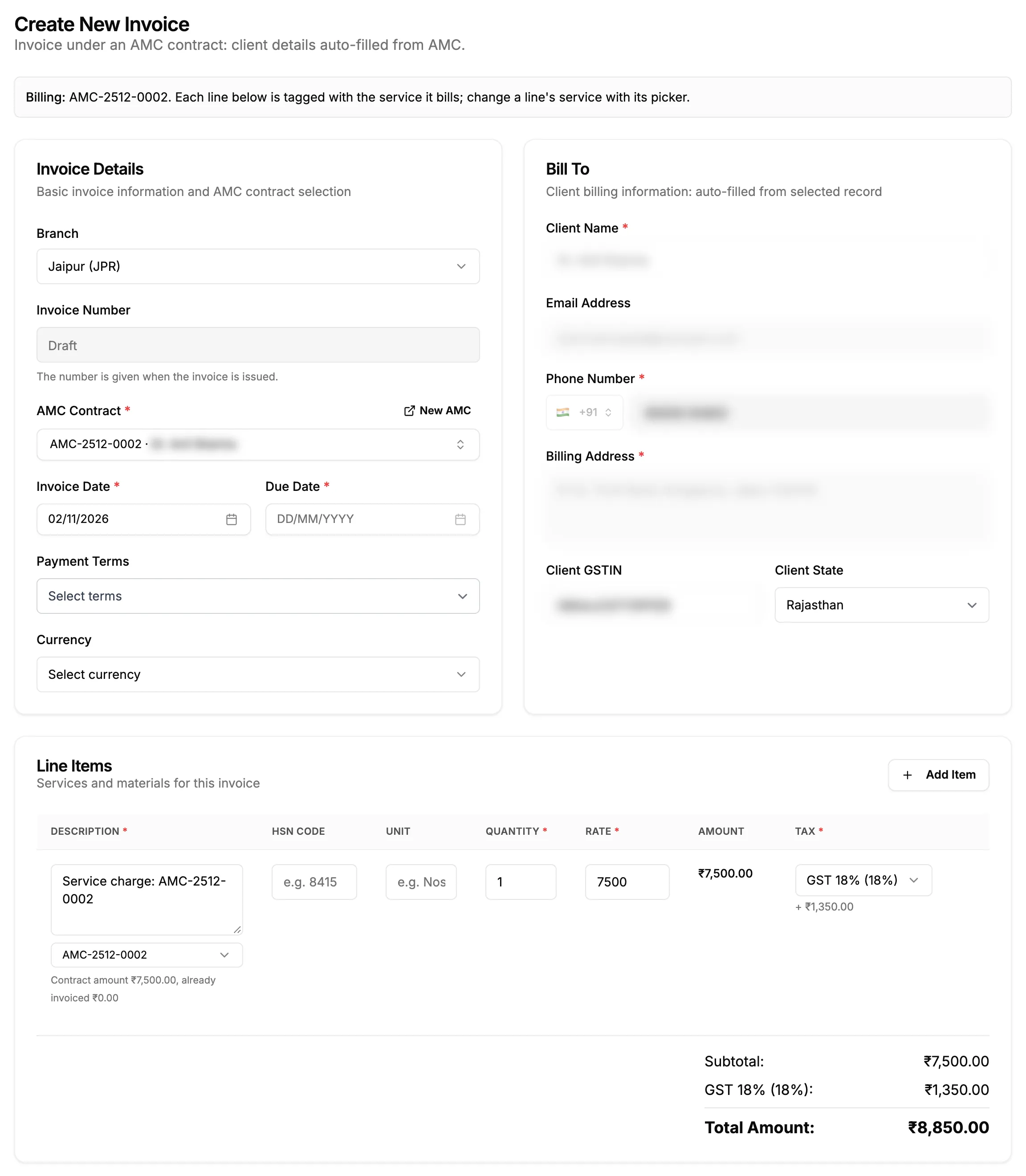
Step 3. Create New Invoice opened from Job Costing, with the Billing line and the service picker on each line.
From one service's page
- Open the service job, then its Invoices tab.
- Select Create invoice. The new invoice form opens for that contract or visit.
Finish the invoice
- Check the lines. On each, the service picker (it has no label) shows the service number with "Contract amount [amount], already invoiced [amount]" under it. Change it if the line bills another service, or choose No service.
- Fill in the rest of the invoice as usual. See Create an invoice.
- Select Create Invoice.
Result
The invoice is a Draft. It shows on each service's Invoices tab, and the invoice page lists Services covered: Service, Contract, Visit, Lines, Amount and Tax. Next: Issue an invoice.
If something is different
- "Tick the services to invoice first": tick at least one row.
- "These services belong to different customers (...)" or "These services are in different currencies (...)": bill them on separate invoices.
- "Already fully invoiced: [services]. You can still save this invoice.": those services are billed in full already. Check before you save.
- No Create invoice on a service page: you need Add on Invoices.
- The Services tab is greyed out: the Service & Maintenance module is off.