
Before you start
- You need Financial Management and Can see selling prices.
- To edit, you need Edit on Payments. To delete, Delete on Payments.
- From the invoice's page, a payment can be deleted only while the invoice is not paid. For a paid invoice, delete it from Payment Status.
Steps
Edit a payment
-
In the sidebar, select Financial › Payment Status. The Payments Received tab opens.
-
Find the payment. See Follow payments received and pending on Payment Status.
-
On its row, select the pencil. "Edit Payment" opens: "Update payment details".
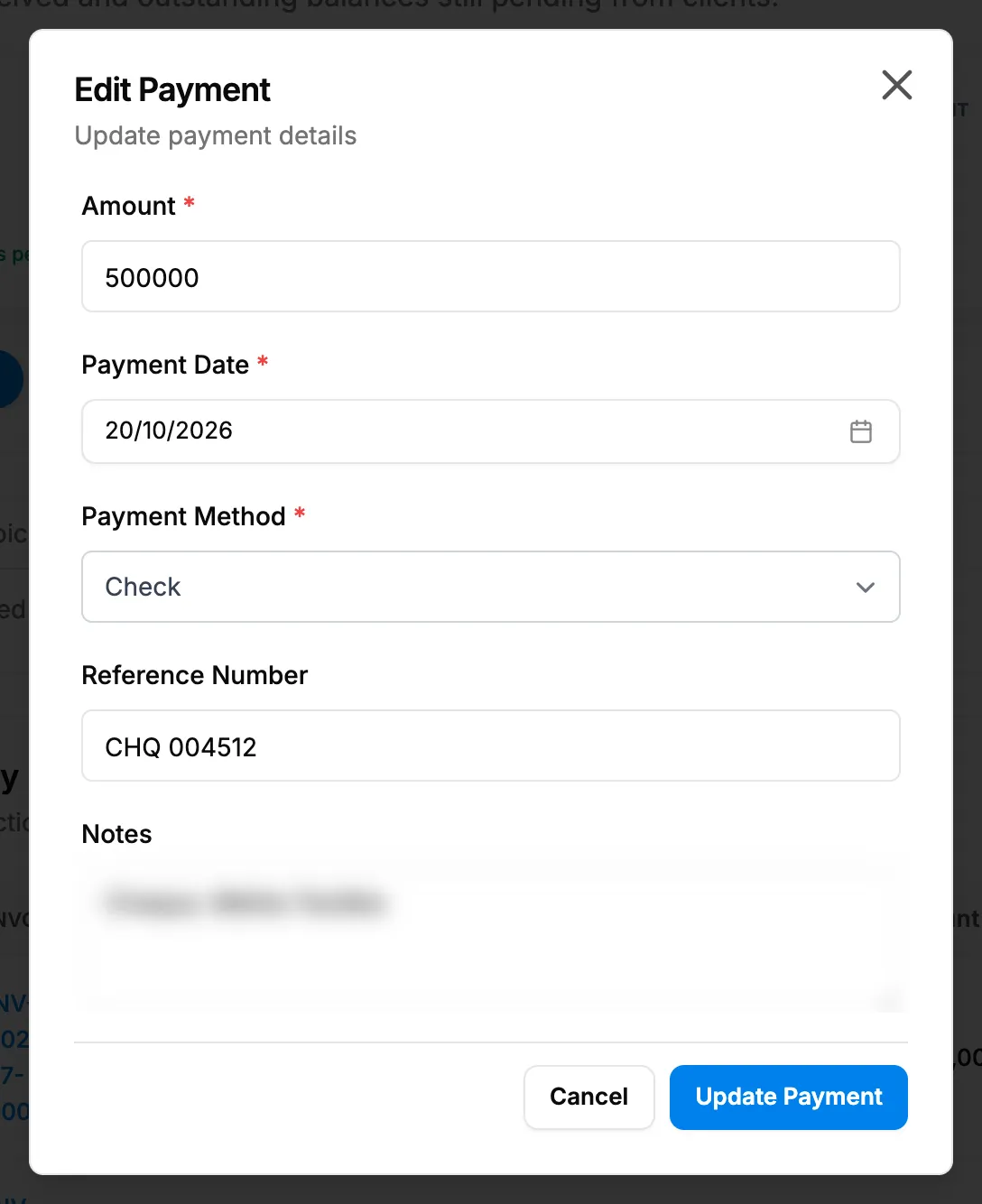
Step 3. The Edit Payment box with Amount, Payment Date, Payment Method and Reference Number. -
Change Amount, Payment Date, Payment Method, Reference Number or Notes. The amount cannot be above what is outstanding.
-
Select Update Payment. It reads "Updating..." while it saves.
Delete a payment
- On Payment Status, select the bin on the payment's row. "Delete Payment" asks: "Are you sure you want to delete this payment? It will stop counting toward the invoice and all reports; the record is kept."
- Or, on the invoice's page, under Payments, select Delete on the payment. The box says: "Are you sure you want to delete this payment? The invoice balance will be updated; the payment record is kept."
- Select Delete. It reads "Deleting..." while it works.
Result
Edit a payment: the message "Payment updated successfully" shows. The invoice's status is worked out again from its payments, and the receipt voucher follows.
Delete a payment: the message "Payment deleted successfully" shows. The payment no longer counts toward the invoice or any report, but its record is kept. The invoice goes back to Issued, Partially Paid or Overdue, by what is left. Its receipt voucher is cancelled. A draft stays a draft; a cancelled invoice stays cancelled.
If something is different
- The Edit Payment box opens but has no Update Payment, and its fields are read only: you do not have Edit on Payments. The pencil shows to everyone who can see the list.
- No bin on Payment Status: you need Delete on Payments.
- No Delete on the invoice's Payments card: you need Delete on Payments, or the invoice is paid. Delete the payment from Payment Status instead.
- "Payment amount cannot exceed the outstanding amount.": lower the amount.
- "Payment date cannot be in the future": choose today or an earlier date.