
Before you start
- You are the Owner or Admin. The right "Can mark expense claims paid" has no tick box on any screen, so no other role can be given it.
- The claims are Approved. A company card claim is paid when it is approved and needs no step here.
- For claims charged to nothing, know the account the money was paid from.
Steps
Mark claims paid
-
On Financial › Expense Claims, set Status to Approved.
-
Tick the claims, then select Mark [number] paid. Or open one claim and select Mark paid. "Mark the claim paid" (or "Mark [number] claims paid") opens: "Paying creates the matching expense in Financial: a project expense for a claim charged to a project or service job, a company expense otherwise."
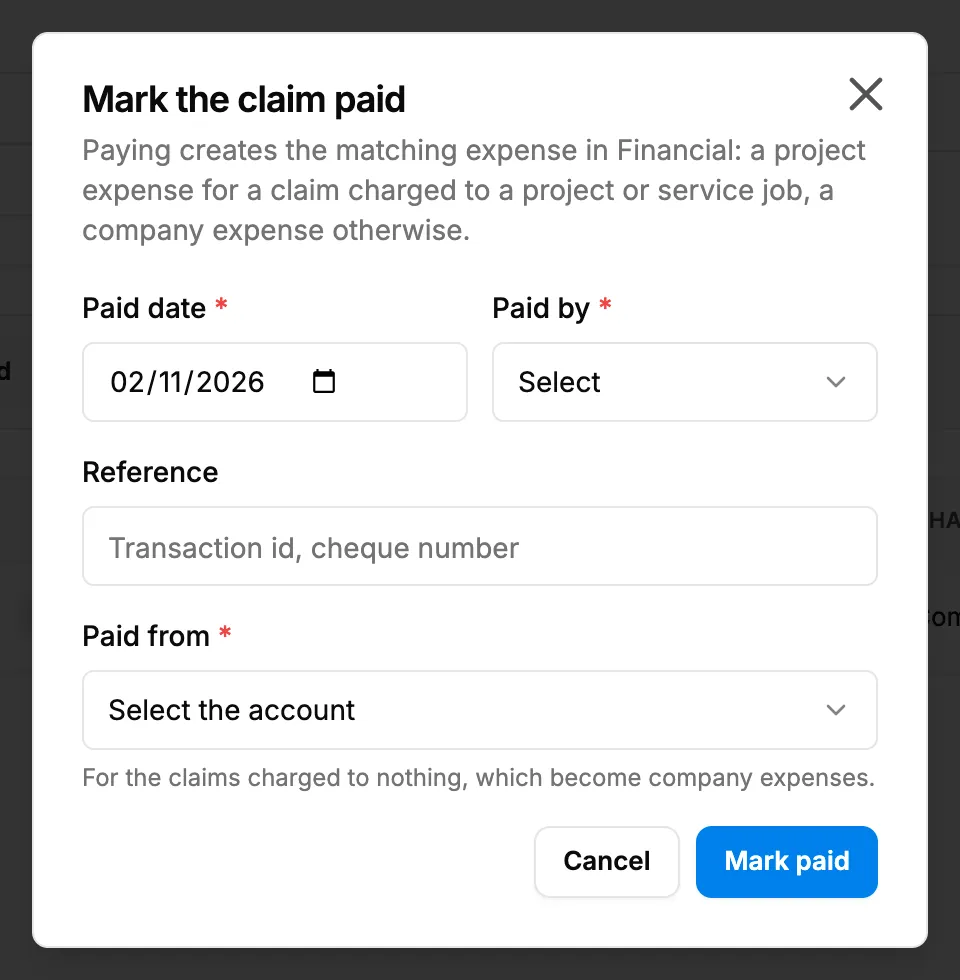
Step 2. The Mark the claim paid box with Paid date, Paid by, Reference and Paid from. -
Fill in the payment:
Field Required What to enter Paid date Yes A date, not after today and not before the claim's expense date. Paid by Yes Cash, Bank transfer, UPI, Card, Cheque or Other. Reference No Transaction id or cheque number. Up to 100 characters. Paid from Yes The account it was paid from ("Select the account"). The help reads "For the claims charged to nothing, which become company expenses." -
Select Mark paid.
Create a missing expense
- Open a paid claim whose Timeline says "The expense is not created yet".
- Select Create the expense. "Create the expense" opens: "The claim is paid; its expense was not created. Create it now."
- Check the fields, then select Create the expense.
Result
Each claim is Paid. Its expense is created and linked on the Timeline, "Recorded as a [type] expense in Financial":
- a claim charged to a project, service visit or service contract becomes a paid project expense, dated the claim's expense date;
- a claim charged to nothing becomes a company expense, dated the paid date, paid from the Paid from account.
The new expenses are on Financial › Expenses and count in job costing. See How an expense claim moves from Draft to Paid.
If something is different
- No Mark paid, or "You do not have the right to mark expense claims paid.": only Owner and Admin can mark claims paid. See Mark paid is missing or refused on an expense claim.
- "Only an approved claim can be marked paid.": the claim is not approved, or is already paid.
- "Enter the paid date and how it was paid.": fill in Paid date and Paid by.
- "Choose which account the company expense was paid from.": choose Paid from.
- "Could not mark the claims paid.": try again. If one claim keeps failing, mark it on its own.
- A company expense from a claim says Not in accounts: see A company expense says Not in accounts.