
Before you start
- You need Financial Management and View on Invoices.
- To export, you need Can export lists.
Steps
Find an invoice
-
In the sidebar, select Financial › Invoices. "Invoices & Payments" opens: "Manage project invoices, track payments, and monitor billing status."
-
In the search box, type part of the invoice number, project, client or amount ("Search by invoice, project, client, or amount...").
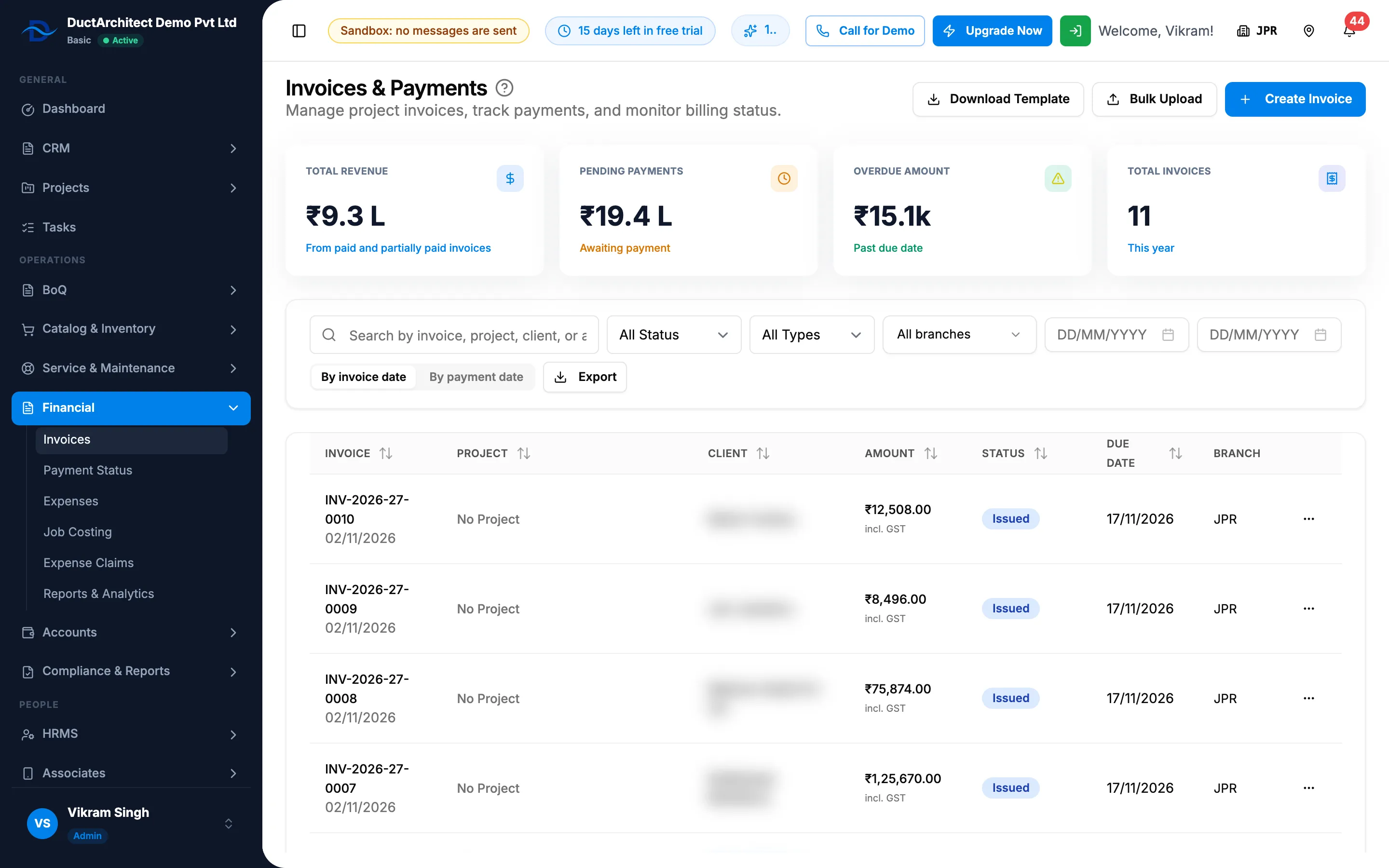
Step 2. Invoices & Payments with the stat cards, the search box and the filters. -
To narrow the list, choose a status (All Status, Draft, Issued, Paid, Overdue, Cancelled) and a type (All Types, Project, Individual, Service).
-
With more than one branch, choose a Branch.
-
To limit by invoice date, set the two dates. The boxes have no labels and show "DD/MM/YYYY".
-
To start again, select Clear.
-
To sort, select a column heading: Invoice, Project, Client, Amount, Status or Due Date.
-
To open an invoice, select View Invoice in its row menu.
Read the cards
- Total Revenue: "From paid and partially paid invoices". Switch the toggle to By payment date to count "Payments received in this period" instead of By invoice date.
- Pending Payments ("Awaiting payment"), Overdue Amount ("Past due date") and Total Invoices ("This year").
- When the figures are in more than one currency, a Breakdown by Currency panel shows Revenue, Pending Payments and Overdue Amount per currency.
See a client's details
- In the Client column, select the client's name. A box opens with the client's name, Active or Inactive, and Notes.
- Select View their projects, or Close.
Export the list
- Set the search and filters you want.
- Select Export, then Export Excel or Export PDF. The file is named Invoices and holds every invoice that matches the filters.
Result
The list shows the matching invoices, with Invoice (the number, or "Draft", and the invoice date), Project ("No Project" when none), Client, Amount, Status and Due Date (red when overdue). For an Indian company invoicing in INR with tax, the amount shows "incl. [tax]". With filters and no match: "No invoices match your filters."
If something is different
- No Partially Paid in the status filter: the filter has none. Choose All Status and sort by Status, or use the Payments Pending tab on Payment Status. See Follow payments received and pending on Payment Status.
- An amber "⚠ [number] returned" chip on a row: units were returned to stock and are "not reflected in this invoice (estimated)". See Record a sales return or issue a credit note from an invoice.
- No Branch filter or column: your company has one active branch.
- No Export: you do not have Can export lists. See Restrict what a role can see and export.
- "No invoices yet. Create your first invoice to get started.": there are none. See Create an invoice.
- The page title says "Invoices & Payments" but the sidebar says Invoices: it is the same page.