
Before you start
- You need Financial Management and Can see purchase costs.
- To edit, mark paid or attach a bill, you need Edit on Expenses. To delete or void, Delete on Expenses.
- A voided company expense cannot be edited.
Steps
Edit a project expense
- On Financial › Expenses, Project Expenses tab, find the expense. See Find and export expenses.
- Select the pencil in Actions. "Edit Expense" opens.
- Change what you need, then select Update Expense.
Delete a project expense
- On the expense's row, select delete. "Delete this expense?" asks: "The expense will be removed from all lists and project totals; the record is kept."
- Select Delete.
Edit a company expense
- On the Company Expenses tab, select Edit on the expense. "Edit company expense" opens.
- Change what you need, then select Save changes.
Void a company expense
-
On the expense's row, select Void. "Void this expense?" asks: "The expense will be marked as voided and its accounting entry cancelled, so it no longer counts towards your reports. The record is kept for your audit trail."
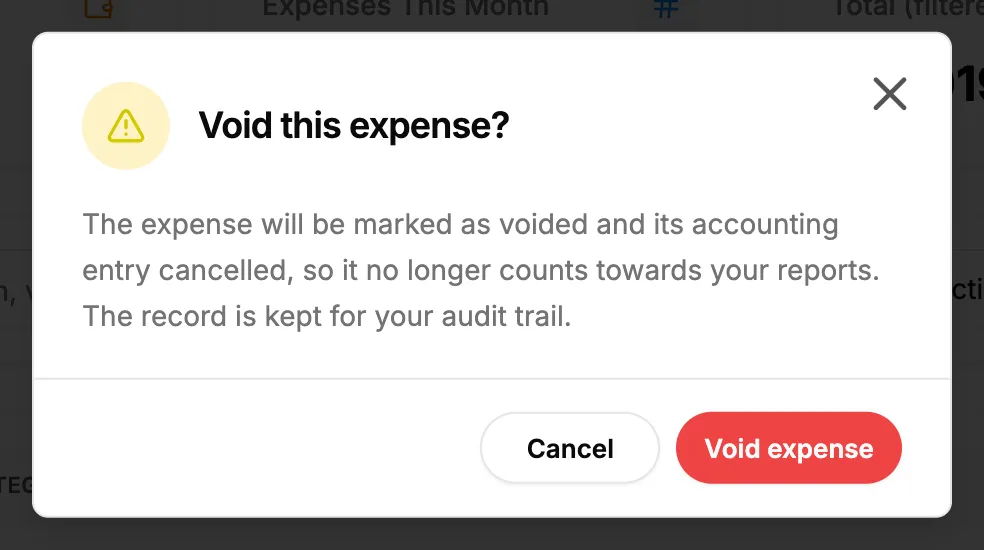
Step 1. The Void this expense box with the Void expense button. -
Select Void expense.
Mark a project expense paid or attach its bill
- Open the job's job costing page, or the project's Costing tab, and its Expenses tab. See Read a project's job costing.
- On an unpaid row, select Mark paid. The expense is marked paid today.
- On a row with no bill, select Attach bill and choose the file.
Result
- Edit a project expense: the message "Expense updated" shows. The job costing figures and the posting to your accounts follow the change.
- Delete a project expense: the message "Expense deleted" shows. It leaves every list and project total; the record is kept. Its posting in your accounts follows.
- Edit a company expense: the message "Expense saved" shows.
- Void a company expense: the message "Expense voided" (or the server's own message) shows. The row stays, faded, with the amount struck through. Its accounting entry is cancelled. It never comes back to active.
- Mark paid: the message "Marked paid" shows, and the payment chip reads "Paid [date]". Attach bill: "Bill attached" shows, and the Bill column fills.
If something is different
- The box opens read only, with no Update Expense or Save changes: you do not have Edit on Expenses. The pencil and Edit show to everyone who can see the list.
- No delete or Void: you need Delete on Expenses.
- "This expense has been voided and can no longer be edited.": a voided expense stays as it is. Add a new one if the cost was real.
- No Void on a project expense, or no delete on a company expense: project expenses are deleted, company expenses are voided.
- No Mark paid or Attach bill: the row is already paid or already has a bill, or you do not have Edit on Expenses.
- The expense came from a paid expense claim: the claim keeps a link to it. If you delete the expense, the claim's timeline reads "Expense record deleted".