
Before you start
- You need Financial Management and View on Job costing sheets. With View on Expenses alone you see only the Expenses tab.
- For the cost and margin figures, Can see purchase costs and Can see profit and margin.
- The project has an awarded quotation, so there is a contract value to compare with. Without one the page reads "Not tracked".
Steps
Open the project's job costing
-
Open it one of two ways:
- In the sidebar, select Financial › Job Costing, then the project's row. The page title is the project name, with the back link All projects.
- Open the project, then select the Project Cost card or the Costing tab. The tab shows the same job costing under the heading "Costing". See The project page: header, cards and tabs.
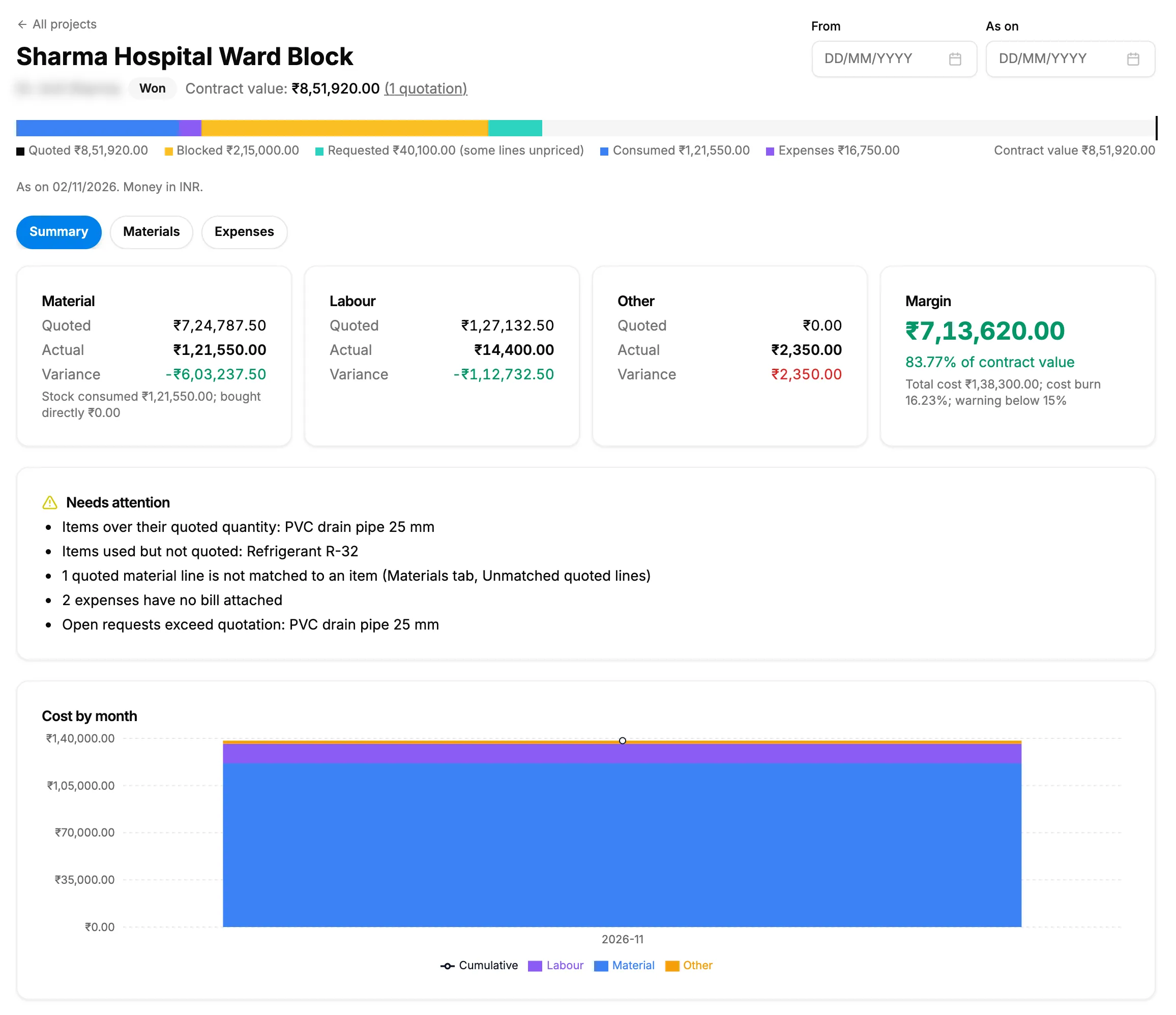
Step 1. A project's job costing with the contract value, the dates and the Summary tab. -
Read the header: "Contract value: [amount]". Select the quotation count beside it, for example "(1 quotation)", to see the "Awarded quotations (excluding tax)".
-
Read the strip under the header: "Quoted", "Blocked", "Requested (some lines unpriced)", "Consumed", "Expenses" and "Contract value".
-
To look at a period, set From and As on. The note reads "As on [date], cost from [date]. Money in [currency]."
Read the Summary
- On Summary, read Margin, Needs attention and Cost by month.
- The margin colour shows how it stands against your margin threshold. See How job costing works out a project's cost and margin.
Set a category's cost type
- On Summary, find the category flagged "Cost type not set (reads as Labour)" or "Cost type not set".
- Select Set type and choose Material, Labour or Other.
- Reload the page. "Cost type saved. Reload to see the figures move."
Read the Materials and Expenses
- Select Materials to compare each quoted item with what was issued. See Reconcile a project's materials on job costing.
- Select Expenses to see the project's expenses. Filter by From, To, Category, Added by, Bill (Attached or Not attached) and Payment (Paid or Unpaid). The footer gives the Total.
- To add a cost here, select Add Expense. See Add a project expense. Mark paid and Attach bill are on each row: see Edit, delete or void an expense.
- To export the expenses, select Export. The file is named Project-Expense-Statement-[name].
On the project's Costing tab, the expense claims charged to the project are listed too.
Result
You see what the project earns, what it has cost so far and the margin, by month, by material line and by expense. Every figure is described in Job Costing: columns, figures and badges. This is the last step of the Project manager path.
If something is different
- "Job Costing is turned off" with "An administrator can turn it on in Settings, Modules. The project's Costing tab still shows its costs.": the Job Costing module is off. Open the project's Costing tab instead, or see Financial, Job Costing, Expense Claims or Project Financials is missing.
- No Costing tab on the project: you need View on Expenses or View on Job costing sheets.
- Only the Expenses tab: you have View on Expenses but not on Job costing sheets.
- "Not tracked", or the cost looks wrong after a stock out or an expense: see Job Costing says Not tracked, or a cost looks wrong.
- Figures show Restricted: see Amounts show Restricted, or invoice and costing buttons are missing.
- Nothing moved after Set type: reload the page.