
Before you start
- You need no permission. The Employee Expenses module is on for your company.
- Have the receipt ready: a JPEG, PNG or PDF file, up to 5 MB. By default a claim cannot be submitted without it.
- To charge the claim to a project, a service visit or a service contract, it must be one you can charge.
Steps
-
In the sidebar, select My Expenses. "My Expenses" opens.
-
Select Add expense. "Add expense" opens: "Saved as a draft until you submit it. A submitted claim waits for approval and can be withdrawn until it is decided."
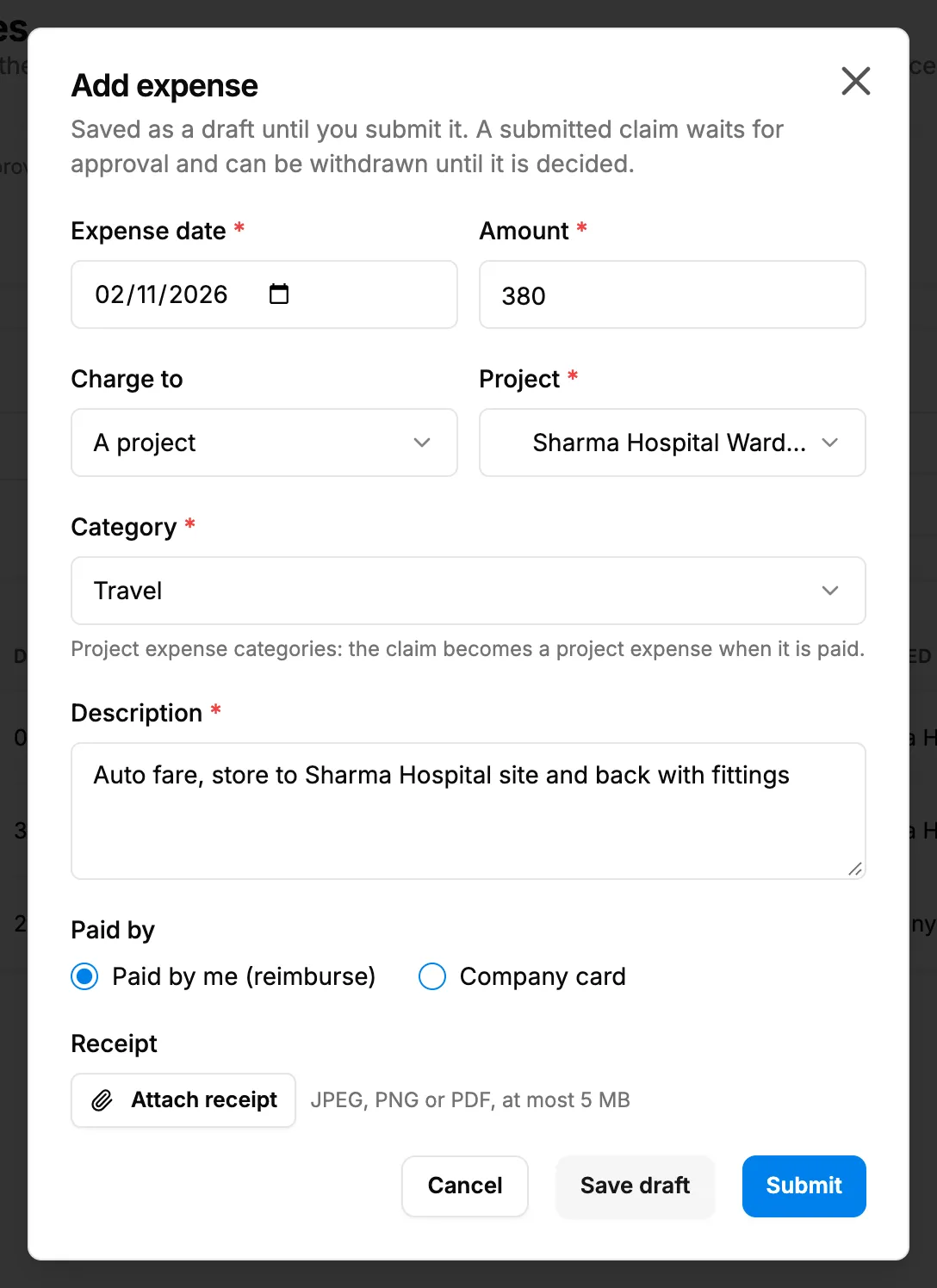
Step 2. The Add expense box with Expense date, Amount, Charge to, Category, Description, Paid by and Attach receipt. -
Fill in the claim:
Field Required What to enter Expense date Yes The date you spent it. Starts on today. Amount Yes What you spent. Charge to No Nothing (company expense), A project, A service visit or A service contract. Starts on Nothing. Project, Service visit or Service contract Yes When Charge to is not Nothing: choose which one. It reads Nothing you can charge when there is none. Category Yes Project categories when the claim is charged, company categories otherwise. Add category adds one. Description Yes What was it for? Up to 1000 characters. Paid by No Paid by me (reimburse), or Company card. Starts on Paid by me. Receipt No Attach receipt. Required to submit unless your company has turned that off. -
Select Attach receipt and choose the file.
-
Select Submit. To finish later, select Save draft instead.
Result
The claim is Submitted and waits for approval. It is on My Expenses with its number, and on Financial › Expense Claims and the Approvals page for the people who decide. They are told it was submitted. See How an approval request moves from Pending to a decision.
With Save draft, the claim is a Draft: nobody is told, and you can change it. See Follow your expense claims: edit, withdraw or delete a draft.
When it is approved and paid, a Paid by me claim is paid back to you. A Company card claim: "Nothing is reimbursed: the claim is marked paid when it is approved." See How an expense claim moves from Draft to Paid.
If something is different
- No My Expenses in the sidebar, or "The Employee Expenses module is switched off for your company (Settings, Modules).": see Financial, Job Costing, Expense Claims or Project Financials is missing.
- "Attach the receipt before submitting.", "Attach a JPEG, PNG or PDF file." or "The file is larger than 5 MB.": see An expense claim cannot be saved or submitted.
- "Choose what the expense is charged to.": choose the project, visit or contract, or set Charge to back to Nothing.
- "Nothing you can charge": there is no project, visit or contract you can charge. Charge it to Nothing, or ask your office.
- No A service contract in Charge to: it shows only when you have contracts to charge.
- "Could not save the claim.": try again. See An expense claim cannot be saved or submitted.
- Using the worker app or the Associate Portal: neither has an expense claim screen. Add the claim here, on My Expenses. A Worker login opens only the Associate Portal: ask your office how to claim. See I can't find expenses, leave, payslips or Forgot Password in the worker app.