
Before you start
- You need Financial Management, Add on Invoices and Can see selling prices. Your company's plan is active.
- For a Project invoice, you need View on Projects, and the project exists. For a Service (AMC) invoice, the AMC contract exists.
- For GST on the lines, your company's tax details and tax slabs are set up. See Set up GST and your tax registration and Tax slabs: add, edit, set default, delete.
Steps
Choose the type and fill in the invoice
-
In the sidebar, select Financial › Invoices. "Invoices & Payments" opens.
-
Select Create Invoice. "Select Invoice Type" opens.
-
Choose Project, Individual or Service (AMC). "Create New Invoice" opens.
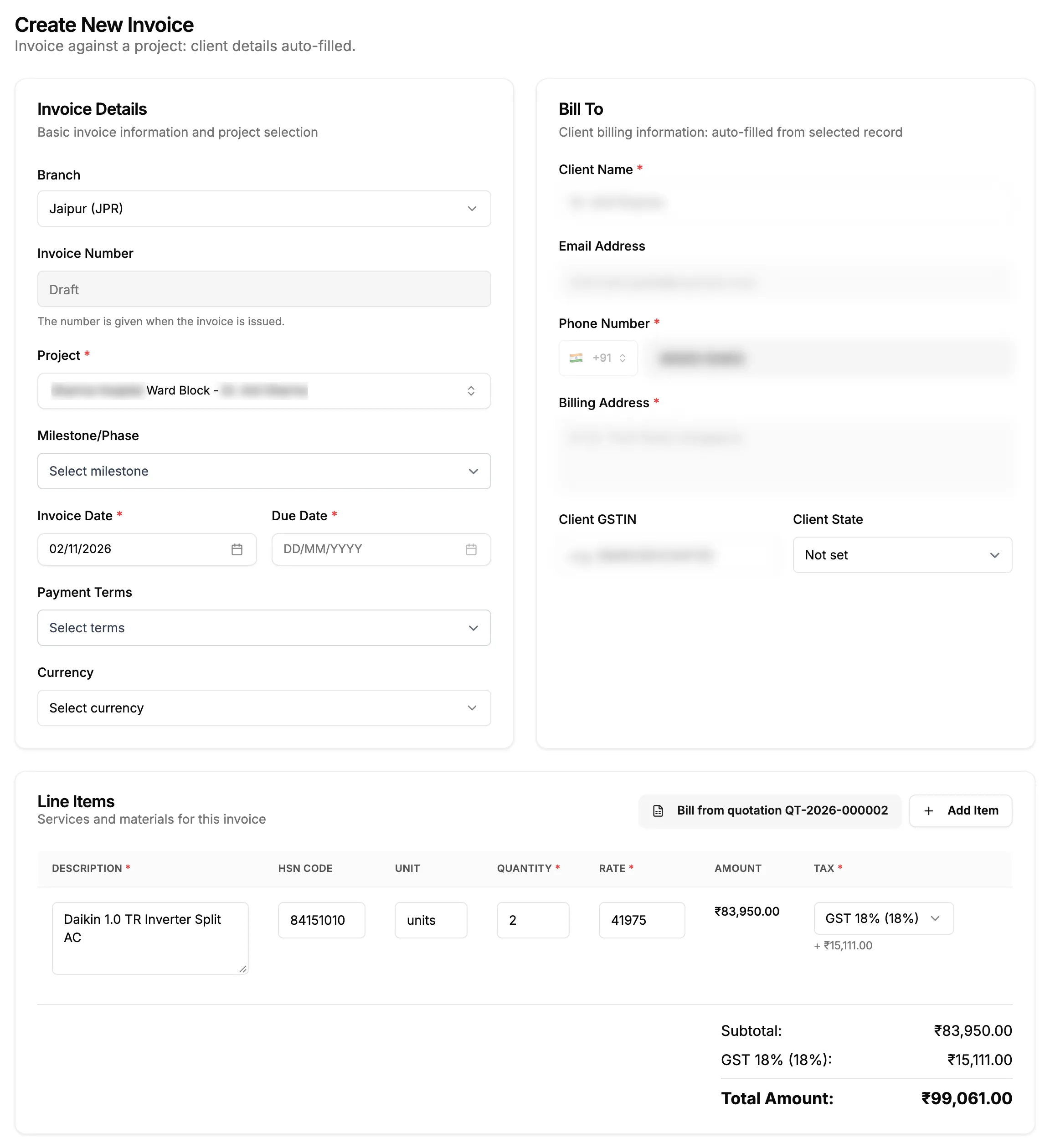
Step 3. Create New Invoice for a project, with the Invoice Details, Bill To and Line Items cards. -
Under Invoice Details, fill in the fields:
Field Required What to enter Branch No Shows only with more than one active branch. The branch decides the seller details and the number series. Invoice Number No Read only. It shows "Draft": "The number is given when the invoice is issued." Project or AMC Contract Yes For a Project or Service (AMC) invoice. The client details fill in from it. Milestone/Phase No Project invoices: the stage this invoice bills. Invoice Date Yes A date. Starts on today. Payment Terms No One of your payment terms. A term with days sets the Due Date. + Add New adds a term. Due Date Yes A date, not before the invoice date. Filled from the payment terms when they have days. Currency No Starts empty, on "Select currency". -
Under Bill To, check the client. On an Individual invoice, choose or type it: see the next section.
-
Under Line Items, fill in each line: Description (search your catalog, or type), HSN Code, Unit, Quantity and Rate. Amount is worked out.
-
For an Indian company invoicing in INR, choose the Tax slab on each line. It starts on your default slab.
-
For each further item or service, select Add Item in the Line Items card header. To remove one, select its bin, then Delete.
-
Check Subtotal:, the tax rows and Total Amount:.
-
If you want, fill in Additional Notes and add files under Proof Documents (JPEG, PNG, PDF or Excel, up to 5 MB each).
-
Select Create Invoice (bottom right, beside Cancel).
Every field is described in Create and Edit Invoice: every field. On a Project invoice you can add lines from the awarded quotation: see Bill a project invoice from an awarded quotation.
Pick or type the client
On a Project or Service (AMC) invoice the client comes from the project or contract and cannot be changed here. On an Individual invoice:
- In Client Name, start typing. Saved clients show under Existing Clients.
- Choose a client, or select "Use "[name]" as client name" to bill a person who is not a saved client. New Client adds one to your client list: see Add a client.
- Check Email Address, Phone Number and Billing Address.
- Check Client GSTIN and Client State. They fill in from a saved client.
Start from a copy of another invoice
- On the invoice's row on Invoices & Payments, or on the invoice's page, select Duplicate. "Duplicating invoice..." shows.
- The copy opens as a new draft dated today. Change what differs, then save it.
Result
The invoice is a Draft. It is on Invoices & Payments with "Draft" in the Invoice column, because it gets its number only when it is issued. A copy shows "Invoice duplicated as [number]" or "Invoice duplicated successfully".
Nothing is posted to your accounts yet, and no payment can be recorded. Next: Issue an invoice.
If something is different
- No Create Invoice or Duplicate: you need Add on Invoices and Can see selling prices. See Amounts show Restricted, or invoice and costing buttons are missing.
- The type box offers no Project: you need View on Projects. The form then opens as Individual.
- A plan warning or an upgrade box "Invoices" opens: see Create Invoice or Add Expense opens a plan or upgrade box.
- The invoice will not save: see An invoice cannot be saved.
- No Branch field: your company has one active branch. The invoice uses it.
- No Tax column or tax rows: they show only for an Indian company invoicing in INR. See The invoice has no GST column, or no CGST and SGST split.
- Payment Terms shows "Select terms": the form starts with a value that is not one of your terms. Choose a term, or set the Due Date yourself.
- The AMC contract list says you cannot view contracts: you need View on Service contracts. To add the contract, see Add an AMC contract.
- No New Invoice in the sidebar: there is none. Start from Create Invoice on Invoices & Payments.
- Many invoices at once: see Import invoices from Excel.