
Before you start
- You are the Owner or Admin, with User Management.
- Have your GSTIN ready, for example 27ABCDE1234F1Z5.
Steps
-
Select your name at the bottom of the sidebar.
-
Select Settings.
-
Scroll to Tax Configuration and fill in the fields.
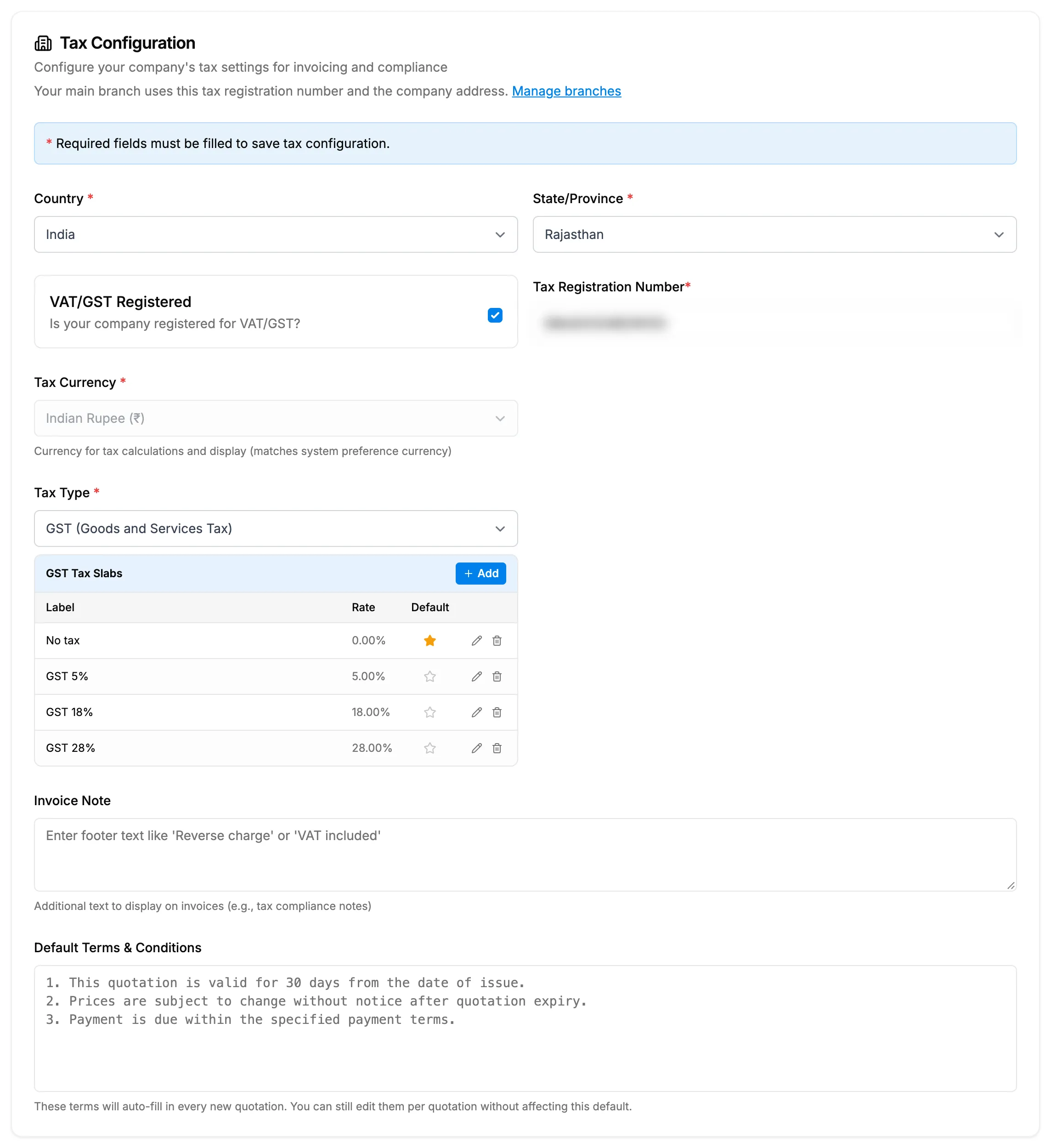
Step 3. The Tax Configuration card filled in for GST. Field Required What to enter Country Yes Your tax country, for example India. Changing it clears State. State/Province Yes Your state, from the list for India. VAT/GST Registered No Tick when your company is registered. Typing a number ticks it for you. Tax Registration Number Yes Your 15-character GSTIN. Required when registered. Upper case. Tax Currency No Not editable. Follows the company currency. Tax Type Yes Choose GST (Goods and Services Tax). The tax slab table appears under it. Invoice Note No Footer text for invoices, for example Reverse charge. Under 1000 characters. Default Terms & Conditions No Fills every new quotation. You can still edit it per quotation. -
Select Save All Settings at the bottom of the page.
Result
The message "Settings saved" shows. The tax type has a "No tax" slab at 0%, created for you. When the Branches module is on, Settings shows "Your main branch uses this tax registration number and the company address."
Next: Add a tax slab for each GST rate you charge, then Set the default tax slab.
If something is different
- "Enter a valid GSTIN (15 characters, e.g., 27ABCDE1234F1Z5)": check the number.
- "Tax registration number is required when VAT/GST is registered": enter the number or untick VAT/GST Registered.
- "Insufficient permissions to update tax configuration" or Save All Settings is greyed out: ask your Owner or Admin.
- The tax country cannot be changed: only an Owner or Admin can change it.
- "Tax configuration failed to save": try again.
- Your branches have their own GSTIN: enter each one on the branch. See Add a branch.