
Before you start
- You are the Owner or Admin. Only they see the Set up your data card.
- To mark a step done, its badge reads Pending.
- To reset a step, it is "Done" or Skipped.
- To mark setup complete, every step is done or skipped. The footer reads "All steps addressed."
Steps
Mark a Data Import step as done
Use this when you have already entered that data by hand.
-
Select your name at the bottom of the sidebar.
-
Select Data Import.
-
On the step's card, select Mark done.
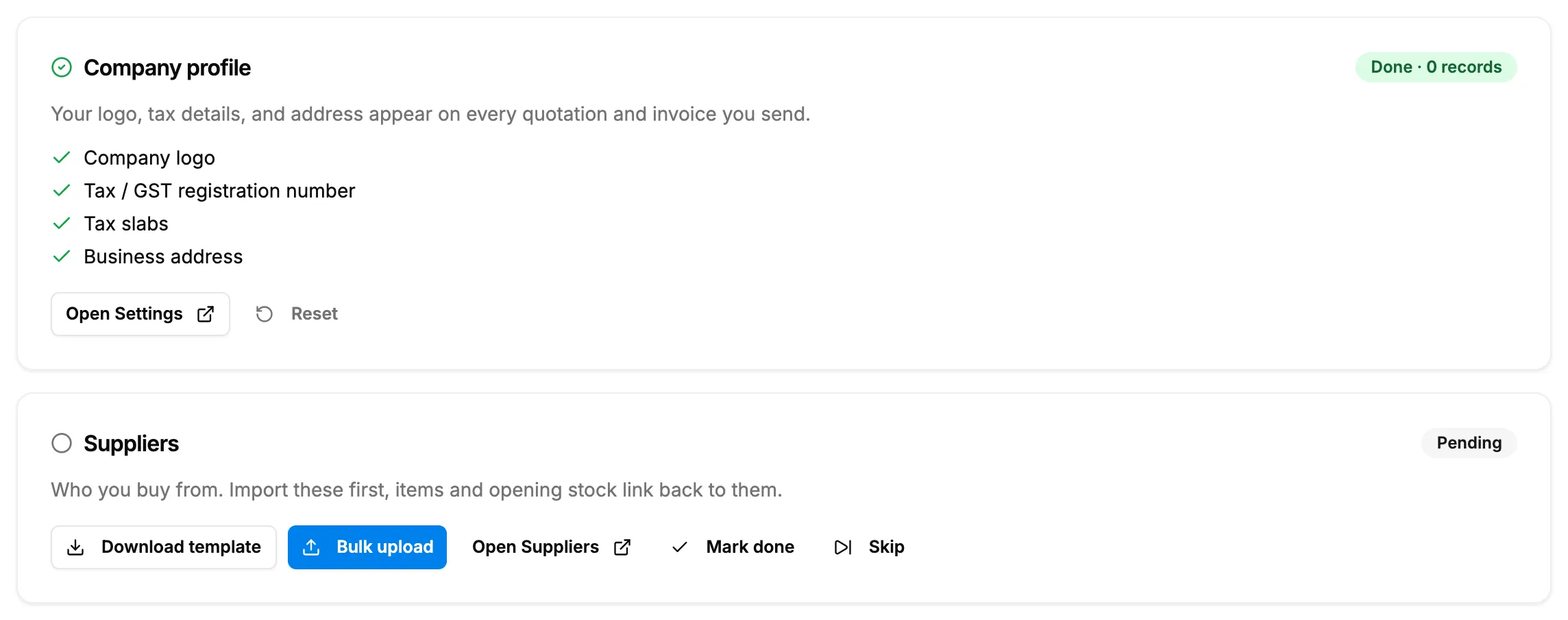
Step 3. A Data Import card with Mark done, Skip and its badge.
Skip a Data Import step
Use this for a step that does not apply to your business.
- Select your name at the bottom of the sidebar.
- Select Data Import.
- On the step's card, select Skip. The box "Skip this step?" says "You can come back anytime. This module stays available under Settings."
- Select Skip.
Reset a Data Import step to Pending
- Select your name at the bottom of the sidebar.
- Select Data Import.
- On the step's card, select Reset.
Mark Data Import setup complete
- Select your name at the bottom of the sidebar.
- Select Data Import.
- At the foot of the page, select Mark setup complete. The box "Mark setup complete?" says "This hides the dashboard reminder. Data Import stays available under Settings if you need it again."
- Select Mark complete.
Hide the Set up your data card
- Select Dashboard in the sidebar.
- On the Set up your data card, select Dismiss. The box "Dismiss setup reminder?" says "This hides the card. Data Import stays available under Settings whenever you need it."
- Confirm in the box.
Result
Mark a Data Import step as done: the badge changes to "Done" and the progress card counts the step as addressed. Next: Mark Data Import setup complete when every step is done or skipped.
Skip a Data Import step: the badge changes to Skipped and the progress card counts the step as addressed.
Reset a Data Import step to Pending: the badge changes back to Pending. Data already imported stays in DuctArchitect.
Mark Data Import setup complete: the message "Setup complete: Data Import stays available under Settings." shows. The Set up your data card leaves the dashboard.
Hide the Set up your data card: the message "Dismissed: Data Import stays available under Settings." shows and the card leaves the dashboard for your company.
If something is different
- "Access denied": only an Owner or Admin can mark, skip or reset steps. See How Data Import steps move from Pending to Done.
- A successful bulk upload already marked it done: no action is needed.
- You need a skipped step after all: see Reset a Data Import step to Pending.
- Mark setup complete is greyed out with "Address every step (done or skipped) to finish.": mark or skip the steps still Pending.
- "Failed to mark setup complete": try again.
- You want to continue importing instead of dismissing the card: select Continue setup on the card. Data Import opens.
- Data Import later: it stays in the profile menu at the bottom of the sidebar.