
Before you start
- You need User Management.
- "Stage composition is now decided per project from its load intent and system type." This setting only limits which stages may be included.
Steps
-
Select your name at the bottom of the sidebar.
-
Select System Settings.
-
Under Work Stages Configuration, turn on Enable Custom Stage Selection.
-
Under Select stages to include in new projects, tick the stages your team may include.
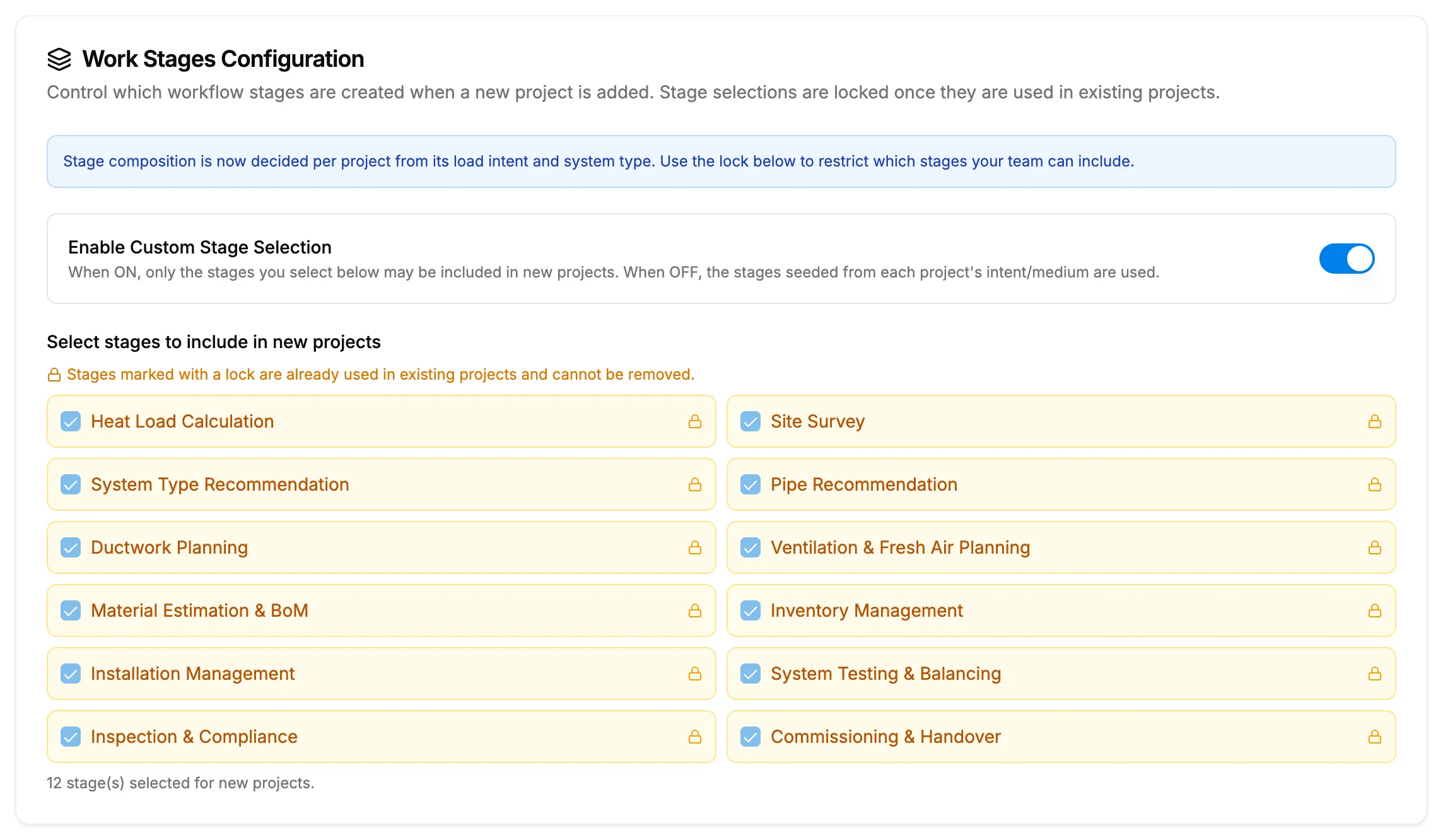
Step 4. Work Stages Configuration with stages ticked and locked stages marked. -
Select Save Changes.
Result
The message "System settings saved" shows, with the count line, for example "stage(s) selected for new projects." New projects can include only the stages you ticked. Existing projects keep their stages.
If something is different
- A stage has a lock and cannot be unticked: "Stages marked with a lock are already used in existing projects and cannot be removed." See I can't remove a work stage.
- "No stages selected: new projects will have no workflow stages.": tick at least one stage.
- With the switch off: "the stages seeded from each project's intent/medium are used."