
Before you start
- You are the Owner, Admin or HR. A person who is not an Owner or Admin also needs Can manage permissions for other people.
- The role must also hold the module permission. This step decides what it can do inside the module. See Change what a role can do.
- You cannot give an action you do not have yourself.
Steps
-
In the sidebar, select Management › Roles, or HRMS › Roles.
-
On the role's row, select the edit icon (Edit).
-
Scroll to What this person can do. "Untick what this person must not do. Without View, the other actions are off too."
-
On each row, untick the actions the role must not do, for example Delete on Quotations. A group box, such as CRM, sets every row in the group at once.
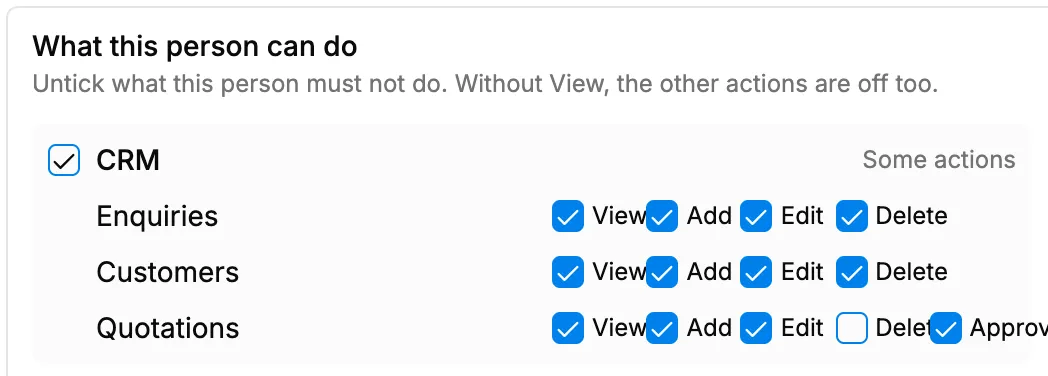
Step 4. What this person can do, with the CRM group showing Some actions. -
Select Update.
Result
The message "Role updated" shows. Each group line reads "All actions", "Some actions" or "No access". People with the role who try a refused action see a message such as "You cannot delete quotations."
If something is different
- Unticking View greys out the row: without View the role cannot use that kind of record at all.
- A row is missing: rows show only for modules that are on for your company.
- The Employees row starts with View only: for every role except HR. Tick Add, Edit or Delete if the role manages colleagues.
- A box is greyed out with "You cannot give an action you do not have yourself.": ask an Owner or Admin.
- The role is Worker: this section does not show.