
Before you start
- You need Can restore deleted records. Owner and Admin have it.
- To restore a record, the Recycle Bin module is on.
Steps
Restore a deleted record
-
Select your name at the bottom of the sidebar.
-
Select Settings.
-
Select the card Recycle bin.
-
In Record type, choose the kind of record, for example Invoices. The count is shown next to each type.
-
On the record's row, select Restore.
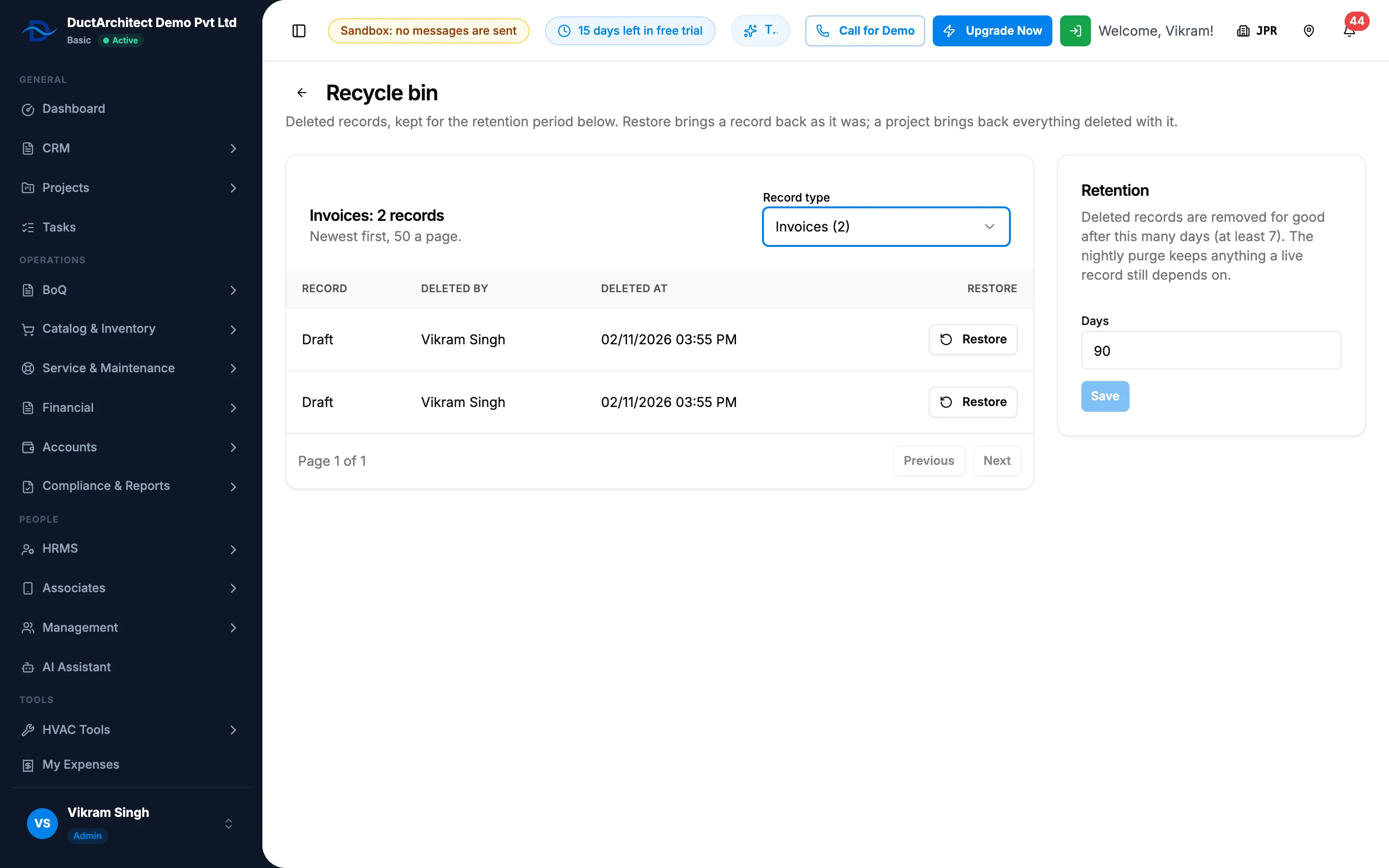
Step 5. The Recycle bin list with Deleted by, Deleted at and Restore. -
In the box, select Restore. For a project the box says "The project comes back with every invoice, expense, maintenance record, stock-out and material request deleted with it."
Change how long deleted records are kept
- Select your name at the bottom of the sidebar.
- Select Settings.
- Select the card Recycle bin.
- In the Retention card, type the number of days in Days. The default is 90.
- Select Save.
Result
Restore a deleted record: a message says the record is restored. The record comes back "as it was, with its original number or name". A restored user gets back the status and login setting they had.
Change how long deleted records are kept: a message confirms "Deleted records are kept for" the number of days you chose. "The nightly purge keeps anything a live record still depends on."
If something is different
- Restore is greyed out with "Deleted with its project; restore the project": restore the project instead.
- "Cannot restore" with a reason: the record depends on something that is not there. Read the reason.
- "This record is not in the Recycle Bin.": it was already restored or removed for good.
- A restored office: "Employees who were assigned to this office were cleared when it was deleted and are not reattached; assign them again if needed."
- "Nothing of this kind is in the Recycle Bin.": choose another record type.
- "Retention must be between 7 and 3650 days.": choose a number in that range.
- Save is greyed out in Retention: the number has not changed.