
Before you start
- You are the Owner or Admin. Only the Owner can change the Owner's account.
- To change a role, the new role exists on Roles / Departments.
- To change which modules a user can open, you can give only permissions you hold yourself. This changes one person. To change everyone with a role, see Change what a role can do.
- To set a default branch, the Branches module is on and the company has more than one active branch.
Steps
Edit a user's name, email or phone
-
In the sidebar, select Management › Users.
-
In the Actions column of the user's row, select Edit user. The "Edit User" box opens.
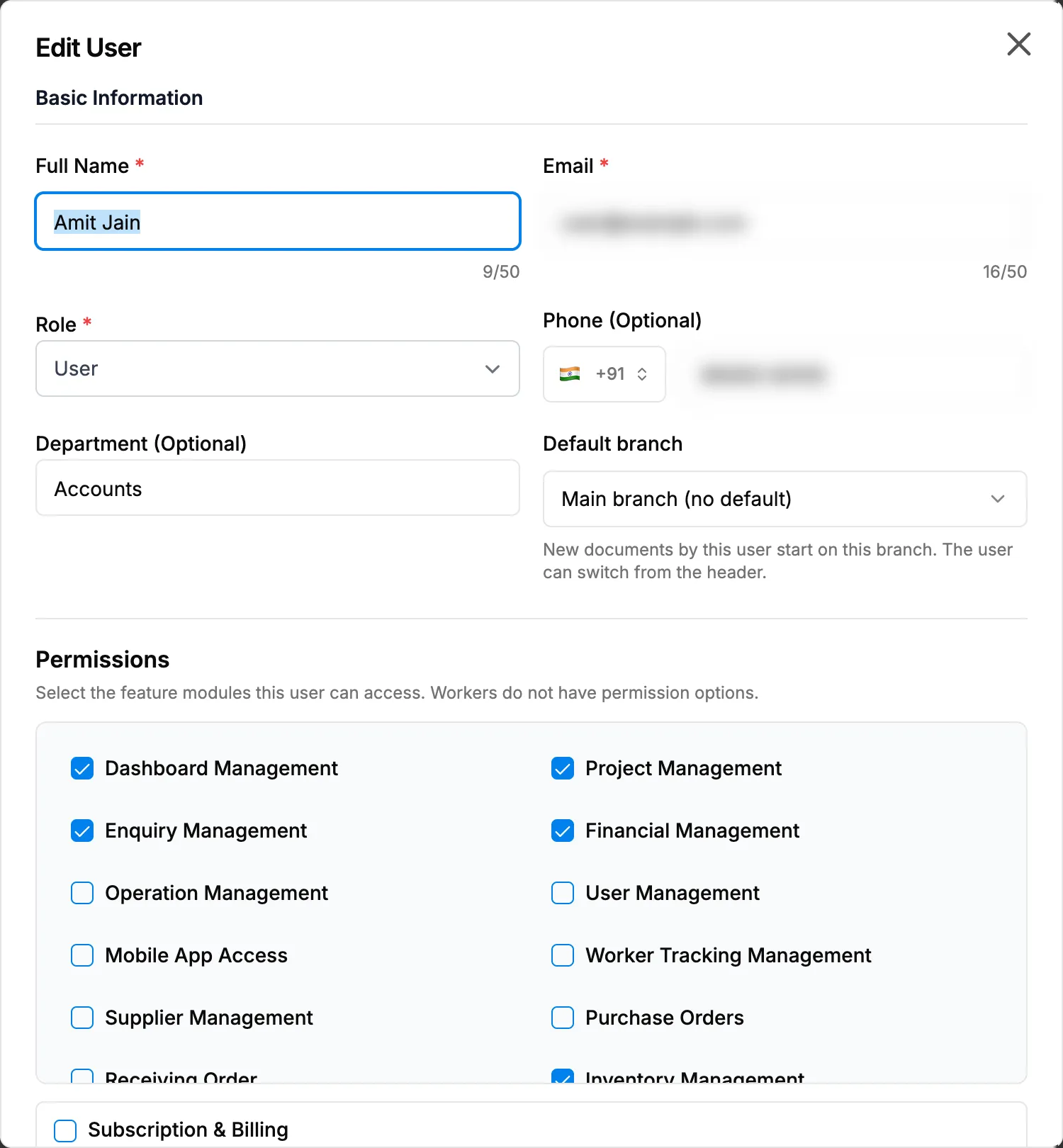
Step 2. The Edit User box with Basic Information and Permissions. -
Under Basic Information, change Full Name, Email, Phone (Optional) or Department (Optional).
-
Select Save Changes.
Change a user's role
- In the sidebar, select Management › Users.
- In the Actions column of the user's row, select Edit user.
- In Role, choose the new role. The Permissions ticks change to that role's defaults.
- Check the Permissions ticks and change any you need.
- Select Save Changes.
Change which modules a user can open
-
In the sidebar, select Management › Users.
-
In the Actions column of the user's row, select Edit user.
-
Under Permissions, "Select the feature modules this user can access." Tick each permission to give and untick each one to take away, for example Purchase Orders or Financial Management.
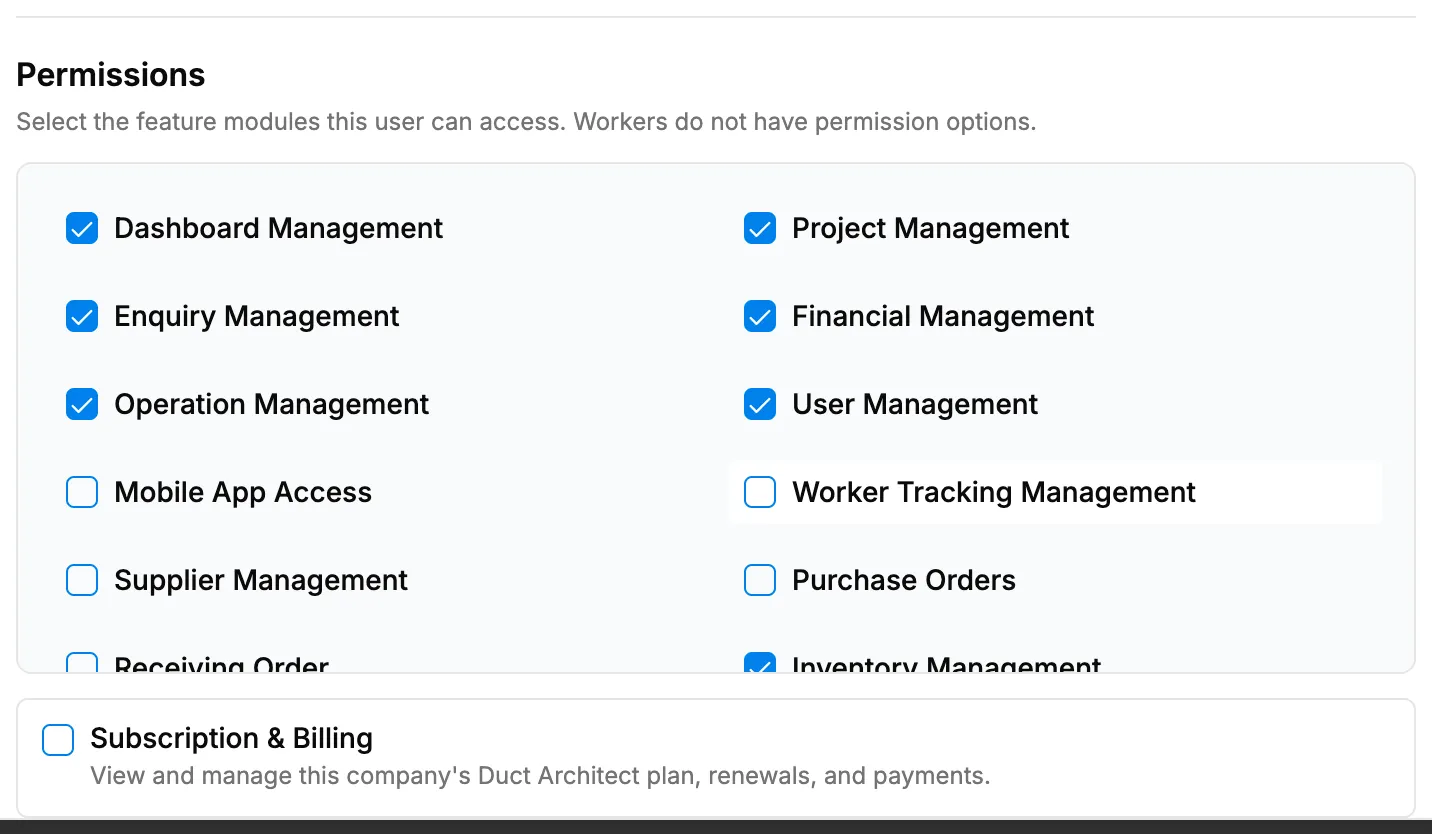
Step 3. The Permissions ticks in the Edit User box. -
Select Save Changes.
Set a user's default branch
- In the sidebar, select Management › Users.
- In the Actions column of the user's row, select Edit user.
- In Default branch, choose the branch. "New documents by this user start on this branch. The user can switch from the header."
- Select Save Changes.
Result
Edit a user's name, email or phone: the box closes and a confirmation shows, usually "Operation successful". The list shows the new details. If you changed the email, the person signs in with the new email.
Change a user's role: the user's role badge in the list shows the new role, and they hold the permissions you saved. Their permission ticks reset to the new role's defaults.
Change which modules a user can open: the user holds the permissions you saved. The matching sidebar groups show or leave for them. Permissions: what each box opens lists what each permission opens.
Set a user's default branch: the user's new documents start on that branch. The default branch does not limit which records they see.
If something is different
- "Only the owner can change the owner's account.": ask the Owner to make the change.
- "Access denied" or "You don't have permission to update this user.": see Add User or Edit user says Access denied.
- "The user you're trying to update no longer exists.": the user was deleted. Reload the list.
- There is no status field: Active and Inactive are changed on HRMS › Employees. See I can't deactivate or delete a user.
- "You cannot change users to super admin role.": Super Admin is for DuctArchitect staff only. Choose another role.
- The role badge reads "Hr_admin" or similar: the list shows the stored role name with its first letter in capitals.
- No Permissions section: "Workers do not have permission options."
- You want to hide prices or limit what they can do inside a module: those settings are on HRMS › Employees, not here. See Give one person different permissions from their role.
- "One or more permissions are not recognised.": reload the page and try again.
- No Default branch field: the Branches module is off, or there is only one active branch.
- "This branch is inactive. Choose an active branch.": activate the branch first, or choose another.
- The field shows "Main branch (no default)": no default is set, or the stored branch is inactive.