
Before you start
- You are the Owner or Admin. Only the Owner can change the Owner's password.
- The user has a login.
Steps
Reset a user's password
- In the sidebar, select Management › Users.
- In the Actions column of the user's row, select Reset password. There is no confirmation.
Change a user's password
-
In the sidebar, select Management › Users.
-
In the Actions column of the user's row, select Change password. The box "Change Password" opens, with "Set a new password for" and the user's name.
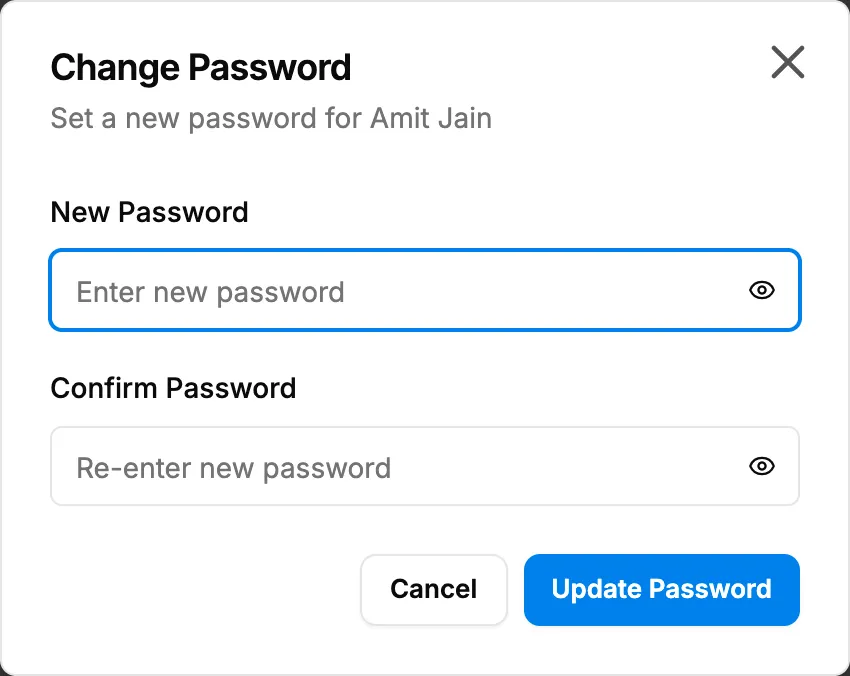
Step 2. The Change Password box for a user. -
In New Password, enter a password of at least 8 characters.
-
In Confirm Password, enter it again.
-
Select Update Password.
Result
Reset a user's password: the message "Password reset initiated. The user will receive instructions to reset their password." shows. The user does not receive an email at present.
Change a user's password: the message "Password changed successfully" shows. Tell the person the new password in person or by phone. They can change it later on their profile. See Update your profile and password.
If something is different
- "This employee has no login. Give them one under HRMS, Employees.": give the person a login on HRMS › Employees first.
- "Please wait before requesting another password reset.": a reset was started a short time ago.
- "You cannot reset passwords for super admin users.": Super Admin accounts are managed by DuctArchitect.
- The user says no email came: see The user I reset did not get an email.
- "Passwords do not match": type the same password in both boxes.
- "Invalid password - Password must be at least 8 characters.": use a longer password.
- "Forbidden": only an Owner or Admin can change another user's password.