
Before you start
- You need User Management or Financial Management.
- A Tax Type is saved in Tax Configuration. See Set up GST and your tax registration.
- To set a default, the slab exists. See Add a tax slab.
- Before you delete a slab: branches that use it as their default lose it.
Steps
Add a tax slab
-
Select your name at the bottom of the sidebar.
-
Select Settings.
-
Under Tax Type, next to the slab heading, for example "GST Tax Slabs", select Add.
-
In Label, type a name, for example GST 18%. Up to 50 characters.
-
In Rate (%), type the rate, for example 18.
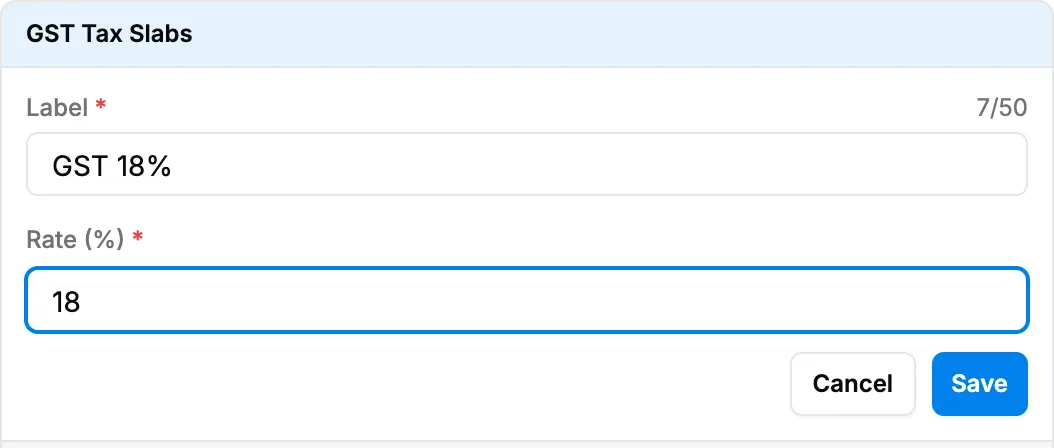
Step 5. The new slab row with Label and Rate filled in. -
Select Save.
Edit a tax slab
- Select your name at the bottom of the sidebar.
- Select Settings.
- In the tax slab list under Tax Type, select the pencil (Edit) on the slab.
- Change Label or Rate (%).
- Select Update.
Set the default tax slab
-
Select your name at the bottom of the sidebar.
-
Select Settings.
-
In the tax slab list, select the star on the slab you want as default.
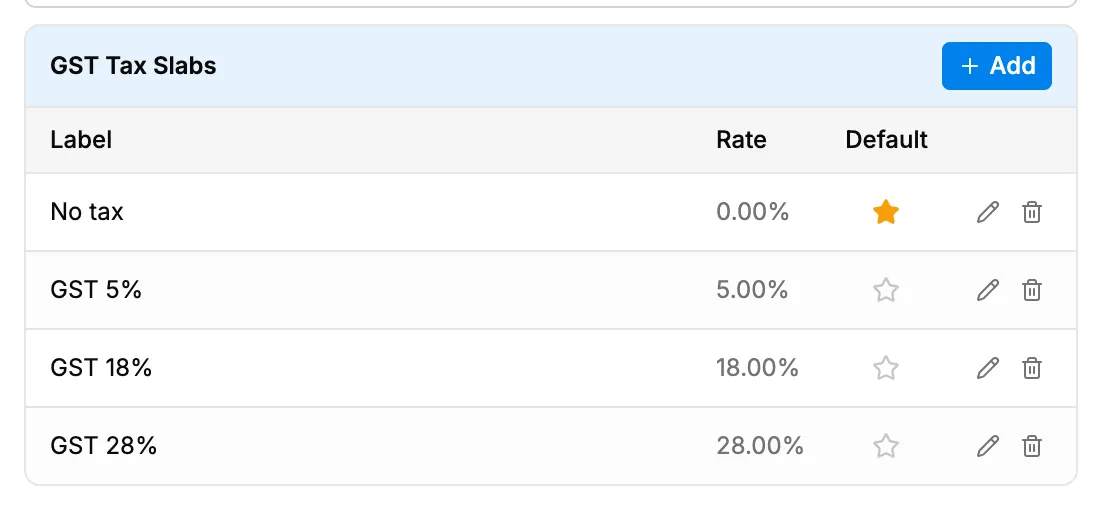
Step 3. The tax slab list with the default slab's star filled.
Delete a tax slab
- Select your name at the bottom of the sidebar.
- Select Settings.
- In the tax slab list, select the bin (Delete) on the slab. The box "Delete Tax Slab" asks you to confirm: "It will be removed from all lists and reports; the record is kept."
- Select Delete.
Result
Add a tax slab: the message "Tax slab added" shows and the slab appears in the list with its Label and Rate. Next: Set the default tax slab.
Edit a tax slab: the message "Tax slab updated" shows and the list shows the new label or rate.
Set the default tax slab: the message "Default tax slab set" shows. New invoice lines start with this slab. Each tax type has one default. To clear the default, select the star again. The message reads "Default tax slab cleared".
Delete a tax slab: the message "Tax slab deleted" shows and the slab leaves the list. Documents that already used it keep it.
If something is different
- You see Add but saving fails with "Access denied": you have Operation Management but not User Management or Financial Management.
- "A slab with 18% rate already exists for GST": each rate can appear once per tax type. When editing, another slab of the same tax type has that rate.
- "Enter a valid rate (0–100)": the rate must be between 0 and 100.
- "Label is required": give the slab a label.
- You changed your mind while editing: select Cancel.
- "No default set: invoices will require a tax rate to be chosen.": no slab is default yet. Select a star.
- A branch needs a different default: set Default tax slab (optional) on the branch. See Edit, deactivate or activate a branch.
- "Every company needs a No tax slab.": the 0% slab cannot be deleted. See A tax slab cannot be deleted.