
Before you start
- You are the Owner or Admin, or you hold Can manage permissions for other people (HR has it by default).
- You cannot change your own permissions, and only an Owner or Admin can change an administrator's account.
- HRMS is available for your company, so HRMS › Employees is in the sidebar.
Steps
-
In the sidebar, select HRMS › Employees.
-
On the person's row, select Edit. The "Edit Employee" box opens.
-
Under Permissions, tick or untick module permissions. "Changes here apply only to this employee and do not affect the role."
-
Under What this person can do, switch Use role setting to Custom for this person, then untick the actions they must not do.
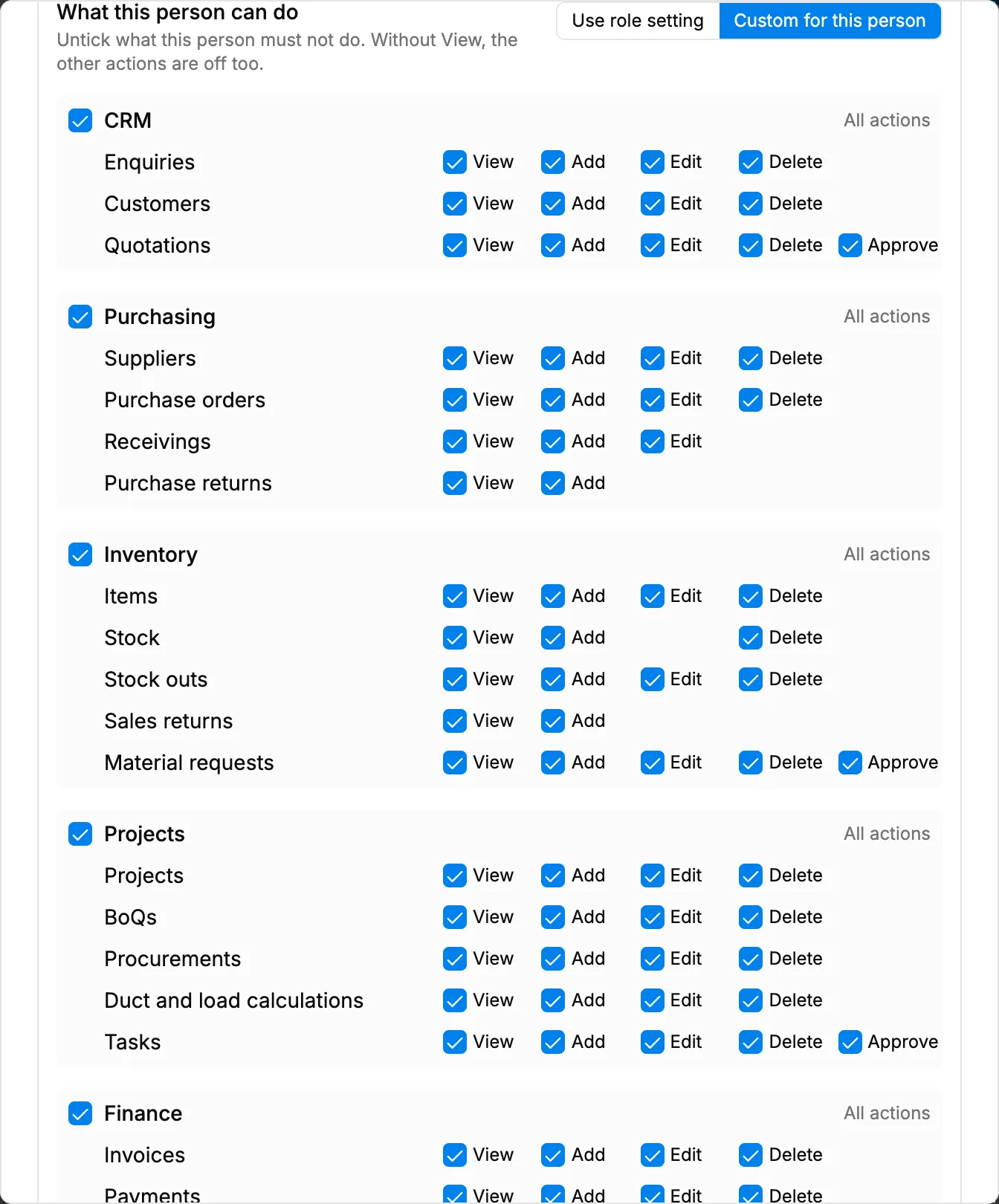
Step 4. Edit Employee with Custom for this person selected. -
Optional: change Sensitive information and Records and export for this person.
-
Select Update Employee.
Result
The message "Employee updated" shows. This person now follows their own settings. Changes to their role later do not reach the parts you customised.
If something is different
- "You cannot change your own role, permissions or restrictions. Ask an administrator.": ask an Owner or Admin.
- "Only an administrator can change an administrator's account.": the person is an Owner or Admin.
- "You do not have the right to manage permissions.": ask an Owner or Admin for Can manage permissions for other people.
- No HRMS group in the sidebar: HRMS is not available or is switched off for your company. Module permissions can still be changed on Users. See Change which modules a user can open.