
Before you start
- For the activity log, you need Can view the activity log. Owner and Admin have it. The Activity Log module is on.
- For the access log, you are the Owner or Admin.
Steps
View the activity log
-
Select your name at the bottom of the sidebar.
-
Select Settings.
-
Select the card Activity log.
-
In Filters, set From and To, and choose a Person, Record type or Action if you need to. The dates start at the last 30 days.
-
On a row, select the arrow (Show changed fields).
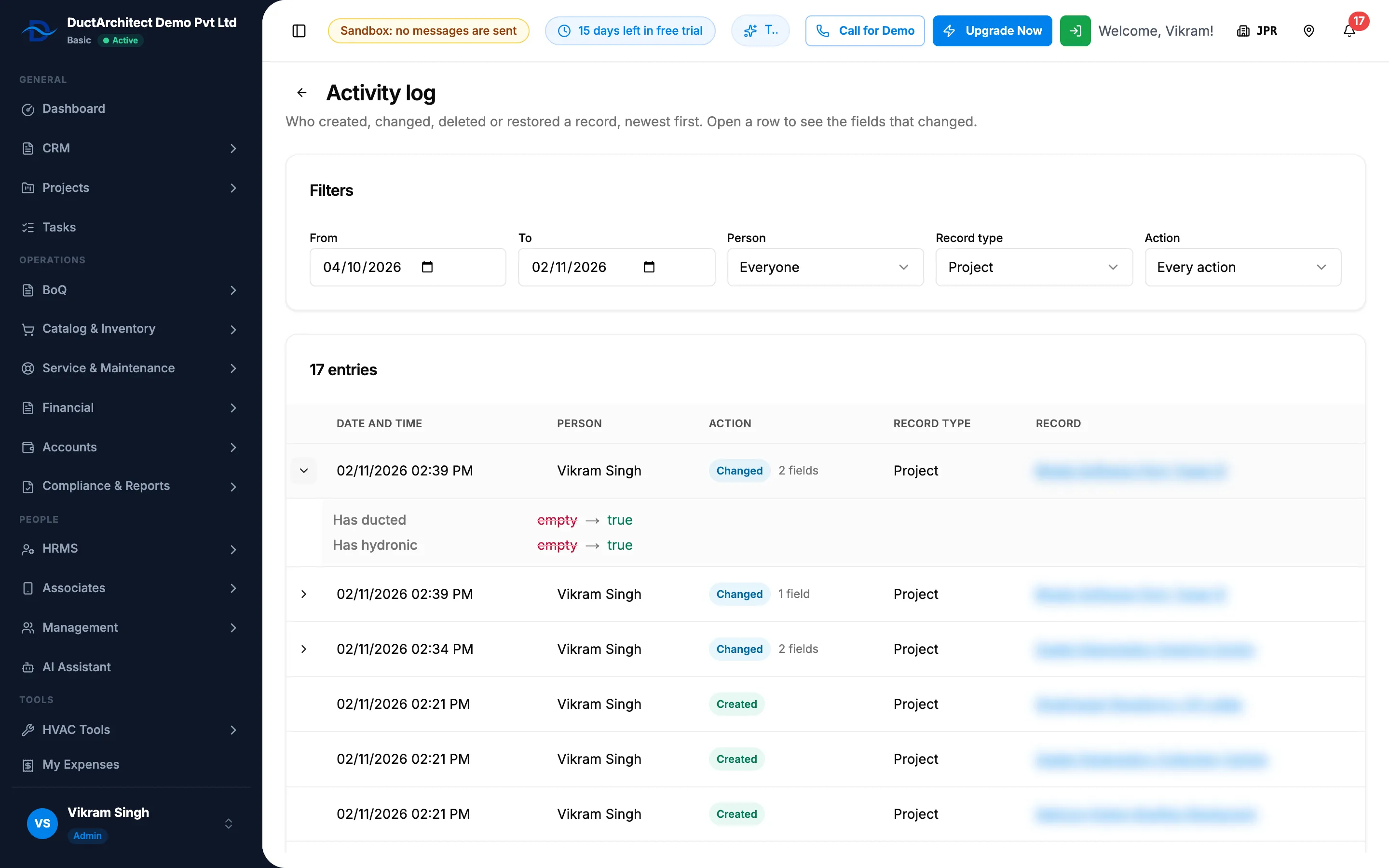
Step 5. The Activity log with one row open showing old and new values.
View the access log
-
Select your name at the bottom of the sidebar.
-
Select Settings.
-
Select the card Access log.
-
Choose a Person, an Action, and the From and To dates.
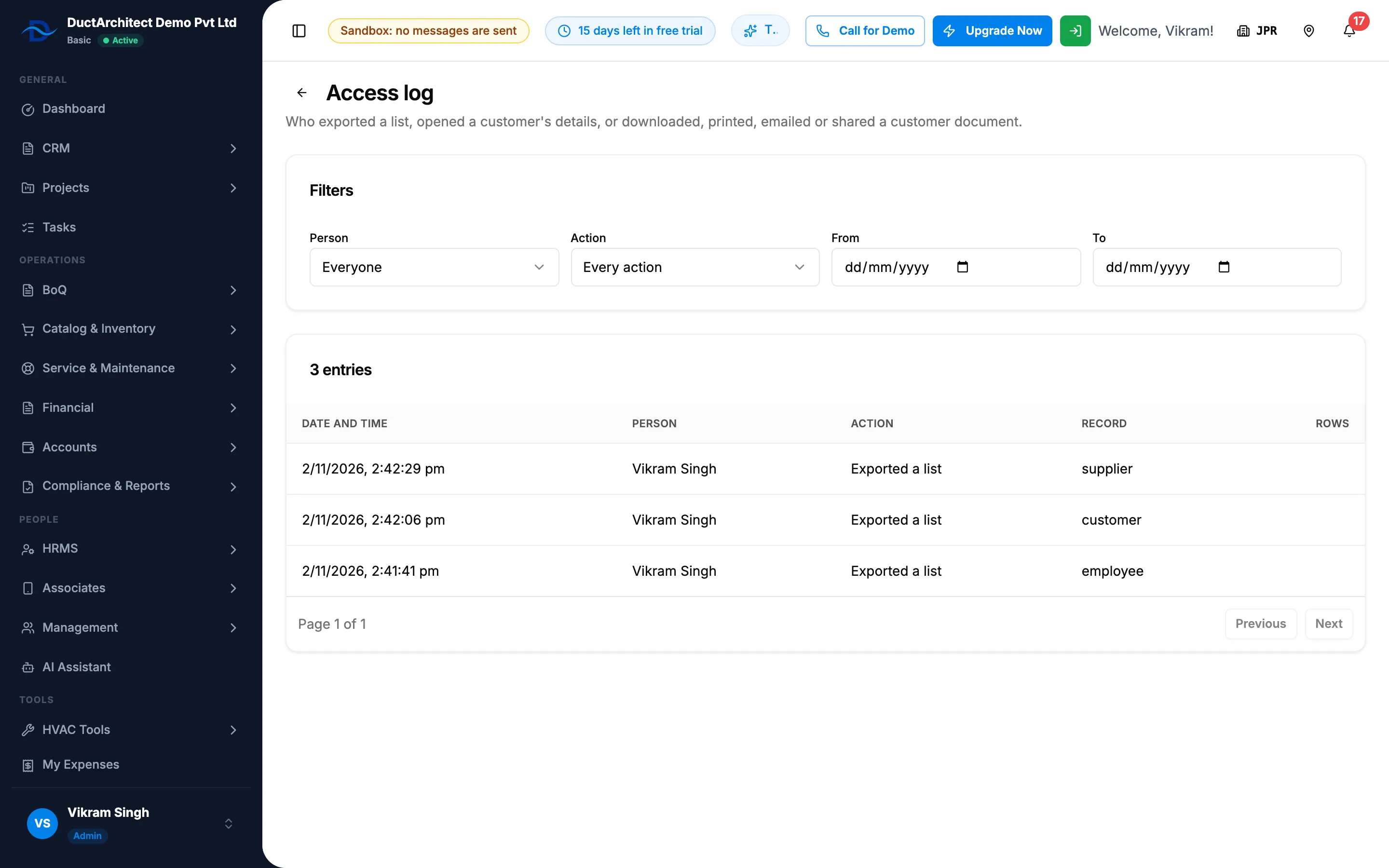
Step 4. The Access log with filters and entries.
Result
View the activity log: the row opens and lists each field that changed, with the old value and the new value. The list shows the number of entries, newest first, 50 a page. Date and time is in your company's time zone.
View the access log: the list shows matching entries, 50 a page, with Date and time, Person, Action, Record and Rows. Actions include "Exported a list", "Opened a customer's details", "Downloaded a document", "Printed a document", "Emailed a document", "Shared a document" and "Looked up customers by phone".
If something is different
- "You do not have the right to view the activity log.": ask your Owner or Admin for Can view the activity log.
- "The Activity Log module is switched off for your company (Settings, Modules).": an Owner or Admin switches it on.
- "Only an administrator can read the access log.": ask your Owner or Admin.
- "No entries for these filters.": widen the dates or clear the filters.
- No Activity log card on Settings: see The Activity log or Recycle bin card is missing from Settings.
- The time in the access log looks off: Date and time there uses your browser's time zone, not the company's. See Dates look a day off.