
Before you start
- You need User Management.
- "Changing the Start number or Reset mode restarts the sequence; other edits keep the running count."
Steps
Set up invoice numbering
-
Select your name at the bottom of the sidebar.
-
Select System Settings.
-
Under Invoice Numbering, fill in the fields.
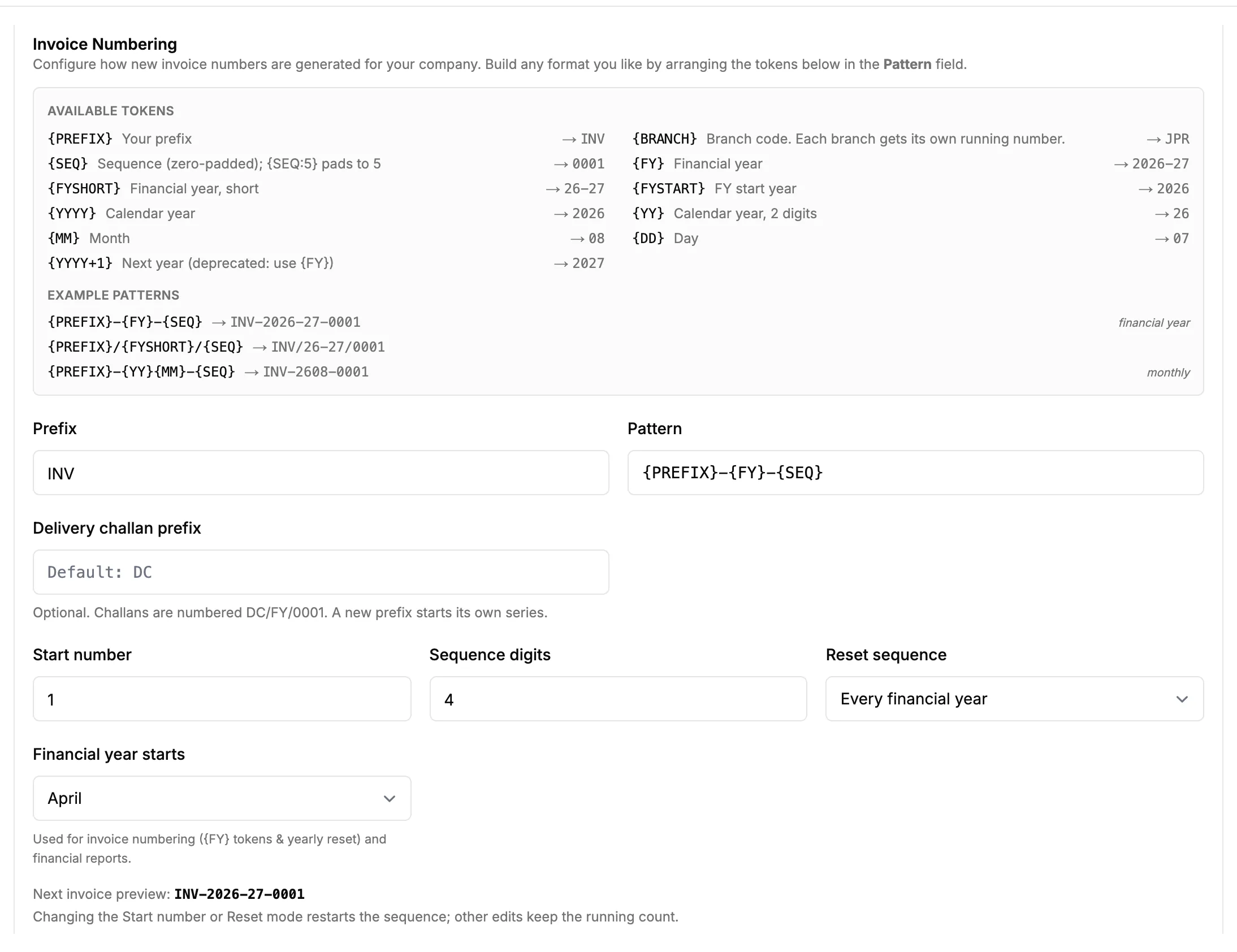
Step 3. Invoice Numbering with the pattern and the Next invoice preview. Field Required What to enter Prefix No For example INV. Pattern No Tokens such as PREFIX, FY and SEQ in braces. See the tokens article. Start number No The first number. With the BRANCH token, each branch starts from it unless it has its own Start. Sequence digits No 0 to 12. 4 gives 0001. Reset sequence No Never, Every financial year or Every month. -
Check the line "Next invoice preview".
-
Select Save Changes.
Set the delivery challan prefix
- Select your name at the bottom of the sidebar.
- Select System Settings.
- Under Invoice Numbering, type one to four letters or digits in Delivery challan prefix, for example DC.
- Select Save Changes.
Result
Set up invoice numbering: the message "System settings saved" shows. The next invoice gets the number shown in the preview. Invoice numbering: tokens and example patterns lists every token.
Set the delivery challan prefix: the message "System settings saved" shows. Challans are numbered with your prefix, then the financial year, then a running number, for example DC/FY/0001. "A new prefix starts its own series."
If something is different
- The preview reads "none free": no number is free with these settings. Change the start number or pattern.
- An amber box with a GST or period warning: read it and adjust the pattern.
- You use branches: put
{BRANCH}in the pattern to give each branch its own running number, and fill each branch's Start box. - "Delivery challan prefix: Use one to four letters or digits, for example DC": shorten the prefix or remove symbols.
- The challan prefix is left empty: DC is used.