
Before you start
- You need Inventory Management and Add on Stock. If the sheet will create new suppliers or items, you also need Add on Suppliers and Items.
- Your plan is active.
- "Best imported after Suppliers and Item catalog." See Import your item catalog from Excel.
- A file holds up to 1,000 rows and 2 MB. "Nothing is written until you confirm."
Steps
-
Select your name at the bottom of the sidebar.
-
Select Data Import.
-
On the Opening stock card, select Start import. "Import Opening Stock" opens.
-
In Stock as on, choose the date the stock count is for. It cannot be after today.
-
Select Download template. The file opening_stock_template.xlsx downloads.
-
Fill in one stock row per line. Item Name, Category, Unit and Quantity are required. See Import templates: the columns in each file.
-
Select Choose file & validate and choose the file. The screen shows "Validating" while it checks.
-
Read the preview: Rows valid, Items to create, Items matched, Stock rows, Errors, and the Suppliers card with Matched to existing and Will be created as pending.
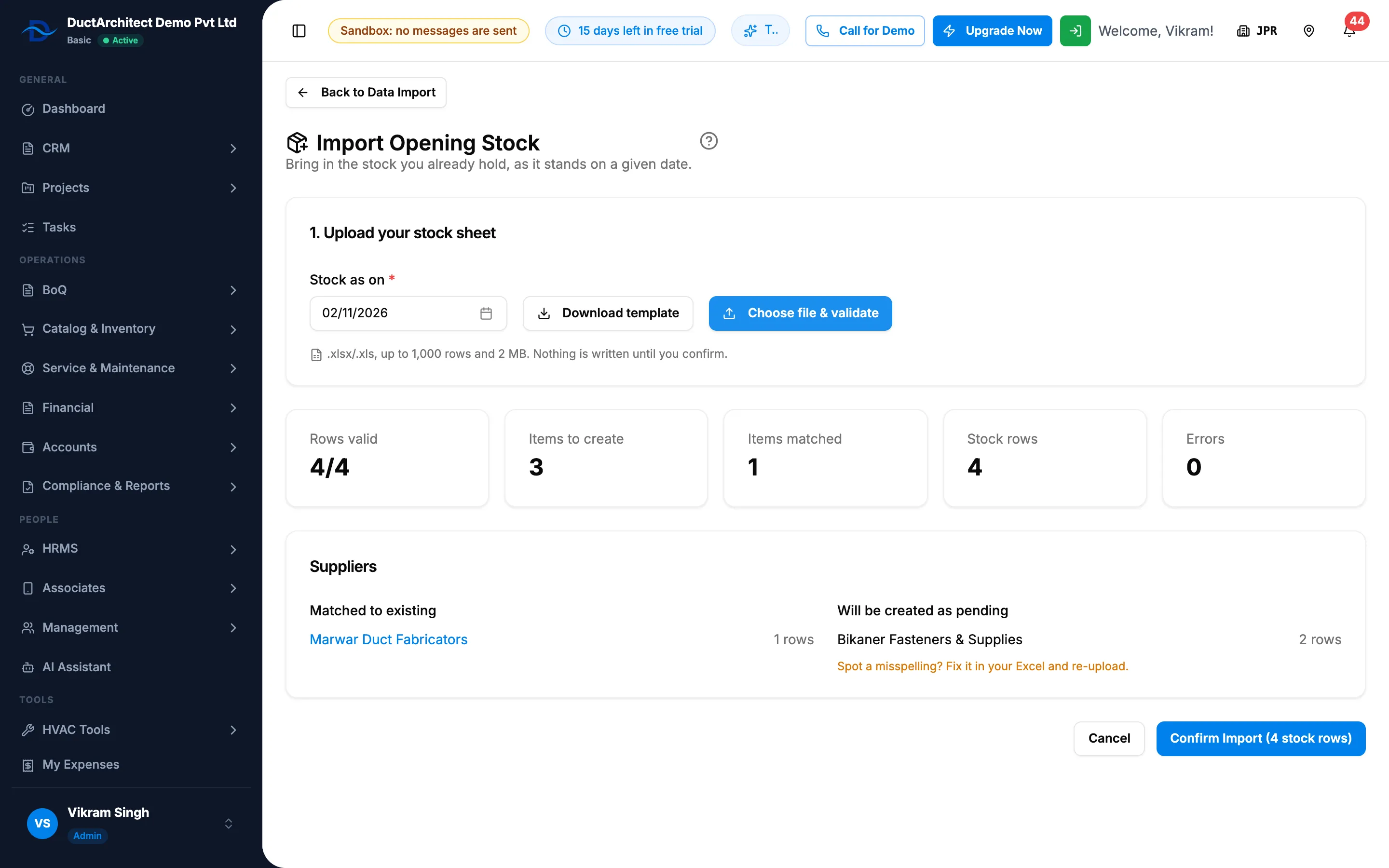
Step 8. The opening stock preview with its counts and the Suppliers card. -
Select Confirm Import. The button shows the number of stock rows.
Result
"Opening stock imported" shows with the number of stock rows, new items, pending suppliers and the receiving number. The stock is in the chosen godown, or in your default warehouse when Warehouse is blank. Select View Inventory or View Receiving to check it.
If something is different
- The button reads "Fix" with the number of errors and "re-upload": some rows have errors. Select Download Error Report, fix the rows and choose the file again.
- "[number] row(s) have no price": those rows show as "Not valued" and are left out of stock value and ABC analysis.
- "[number] serialized-category row(s) have no serials": those rows show "Serial not recorded".
- Spot a misspelt supplier in "Will be created as pending": "Fix it in your Excel and re-upload."
- "You cannot add suppliers." or "You cannot add items.": use only suppliers and items already on file, or ask an administrator to import the sheet.
- "Your plan has expired. Renew to import opening stock.": see How your company's plan status changes.
- "Pick the 'as on' date first": choose Stock as on before you upload.