
Before you start
- You need User Management to open Data Import, and Add on Suppliers.
- Import suppliers first. "Who you buy from. Import these first, items and opening stock link back to them."
- A file holds up to 150 suppliers.
Steps
-
Select your name at the bottom of the sidebar.
-
Select Data Import.
-
On the Suppliers card, select Download template. The file suppliers_template.xlsx downloads.
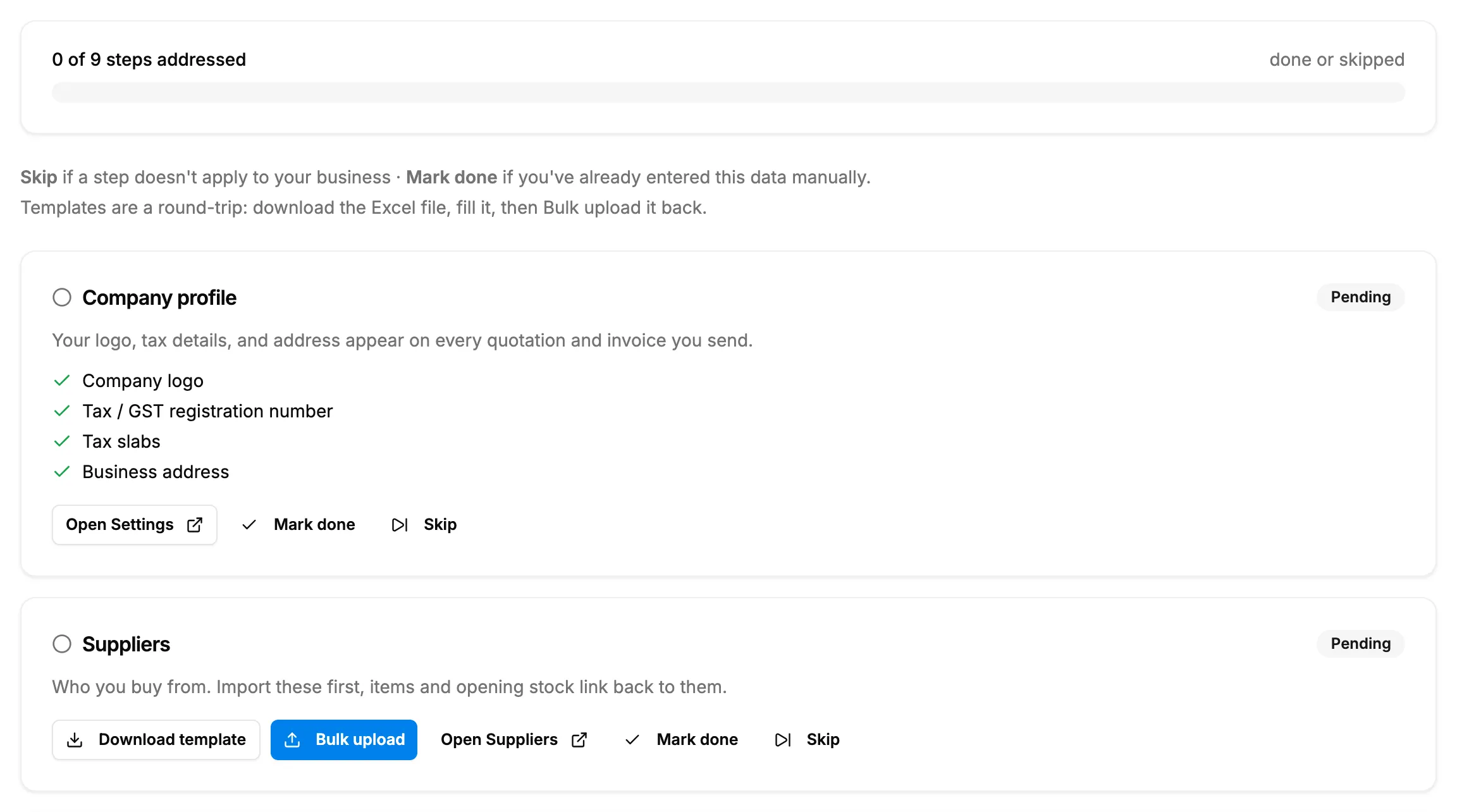
Step 3. The Suppliers card on Data Import with Download template and Bulk upload. -
Fill in one supplier per row from row 3. Keep row 1 (the headers) and row 2 (the hints). See Import templates: the columns in each file.
-
Save the file.
-
On the Suppliers card, select Bulk upload and choose the file.
Result
A message shows how many suppliers were created, and the card's badge changes to "Done" with the number of records. Select Open Suppliers to see them.
Next: Import your item catalog from Excel.
If something is different
- "Bulk upload failed" with a Row, Field and Message table: nothing was imported. Fix the rows and upload the whole file again. See Bulk upload failed with errors in my Excel file.
- "Failed to download template": check that you have Add on Suppliers.
- From the Suppliers page: on Catalog & Inventory › Suppliers, Download template gives the same template ("Template downloaded") and Bulk upload takes an .xlsx or .xls file under 500 KB. Both need Add on Suppliers and an active plan. The message "Bulk upload complete: [number] supplier(s) created." shows. Row errors open "Bulk Upload Failed: [number] Error(s) Found". "Some emails already exist for this company. Please ensure emails are unique. Duplicate emails: [list]": those suppliers are already on file. "File must be under 500 KB (use fewer rows to avoid timeout)" or "Upload timed out. Try a smaller file or fewer rows.": split the file. See Add a supplier.
- You entered your suppliers by hand: select Mark done instead. See Mark a Data Import step as done.