
Before you start
- You need Supplier Management and Add on Suppliers.
- Your company's plan is active.
- Have the supplier's name, contact person, email and phone. The email must not belong to another supplier.
Steps
-
In the sidebar, select Catalog & Inventory › Suppliers. "Manage your supplier relationships and contact information."
-
Select Add Supplier. "Add New Supplier" opens.
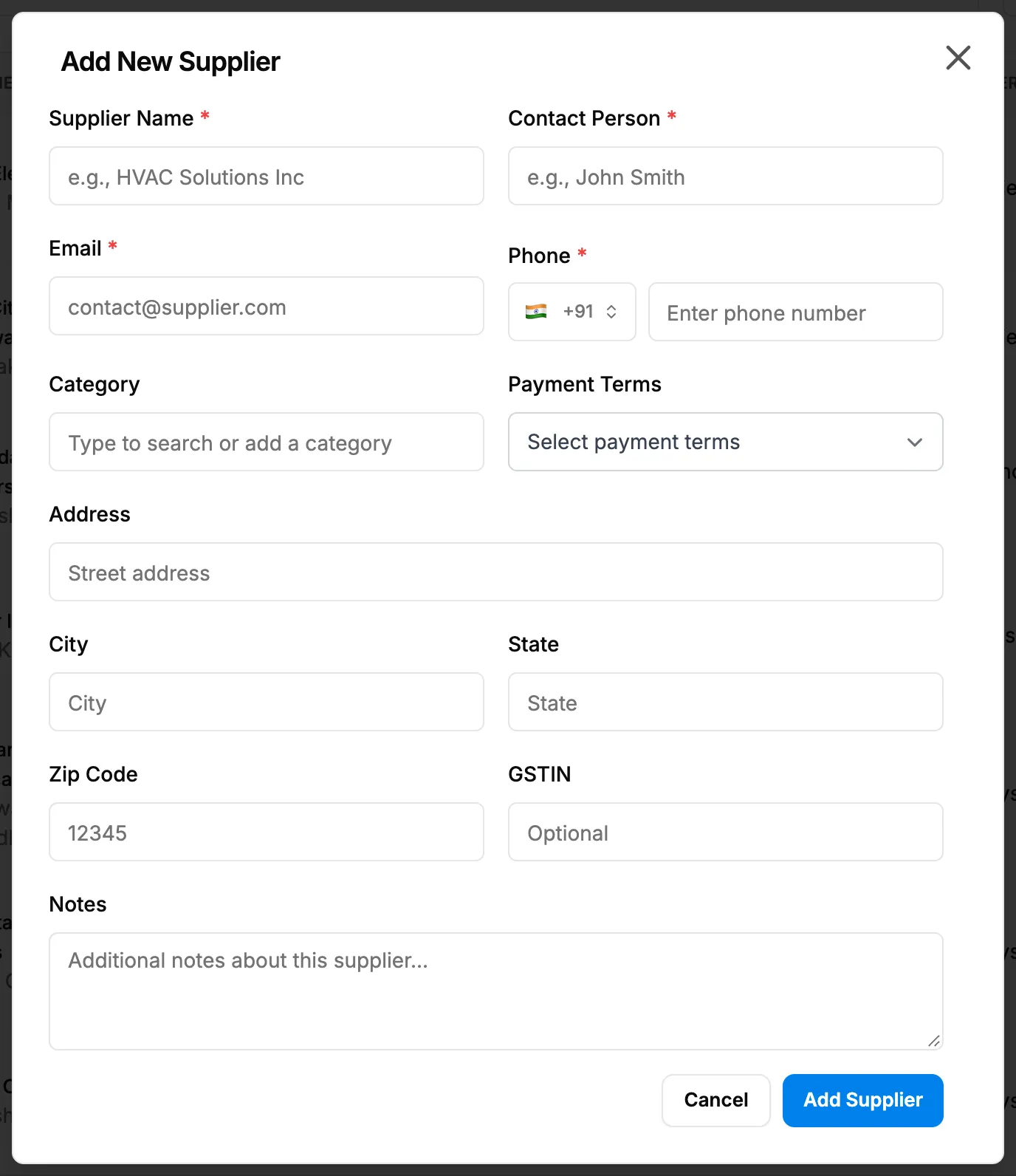
Step 2. The Add New Supplier box with Supplier Name, Contact Person, Email and Phone. -
Fill in the fields:
Field Required What to enter Supplier Name Yes Up to 50 characters, for example HVAC Solutions Inc. Contact Person Yes Up to 50 characters. Email Yes A valid email, up to 50 characters. Must not be used by another supplier. Phone Yes Pick the country flag, then the number. Category No Type to search your supplier categories. To add a new one, type it and pick Add "[text]" as a new category. Payment Terms No From your company's payment terms. + Add New opens Manage Payment Terms. Sets the expected payment date of this supplier's orders. Address No Street address, up to 500 characters. City No Up to 50 characters. State No Up to 100 characters. Zip Code No Up to 20 characters. GSTIN No Called VAT number in the UAE, UK and EU, Tax number elsewhere. Up to 32 characters; the format is not checked. Notes No Up to 1000 characters. -
Select Add Supplier. The button shows "Creating..." while it saves.
Result
The message "Supplier created successfully" shows. The supplier is on the list with Active, its contact information, category and payment terms. You can now pick it on a new purchase order.
Next: Create a purchase order.
If something is different
- No Add Supplier button: you need Add on Suppliers.
- A plan warning or an upgrade box opens: see Add Supplier, Add Purchase Order or Delivery Items opens a plan or upgrade box.
- "A supplier with this email already exists": another supplier has that email. Search for it on the list before adding a second one.
- "Please enter a valid phone number": enter the number after the country code.
- "The supplier category "[name]" is inactive": pick another category, or reactivate it. See Manage supplier categories: add, rename, deactivate and delete.
- Payment term not in the list: add it with + Add New. See Add or change payment terms from the supplier form.
- No Status field: a new supplier is always Active. Change it afterwards. See Edit a supplier or change its status.
- Many suppliers to add: use Download template and Bulk upload on this page, or Data Import. See Import suppliers from Excel.