
Before you start
- You need Purchase Orders, Edit on Purchase orders, and Can see purchase costs.
- The order is sent (not a draft) and not cancelled, and something is still remaining on it.
Steps
-
In the sidebar, select Catalog & Inventory › PO Payments. "Track payments due on purchase orders".
-
Find the order: search with "Search by PO number, supplier, or amount...", or choose a status such as Unpaid or Overdue.
-
On its row, open the row menu and select Add Payment. "Add Payment" opens with "PO [number], [supplier]" and "Payable now: [amount] · Remaining on order: [amount]".
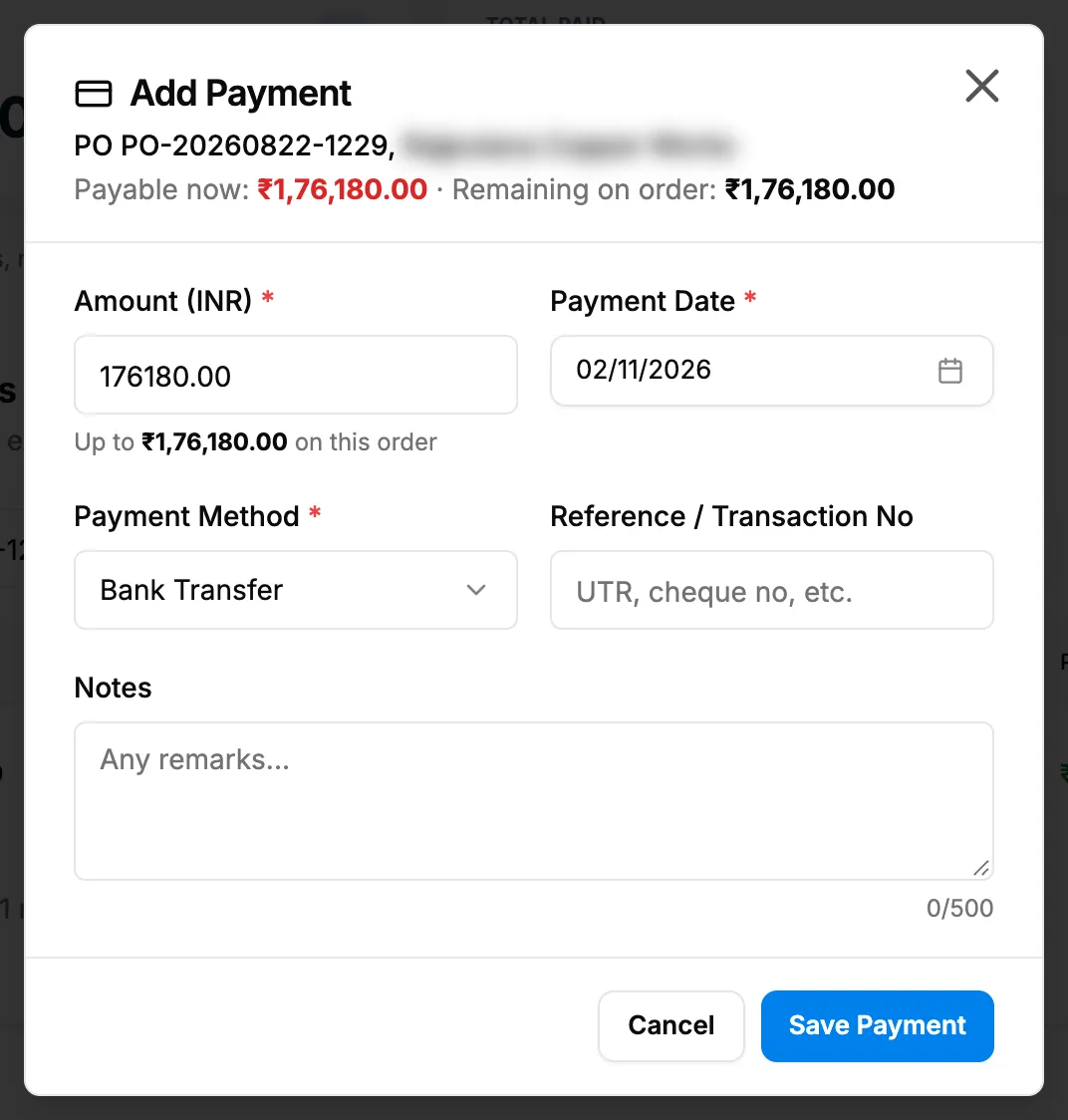
Step 3. The Add Payment box with Payable now, Remaining on order and the payment fields. -
Fill in the payment:
Field Required What to enter Amount ([currency]) Yes For example Amount (INR). In the order's currency. Starts on Payable now, or on Remaining on order when nothing is payable yet. Up to the remaining on the order. Payment Date Yes A date. Starts on today and cannot be in the future. Payment Method Yes Cash, Bank Transfer (the default), NEFT, RTGS, IMPS, UPI, Cheque, DD or Other. Reference / Transaction No No The UTR, cheque number and the like. Up to 12 characters. Notes No Up to 500 characters. A counter shows, for example "0/500". -
Select Save Payment.
You can also select Add Payment at the bottom of the order's Payment History. See View a purchase order's payments or delete one.
Result
The message "Payment recorded" shows. On the order's row, Paid goes up and Payable now and Remaining on order go down. The status becomes Partly paid or Paid.
A payment made before the goods arrive shows as an advance on the supplier's ledger. When your company posts to the accounts automatically, a payment voucher is posted against the supplier, from the cash or bank account set for the payment method. See Choose the default accounts and the account for each payment method. If posting fails, the payment is still saved.
Next: See what you owe each supplier on Payables.
If something is different
- No Add Payment in the row menu: nothing is remaining on the order, or you do not have Edit on Purchase orders.
- The payment is refused: for example "This purchase order is a draft: send it before paying against it." or "Cannot exceed the remaining on order of [amount]". See A payment cannot be recorded.
- "Cash payments must be in multiples of [unit] [currency].": cash in INR is in whole rupees. Round the amount, or use a digital method for the paise.
- "Must be 12 characters or fewer" on the reference: shorten it, or put the rest in Notes.
- A payment was entered wrong: payments cannot be edited. Delete it and add it again. See View a purchase order's payments or delete one.
- The order is in another currency: its amounts read "Not included" and are left out of the totals.