
Before you start
- You need Supplier Management and Delete on Suppliers.
- No stock in your inventory and no purchase order that is not deleted points at the supplier. To stop using a supplier that has orders, set it to Inactive instead. See Edit a supplier or change its status.
Steps
-
In the sidebar, select Catalog & Inventory › Suppliers.
-
On the supplier's row, open the row menu and select Delete. "Confirm Deletion" opens: "Are you sure you want to delete [name]? It will be removed from the directory; the record is kept." and "The supplier will no longer appear in the directory or any picker".
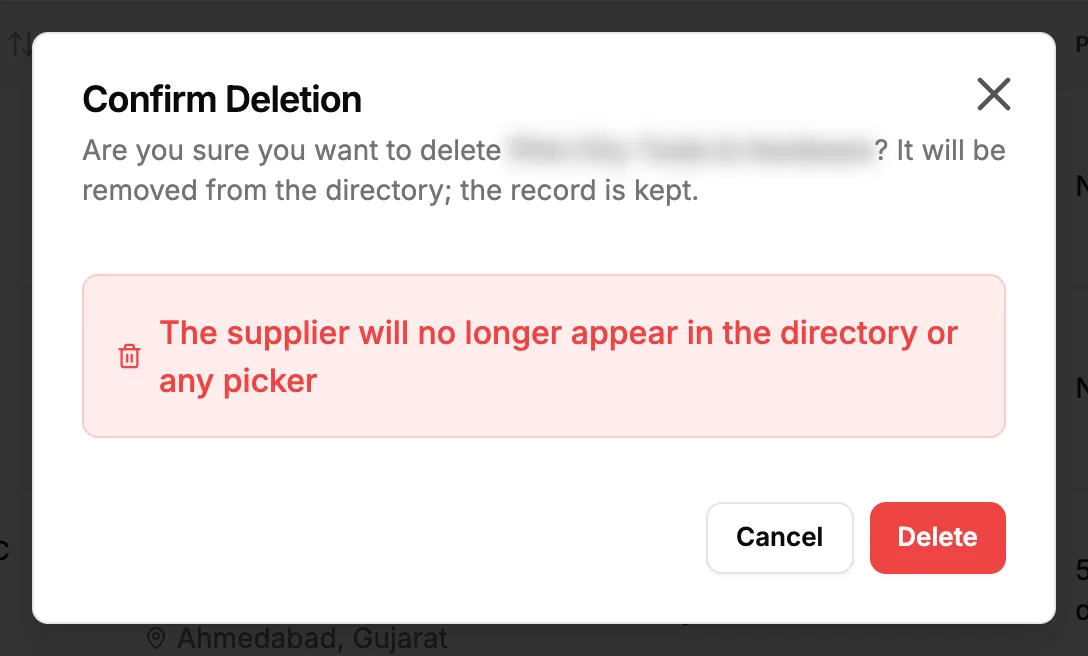
Step 2. The Confirm Deletion box for a supplier. -
Select Delete.
Result
The message "Supplier deleted successfully" shows and the supplier leaves the list. Its email can be used by a new supplier.
The deleted supplier is listed under Suppliers in the Recycle bin. See Recycle bin: restore records and set retention.
If something is different
- No Delete in the row menu: you do not have Delete on Suppliers.
- "Cannot delete supplier with existing inventory items or purchase orders": see A supplier cannot be deleted.
- Restoring is refused with "A live supplier "[name]" already uses the email [email].": another supplier now has that email. Change the other supplier's email first, or keep the new one.