
Before you start
- You need Supplier Management.
- The first time anyone opens the list, it starts with AC Systems, Ductwork, Controls, Equipment, Tools, Hardware, Insulation and Materials.
Steps
Open the categories
-
In the sidebar, select Catalog & Inventory › Suppliers.
-
Select Manage categories. "Supplier categories" opens: "Your company's own list of supplier categories, used by the supplier forms, the filter and the bulk upload."
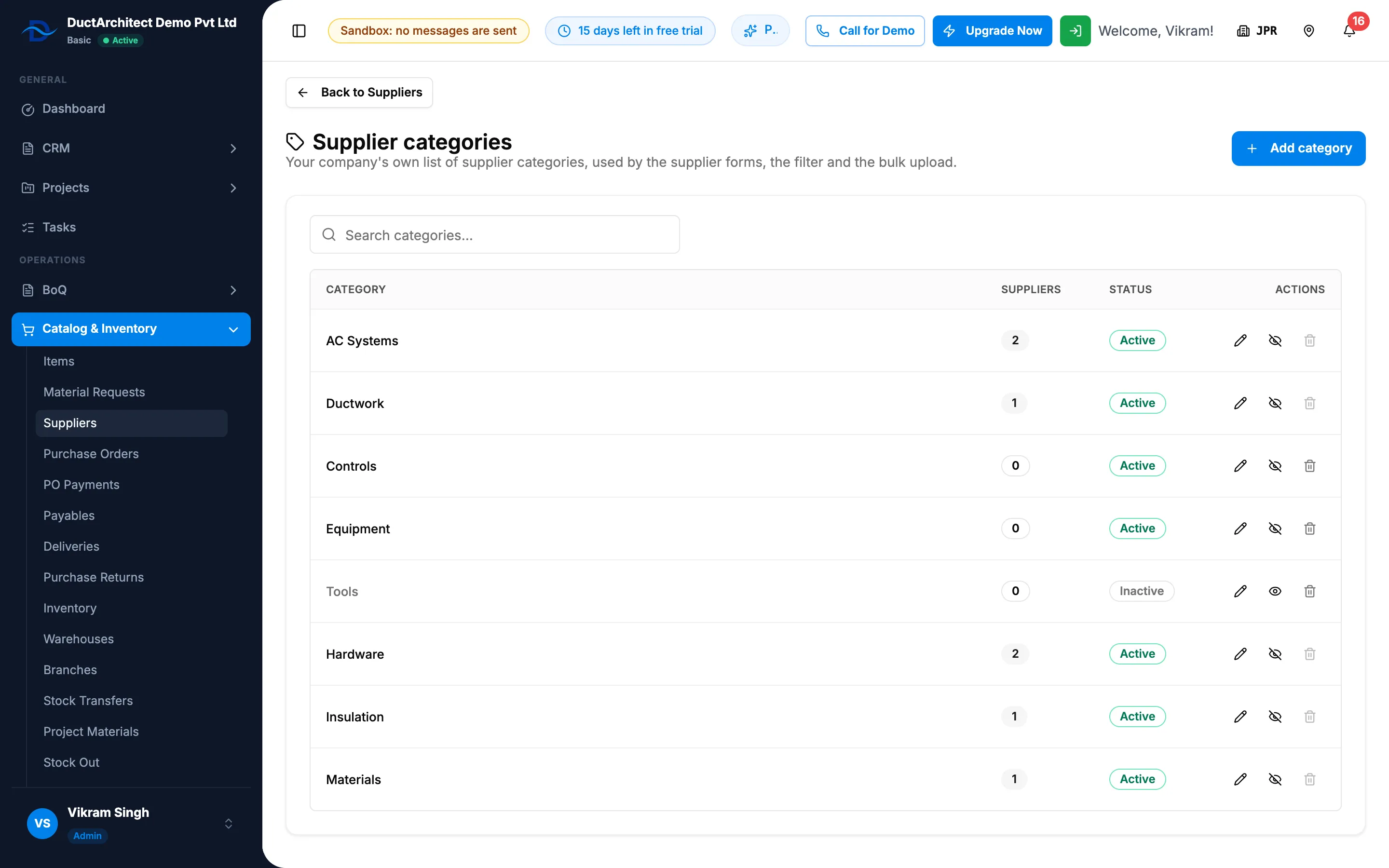
Step 2. The Supplier categories page with Category, Suppliers, Status and the action icons.
Each row shows the Category, the number of Suppliers using it, its Status and three icons with no text. Their tooltips read Rename, Deactivate (or Reactivate) and Delete. Use "Search categories…" to find one. Back to Suppliers, above the title, returns to the list.
Add a category
- Select Add category. "Add a supplier category for your company."
- Type the name, for example Copper Pipe (up to 100 characters).
- Select Add.
You can also add one while you fill in a supplier: type it in Category and pick Add "[text]" as a new category.
Rename a category
- On its row, select Rename. "Renaming updates it on every supplier in this category."
- Change the name and select Save.
Deactivate or reactivate a category
- On its row, select Deactivate.
- If suppliers use it, "Deactivate category?" opens: "[name]" is used by [number] supplier(s). They keep it; it is no longer offered when adding or editing a supplier. You can reactivate it at any time." Select Deactivate.
- To bring it back, select Reactivate on its row.
Delete a category
- On its row, select Delete. "Delete category?" opens: "Delete "[name]"? It disappears from every list and cannot be restored. Adding the same name later makes a new category. To hide it for now, deactivate it instead."
- Select Delete.
Result
- Add: "Category added". If the name existed but was inactive: ""[name]" was inactive and is active again". If it already exists: ""[name]" already exists".
- Rename: "Category renamed". Every supplier in the category shows the new name.
- Deactivate: ""[name]" deactivated". The row is greyed with Inactive. Suppliers on it show "[name] (inactive)".
- Reactivate: ""[name]" reactivated", with Active.
- Delete: "Category deleted". It leaves every list.
A category only groups your suppliers; nothing else in DuctArchitect depends on it.
If something is different
- Delete is greyed out, "In use by [number] supplier(s)": suppliers point at it, deleted ones included ("([number] of them deleted)"). Move them to another category, or deactivate this one.
- "A supplier category with this name already exists.": pick another name.
- "No supplier categories yet.": add the first one.
- No Manage categories, or the page is refused: you need Supplier Management.