
Before you start
- You need Purchase Orders, Edit on Purchase orders, and Can see purchase costs.
- The order is not Delivered or Cancelled.
- The supplier has an email. See Edit a supplier or change its status.
Steps
-
In the sidebar, select Catalog & Inventory › Purchase Orders.
-
On the order's row, open the row menu and select Send Email. "Send this purchase order?" opens: "Purchase order [number] will be emailed to the supplier. This cannot be undone." It shows the supplier's name and email.
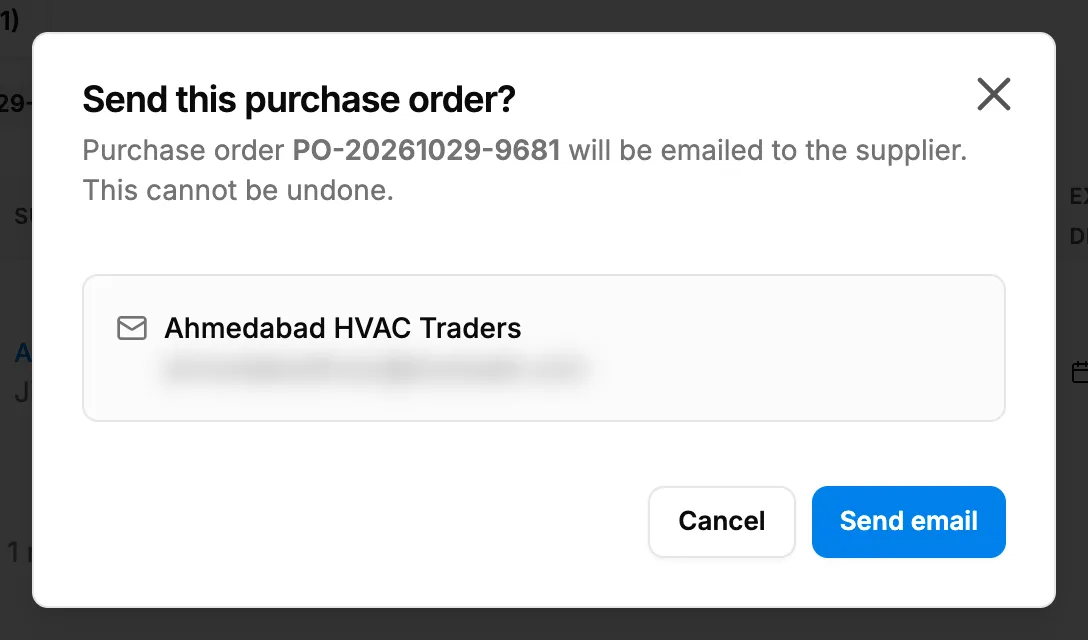
Step 2. The Send this purchase order? box with the supplier's name and email. -
Check the email address.
-
Select Send email. "Sending email..." shows while it goes.
Result
The message "Purchase order sent successfully to [email]" shows. On the list, Email Status shows Sent. A draft order moves to Sent, and its branch and buyer details are frozen.
The supplier gets an email "Purchase Order [order number] - [company name]" with the button Download Purchase Order PDF. Replies go to you. The link works for 90 days without signing in; each send makes a new link.
Next: Receive a delivery against a purchase order.
If something is different
- "No email address on file" in the box, or "Supplier email is not available. Please update supplier information.": add the supplier's email first.
- "Email cannot be sent for delivered or cancelled purchase orders.", or no Send Email: see Send Email is missing or the email is not sent.
- You changed the lines after sending: "The supplier has an older copy. Resend the purchase order to update it." Send it again; the new email has the latest order.
- The supplier says the link shows "This link has expired. Please ask the sender for a new one.": the link is over 90 days old, or the order was deleted. Send the email again.
- You want the order marked sent without an email: use Save & Send when you create it, or choose Sent in Status on Edit Purchase Order.
- Your company's email looks different: your company can change the purchase order email's wording.