
Before you start
- You need Receiving Order and Add on Purchase returns, and Inventory Management to open the Inventory page.
- The stock came in on a receipt against a purchase order, is still in stock, and is not reserved for a project. Units issued to a customer or on a stock out cannot go back.
- Each return covers one line of one receipt. For several items, make one return each.
Steps
-
In the sidebar, select Catalog & Inventory › Inventory.
-
In the page header, beside Export, select Return to Supplier. "Return to Supplier" opens: "Pick the item, then the delivery it came in on, then what to send back."
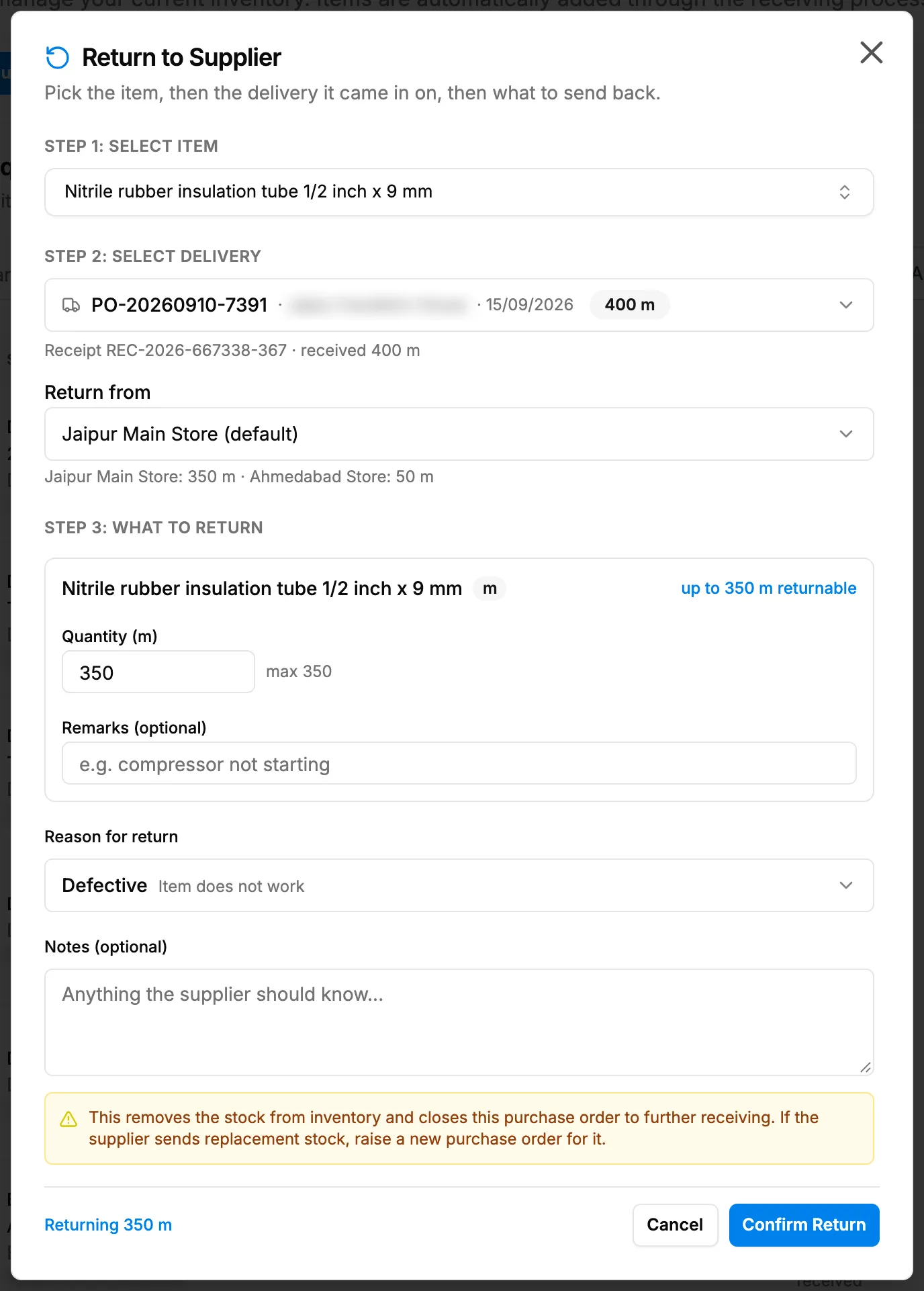
Step 2. The Return to Supplier box with Step 1, Step 2 and Step 3. -
In Step 1: Select Item, search ("Search item, SKU, category...") and pick the item. Each item shows how much can be returned.
-
In Step 2: Select Delivery, pick the delivery it came in on: "Which delivery did it come in on?". The line under it reads "Receipt [number] · received [quantity] [unit]", with "· already returned [quantity]" when some was returned before.
-
If Return from shows, pick the warehouse the stock leaves. It starts on the one holding the most. The stock in each warehouse shows under it, for example "Jaipur Main Store: 350 m · Ahmedabad Store: 50 m".
-
In Step 3: What to Return:
- for a serialised item, select the serial numbers going back;
- for a bulk item, enter the Quantity ([unit]). It starts at the most you can return, shown as "up to [quantity] [unit] returnable" and "max [quantity]".
-
Add Remarks (optional), for example "compressor not starting".
-
Choose the Reason for return: Defective (Item does not work), Damaged (Damaged in transit), Wrong item (Not what was ordered), Excess quantity (More than ordered) or Other (Explain in the notes).
-
Add Notes (optional): "Anything the supplier should know...".
-
Read the warning and check the line at the bottom, for example "Returning [quantity] [unit]".
-
Select Confirm Return.
Result
The message "Purchase return [return number] recorded" shows. The number looks like PRET-[year and month]-[four digits].
- The stock leaves the warehouse, with a "Purchase return" movement on the item.
- The purchase order's received quantity goes down and its status is worked out again: Partially Returned or Returned to Supplier when nothing is still due, else Partially Delivered or Sent. It leaves Pending Receipts for good.
- The return is on Purchase Returns, in the order's View Details under Returned to Supplier, and on the receipt as "[quantity] [unit] returned to supplier".
- What you owe the supplier goes down by the value returned. If you had already paid, PO Payments may show Refund due. See PO Payments says Refund due.
- When your company posts to the accounts automatically, a journal voucher is posted. See How invoices, payments, expenses and purchases reach your accounts.
Next: for replacement stock, Create a purchase order. To stop the old order, see Cancel a purchase order.
If something is different
- No Return to Supplier button: you do not have Add on Purchase returns.
- The button shows but the return is refused: you also need Receiving Order. A Manager sees the button by default but does not hold Receiving Order.
- "No items currently have returnable stock. Items already issued to customers or reserved for projects cannot be sent back to the supplier.", a struck-through serial number, or another refusal: see An item cannot be returned to the supplier.
- "Cannot return more than [number] [unit]. That is all that is left on this receipt": lower the quantity.
- "Select at least one serial number" or "Enter a return quantity": pick the serials or enter a quantity.
- No Return from: the stock of that receipt is in one warehouse.
- Items that came back from a site go back into your stock, not to the supplier. See Return issued items to inventory.