
Before you start
- To generate a challan, you need Inventory Management and Edit on Stock outs. The transport details have a vehicle number, a challan type and a deliver-to address. See Add or edit transport details on a stock out.
- To download it, View on Stock outs is enough.
- To edit the printed values, you also need Can see purchase costs.
- The challan number uses your Delivery challan prefix. See Set document numbering.
Steps
Generate the challan
-
In the sidebar, select Catalog & Inventory › Stock Out.
-
On the stock out's row, select View Details. The Delivery Challan block shows Not generated.
-
Select Generate Delivery Challan. The box says "The number is assigned once and never changes. Transport details stay editable, and every download prints the latest saved details."
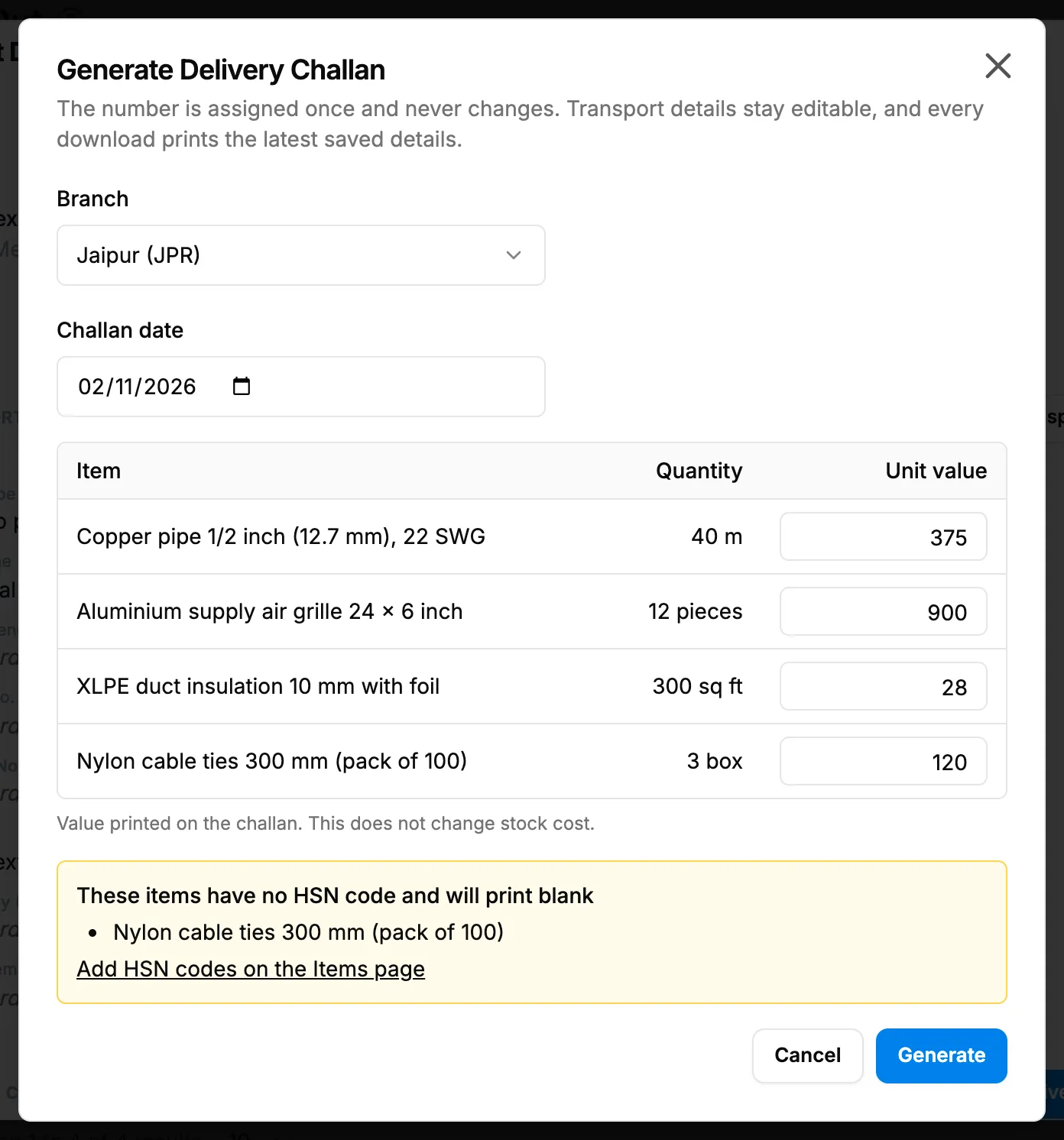
Step 3. The Generate Delivery Challan box with the Challan date and the items with no HSN code. -
Check the Challan date. It starts on today. With branches, check the Branch.
-
Check the Unit value of each line in the Item, Quantity and Unit value table: "Value printed on the challan. This does not change stock cost."
-
Read the list "These items have no HSN code and will print blank", if it shows. To fix them first, use Add HSN codes on the Items page.
-
Select Generate.
Download the challan
- In the Delivery Challan block, select Download challan. The button shows "Preparing challan..." while the PDF is built.
Edit the values printed on the challan
- In the Delivery Challan block, select Edit values. The box says "The next download of [number] prints these values. Leave a value empty to print it blank."
- Enter a Unit value on each line: "Value printed on the challan. This does not change stock cost."
- Save the values.
Result
Generate the challan: "Delivery Challan [number] generated" shows. The block shows Generated, the number (for example DC/[financial year]/[number]) and the date. If it was generated before: "... was already generated".
Download the challan: the PDF downloads with the latest saved transport details and values.
Edit the values printed on the challan: "Values saved" shows. Stock cost does not change.
Next: Upload a signed copy of a delivery challan.
If something is different
- Generate is refused or missing: see I can't generate a delivery challan.
- No Edit values, or "Values are not printed on this challan.": see The challan has no values, or Edit values is missing.
- The block says Delivery Note: your company is outside India. See The document says Delivery Note, not Delivery Challan.
- Items print with a blank HSN code: add the HSN code on the item. See Edit an item or change its status.
- The challan date is a date. The year in the number follows your financial year.