
Before you start
- You need Inventory Management and Delete on Stock outs.
- If the stock out is linked to an invoice, cancelling that invoice needs the right to cancel invoices (Delete on Invoices). See Cancel an invoice.
Steps
-
In the sidebar, select Catalog & Inventory › Stock Out.
-
On the stock out's row, select Delete. The box "Delete Stock Out" asks: "Are you sure you want to delete this stock out? This will restore inventory quantities." For a linked invoice, it also says what happens to the invoice.
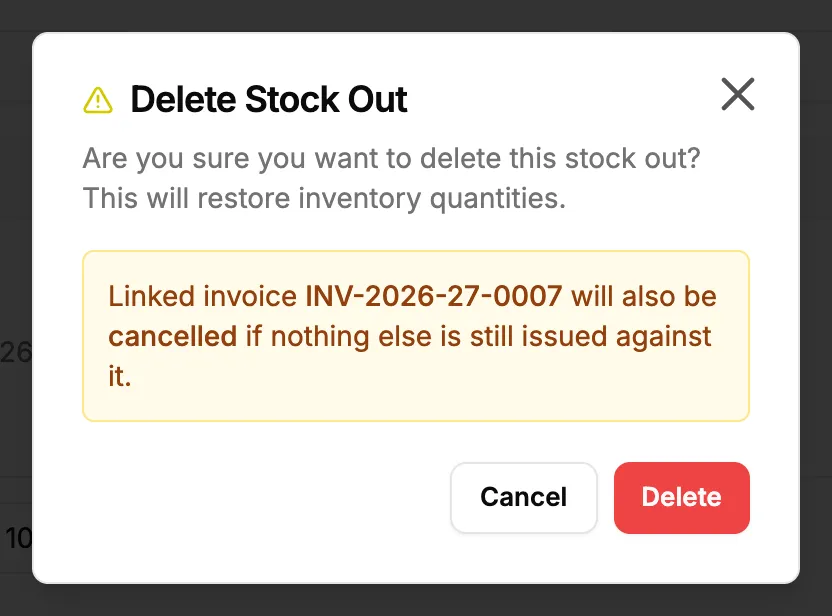
Step 2. The Delete Stock Out box with the note about the linked invoice. -
Select Delete.
Result
"Stock out deleted successfully" shows. The stock goes back into inventory with a "Stock out reversed" movement. A service stock out's service records are undone. The Recycle bin's Record type list has no Stock outs, so the deleted stock out is not listed there. See Recycle bin: restore records and set retention.
With a linked invoice:
- "Stock out deleted and invoice cancelled": the invoice was cancelled too.
- "Stock out deleted", with "Invoice [number] was not cancelled: ...": the invoice is still open. See Deleting a stock out did not cancel its invoice.
If something is different
- No Delete in the row: you do not have Delete on Stock outs.
- "Could not cancel invoice, please cancel it manually": the stock out is deleted; cancel the invoice yourself. See Cancel an invoice.