
Before you start
- You need Inventory Management and View on Stock outs.
- To add or remove receipt files, you also need Edit on Stock outs. To export, Can export lists.
Steps
Search and filter
- In the sidebar, select Catalog & Inventory › Stock Out. "Stock Out" opens with the card Stock Out Records.
- Type in "Search items, projects, suppliers, serial numbers, vehicle, driver or challan no...".
- Choose a type: All Types, Project, Individual or Service.
- Choose warehouses, a branch, a project ("No project linked" for stock outs without one), and a from and to day.
- To show everything again, select Clear Filters.
View a stock out
-
On the row, select View Details. "Stock Out Details" opens.
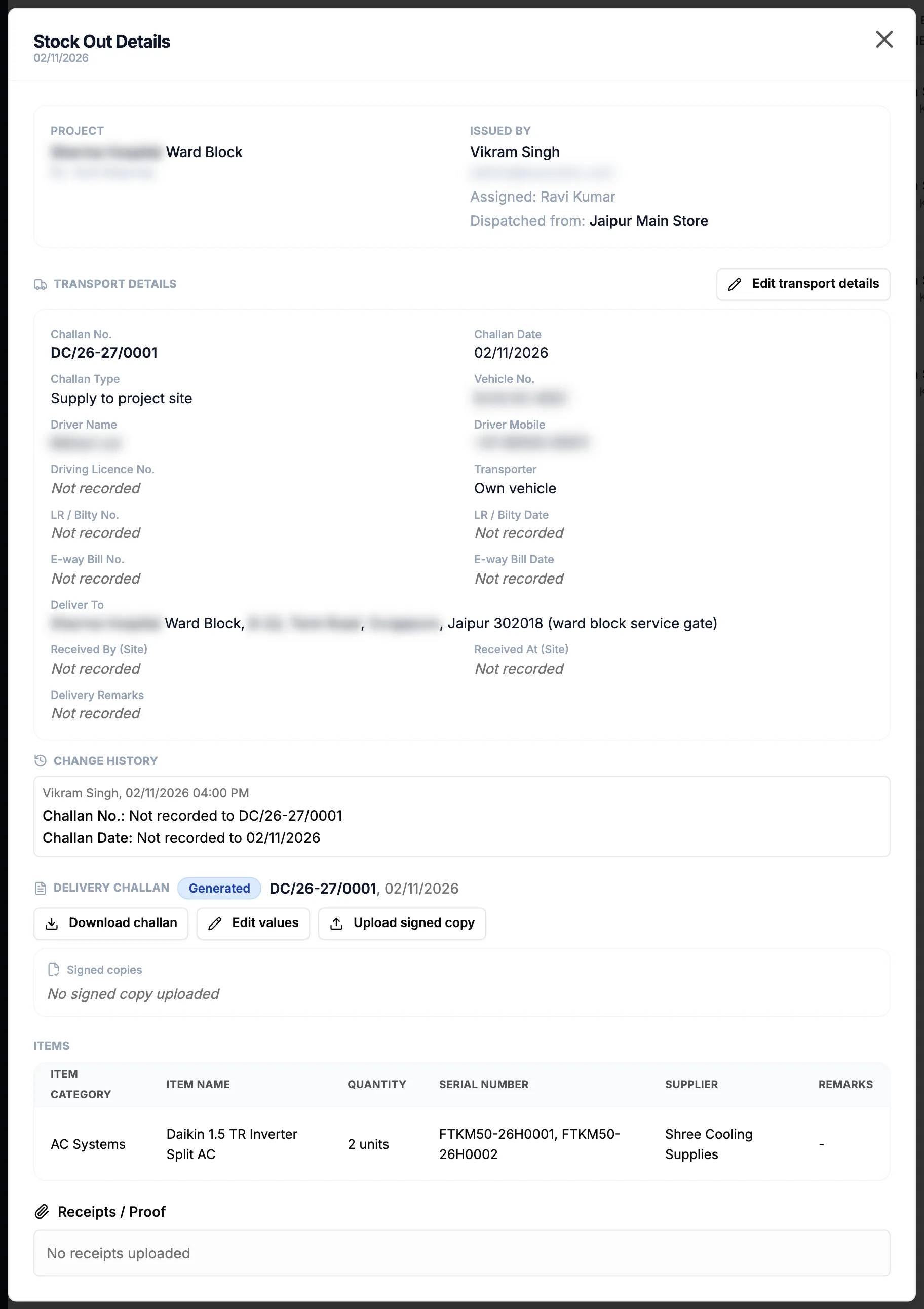
Step 1. Stock Out Details with the transport details, the Delivery Challan block and the Items. -
Read the project, or the client and invoice, or the service contract and invoice; who issued it, with "Assigned: [name]" and "Dispatched from: [warehouse]"; the transport details; the Change history; the Delivery Challan block; the Items; and Receipts / Proof with View and Download.
Add or remove receipt files
- On the row, select Edit Receipts. "Edit Receipts / Proof" opens: "Add or remove receipt files for this Stock Out entry".
- Add or remove the files. Each file is uploaded or deleted at once; the box has no save button.
Export the list
- Select Export, then the format.
Result
The list shows Date, Project / Reference, Warehouse, Item Category, Item Name, Quantity Issued, Issued By / Assigned, Branch and Actions. Date and Quantity Issued sort. A returnable line shows "✓ Returned" or "Partial ([returned]/[issued])".
Export the list: the file, named after "Stock-Out", downloads. It follows every filter and the sort.
If something is different
- "No stock out records found": nothing matches. Clear the filters.
- No Edit Receipts: you do not have Edit on Stock outs.
- No Export button: see Restrict what a role can see and export.
- No Warehouse or Branch column: your company has one warehouse, or does not show branches.
- The page subtitle says "to projects": the list also holds Individual and Service stock outs.