
Before you start
- You need Inventory Management and Delete on Items.
- The item is not on any purchase order, has no stock, and has no stock reserved for projects.
- If you only want to stop using the item, change its status to Inactive or Discontinued instead. See Edit an item or change its status.
Steps
-
In the sidebar, select Catalog & Inventory › Items.
-
In the item's row, under Actions, select Delete. The "Confirm Deletion" box opens: "Are you sure you want to delete [name]? It will be removed from the catalogue; the record is kept." and "The item will no longer appear in the catalogue or any picker".
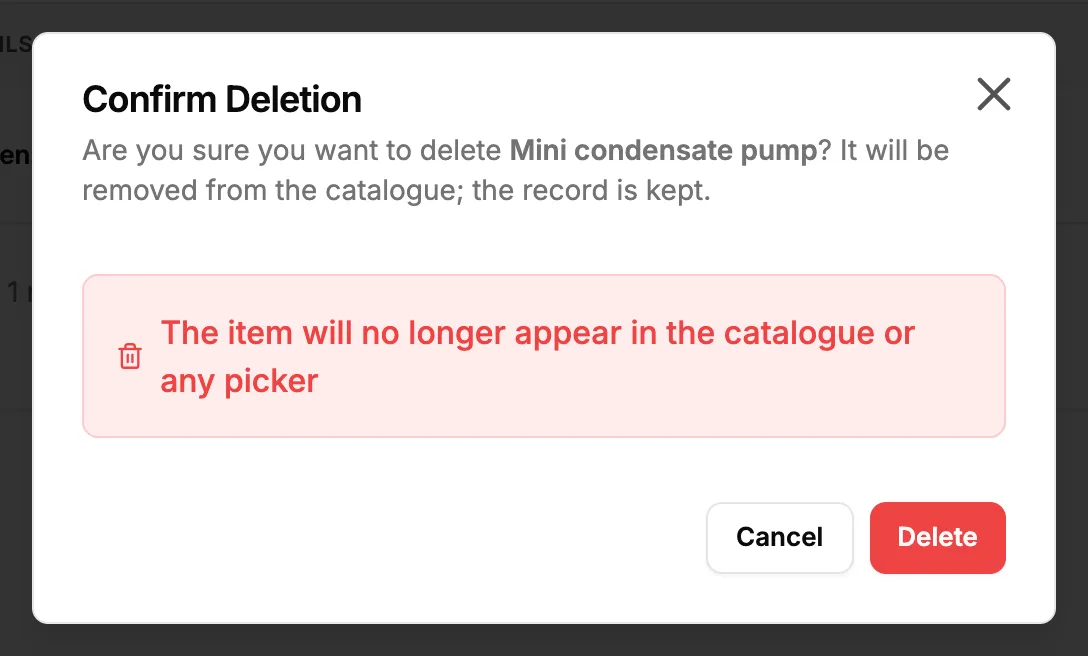
Step 2. The Confirm Deletion box for an item. -
Select Delete.
Result
The message "Inventory item deleted successfully" shows. The item leaves the list and every picker. Its record is kept, and its SKU can be used for another item. The Recycle bin lists Items among its record types, so a deleted item can be restored there. See Recycle bin: restore records and set retention.
If something is different
- No Delete in the row: you do not have Delete on Items.
- "Cannot Delete Item", or a message about stock or reservations: see An item cannot be deleted.