
Before you start
- You need Inventory Management and Add on Stock outs. Your company's plan is active.
- You need View on Invoices to pick the invoice. The invoice names the client. See Create an invoice.
Steps
-
In the sidebar, select Catalog & Inventory › Stock Out.
-
Select Add Stock Out, then Individual: "Issue items with an invoice to a client or person". "Stock Out: Individual" opens.
-
With several warehouses, choose Issue from. With branches, check the Branch.
-
In Invoice, choose the invoice. The form shows "Client:" with the invoice's client. With Add on Invoices, you can create one from here with Create New Invoice.
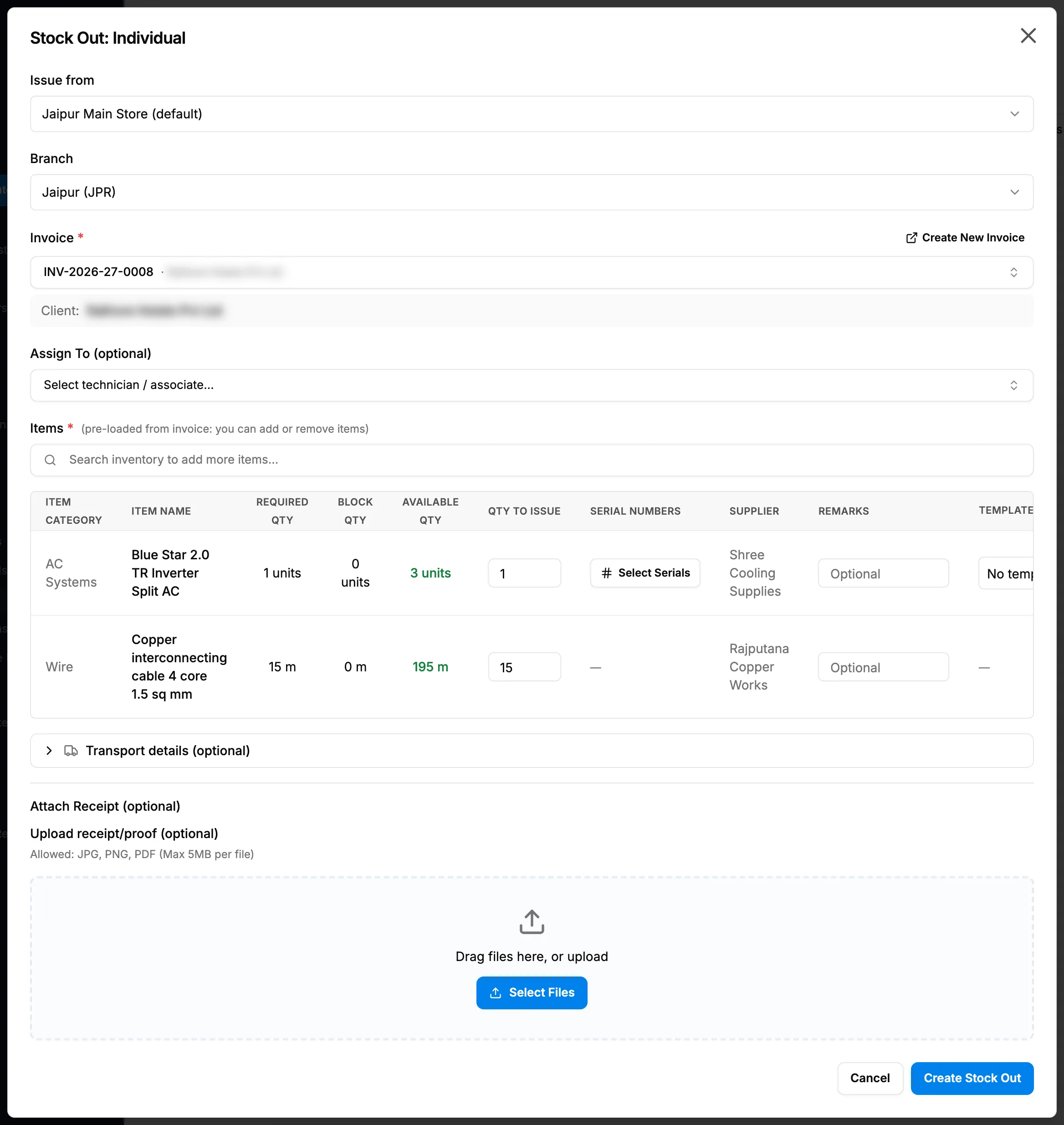
Step 4. Stock Out: Individual with the invoice chosen and its items loaded. -
In Assign To (optional) ("Select technician / associate..."), choose a technician or worker, if you want.
-
Check Items: "(pre-loaded from invoice: you can add or remove items)". Add or remove items as you need.
-
Enter Qty to Issue on each line, and choose Serial Numbers for serialised items.
-
In Attach Receipt (optional), add a receipt file, if you have one.
-
Fill in the transport details, if you want. See Add or edit transport details on a stock out.
-
Select Create Stock Out.
Result
"Stock out created successfully" shows. On the Stock Out list, Project / Reference shows the client and "Inv: [number]". Each item gets a "Stock out" movement.
Next: Generate, download or edit a delivery challan.
If something is different
- "You cannot view invoices.": you do not have View on Invoices. Ask your administrator.
- "Not on invoice" in Required Qty: you added an item that the invoice does not list.
- Items that cannot be issued: those lines have no stock to issue in this warehouse.
- "Please select an invoice", "Add at least one item", "Set a quantity on at least one item" or "Item already added": see A stock out cannot be saved.
- Deleting this stock out later may cancel the invoice. See Delete a stock out.