
Before you start
- You need Inventory Management and View on Stock.
Steps
-
In the sidebar, select Catalog & Inventory › ABC Analysis. "ABC Inventory Analysis" opens: "Classify inventory by consumption value: Class A (top 80%), B (next 15%), C (bottom 5%)".
-
Choose the mode: Value-Based ("Mode: Value-Based (Qty × Price)") or Consumption-Based ("Mode: Consumption-Based (Qty only)").
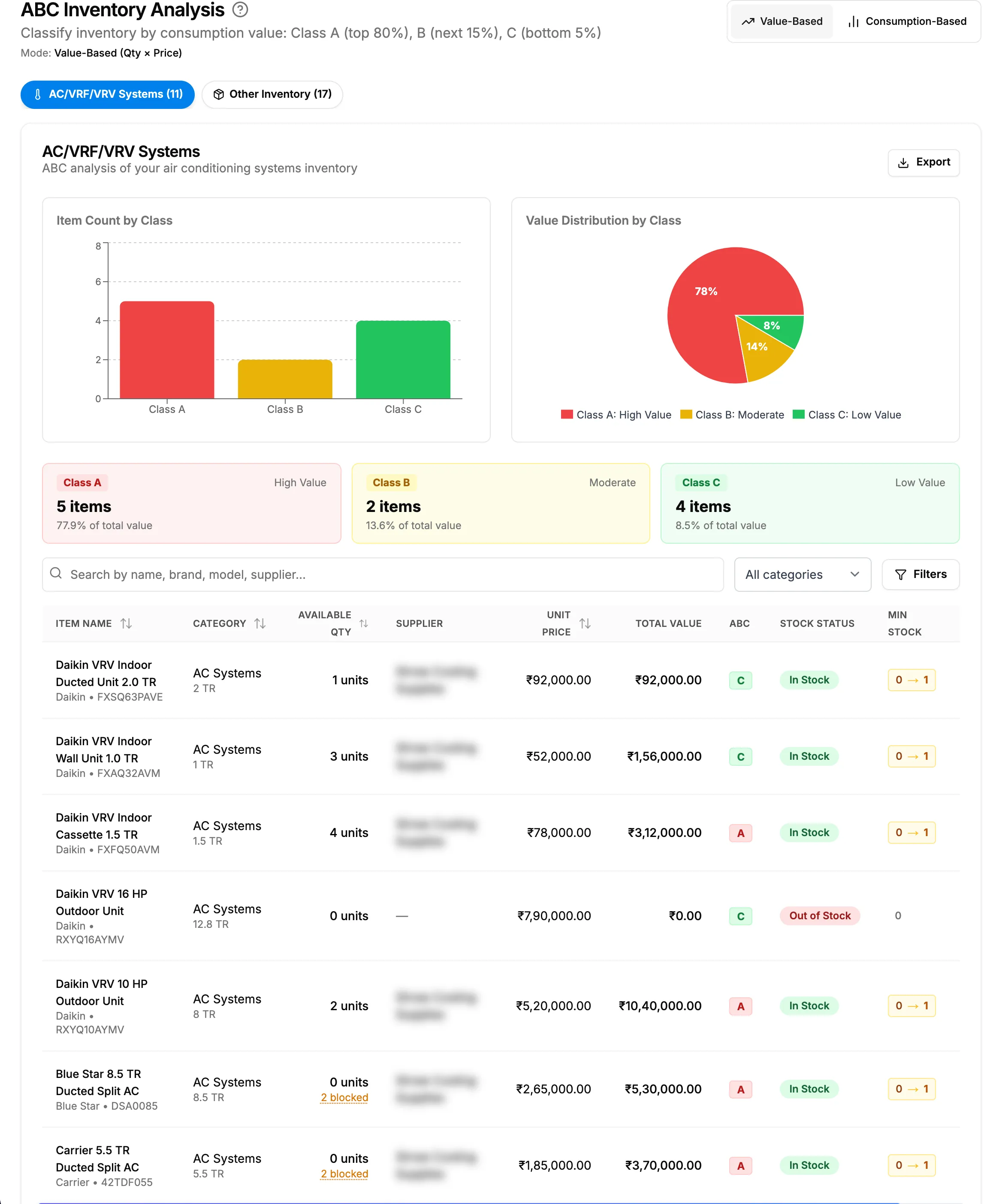
Step 2. The ABC Inventory Analysis page with the mode toggle and the ABC column. -
Select a tab: AC/VRF/VRV Systems (the AC Systems and Equipment categories) or Other Inventory.
-
Search by name, brand, model or supplier, and choose a category.
-
For more, select Filters: Supplier, Status, Price Range and ABC Class (Class A: High Value, Class B: Moderate, Class C: Low Value).
Result
Each row shows Item Name, Category, Available Qty, Supplier, Unit Price, Total Value, ABC, Stock Status, Min Stock and Item Status. The page also shows a card per class and the charts Item Count by Class and Value Distribution by Class. Hover over Available Qty for the Stock breakdown: In stock, Reserved by procurement and Available.
If something is different
- "Not priced" in Unit Price: the item's stock has no price. Opening stock rows imported without a price are left out of stock value and ABC analysis.
- No Export button: this page has none.
- The AC/VRF/VRV Systems tab lists other equipment: it covers the whole Equipment category as well as AC Systems.
- Consumption-Based: it reads the quantity in stock, not what was used.