
Before you start
- You need Inventory Management and View on Stock.
- The last purchase rate shows only if you can see purchase costs.
Steps
Read the details
- In the sidebar, select Catalog & Inventory › Inventory.
- On the item's row, select View Details. The item's page opens with its name and "Inventory Item Details".
- On the Details tab, read Item Information: stock in hand, minimum stock, blocked quantity, and the Last purchase rate ("[rate], [supplier], [date]", or "Not purchased yet").
- Read Suppliers for Total In Stock and Available to Issue, and By warehouse if you have several warehouses.
- Read Lots: "Each receipt is a lot; a defective lot is in stock but not issuable." Each lot shows its supplier, serial, warehouse, quantity, condition (Defective or Sellable) and received date.
- In Serial Numbers, type in "Search by serial number, supplier, or sold-to client...", and choose All, Available or Sold.
Read the movements
-
On the item's page, select the Movements tab: "Every stock change for this item, newest first, with the sellable balance after each one".
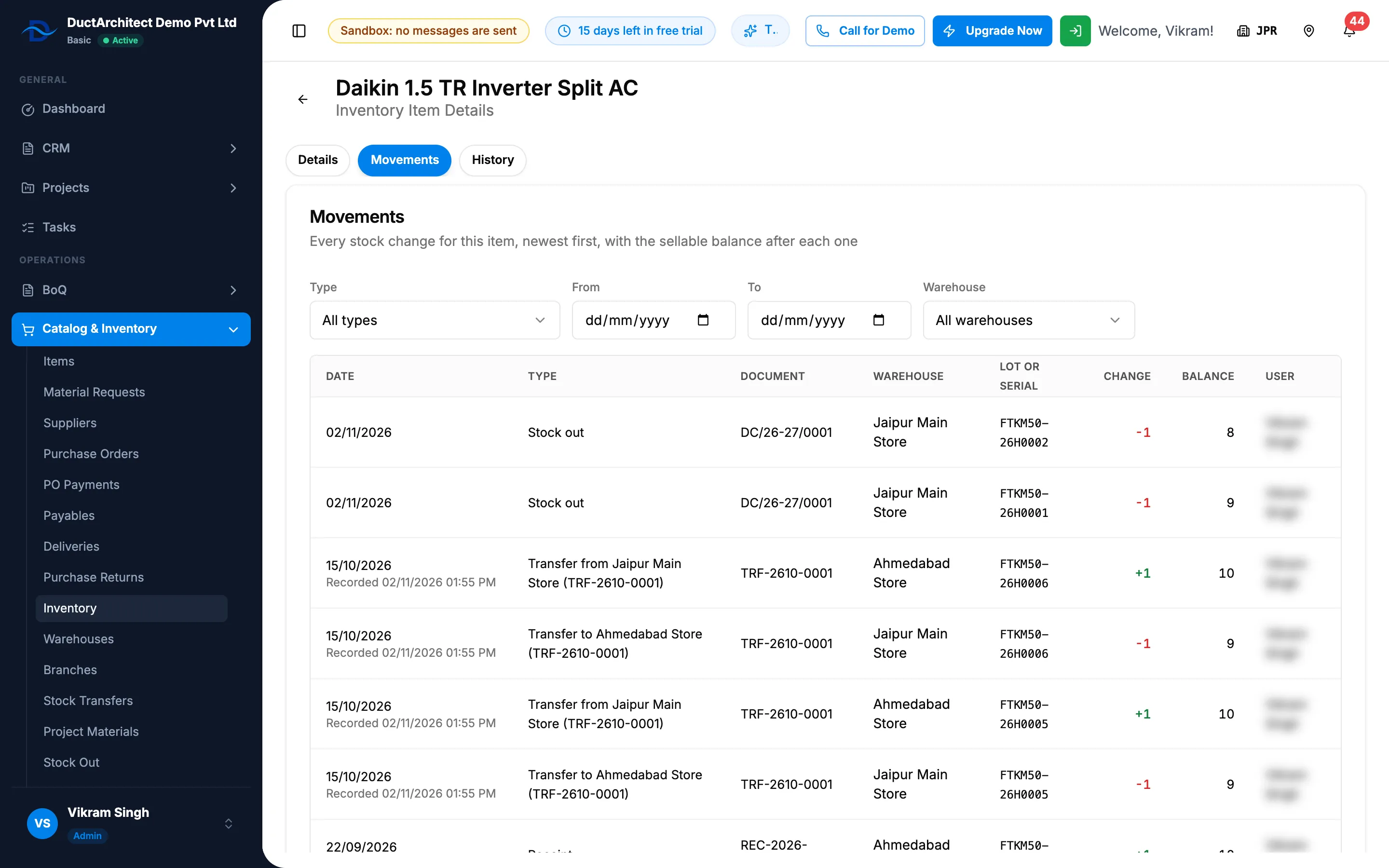
Step 1. The Movements tab with Type, From, To and Warehouse filters and the Balance column. -
To narrow it, choose a Type, a From and To date, and a Warehouse. Clear shows once a filter is set, and removes them.
-
Use Previous and Next to page through.
Result
Read the details: you see where the stock came from and what can be issued. The latest priced lot gives the rate that BoQs use when they refresh rates from inventory. See Refresh BoQ rates from inventory.
Read the movements: each row shows Date (a date and time), Type, Document, Warehouse, Lot or Serial, Change, Balance and User ("System" when no one did it). "Balance is the sellable balance in the selected warehouse only." On a stock-out row, Document can show the delivery challan number, for example DC/26-27/0001. A back-dated transfer row shows "Recorded [date and time]" under its date. The Inventory and item pages: columns, badges and movement types lists every type.
If something is different
- "No stock yet": "This item has not been received and has no opening stock."
- "No movements yet" or "No movements match these filters": nothing matches. Clear the filters.
- "Inventory item not found": the item was deleted, or the link is old. Open it again from the Inventory page.
- No Last purchase rate: you cannot see purchase costs. See I can't see prices or customer details.
- A History tab: with the activity log module, the page also has a third tab, History, for the record history. See View the activity and access logs.
- Some dates look different from the rest of the app: a few dates on this page are printed in your browser's format.