
Before you start
- You need Inventory Management and View on Procurements.
Steps
-
In the sidebar, select Catalog & Inventory › Project Materials. "Procurement Projects" opens: "View and manage projects with unfulfilled procurement items".
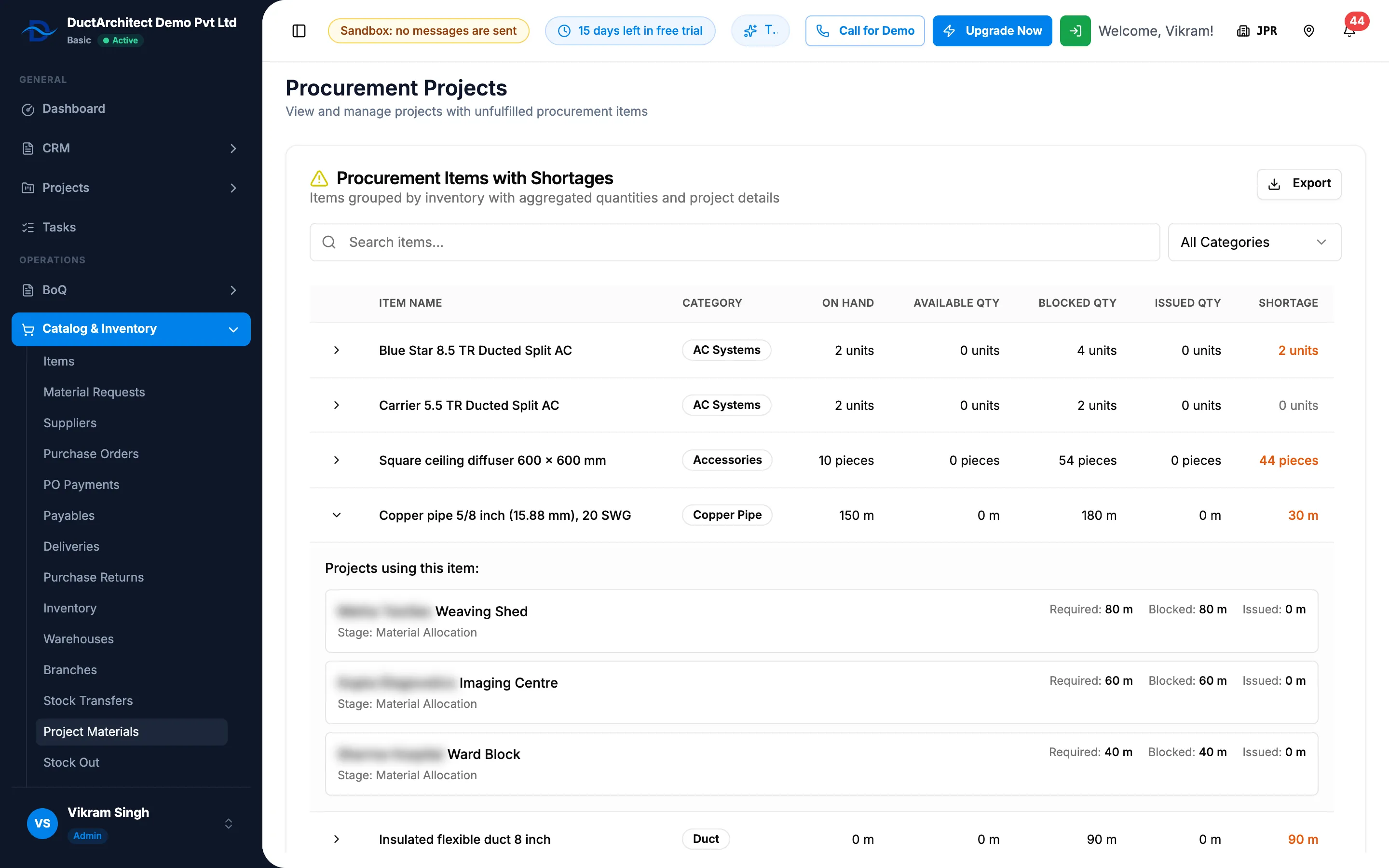
Step 1. Procurement Items with Shortages, with one row expanded to show its projects. -
Type in "Search items..." or choose a category.
-
Select the chevron on a row. "Projects using this item:" lists each project with its stage (for example "Stage: Material Allocation") and its Required, Blocked and Issued quantities.
-
Select a project's name to open the project.
-
To export, select Export, then the format.
Result
The card Procurement Items with Shortages shows each item with Category, On hand, Available Qty, Blocked Qty, Issued Qty and Shortage. A shortage above 0 shows in orange. With none: "No items with shortages" and "All procurement items are fulfilled".
The export file is named after "Project-Materials".
Purchase orders for the shortages are raised in the Purchase module. See Create a purchase order.
If something is different
- The sidebar says Project Materials, the page says Procurement Projects: it is the same page.
- A project's materials are missing: they show here only when a project's lines need more than you hold. See the project's own Material Allocation stage. See Allocate materials to a project.
- No Export button: you do not have Can export lists.