
Before you start
- You need Inventory Management and Edit on Items.
- SKU and Category cannot be changed once the item is on a purchase order.
Steps
Edit an item
-
In the sidebar, select Catalog & Inventory › Items.
-
Find the item. See Find items on the list: search, filter and export.
-
In the row's Actions, select Edit Item. The "Edit Inventory Item" box opens with Last purchase rate at the top.
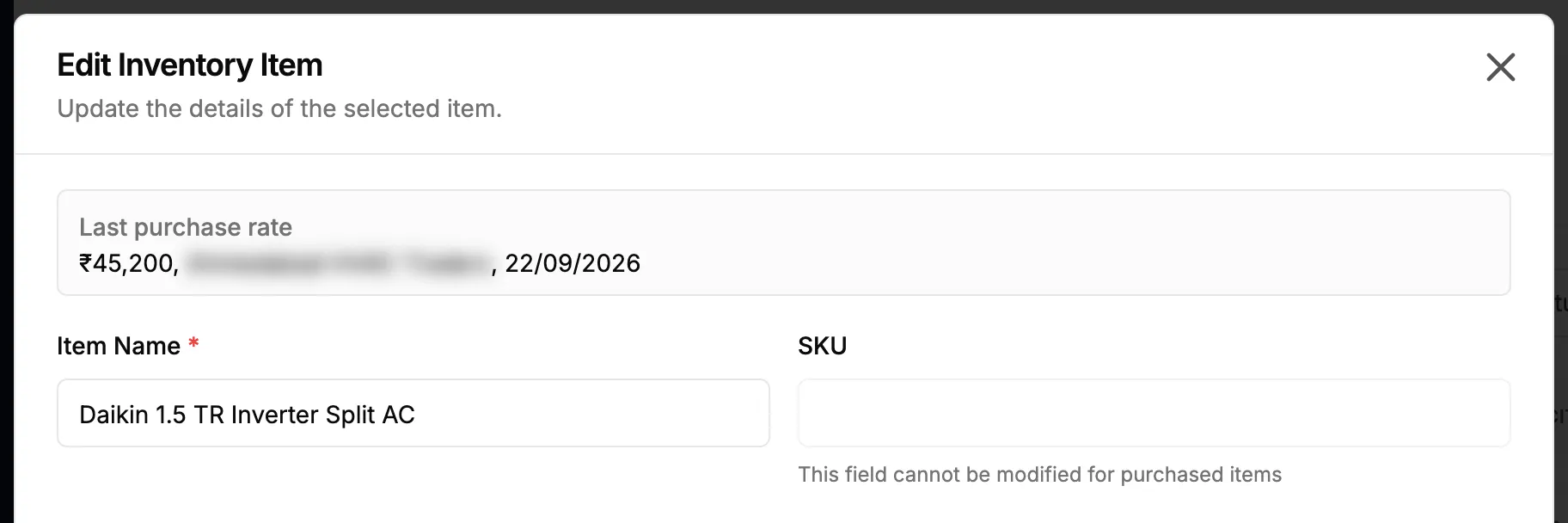
Step 3. The Edit Inventory Item box with the Last purchase rate row. -
Change the fields you need. Add and Edit Inventory Item: every field lists them.
-
Select Save Changes.
Change an item's status
- In the sidebar, select Catalog & Inventory › Items.
- In the row's Actions, select Edit Item.
- In Status, choose Active, Inactive or Discontinued.
- Select Save Changes.
Result
The message "Inventory item updated successfully" shows, and the list shows the new details.
Change an item's status: the Status column shows Active, Inactive or Discontinued. The status has no effect on stock, and inactive items still appear in the lists. You can change it back at any time.
If something is different
- The box shows only Close, and nothing can be changed: you have View but not Edit on Items. See I can't change an item's details.
- SKU shows "This field cannot be modified for purchased items", or Category is locked: the item is on a purchase order. See I can't change an item's details.
- You change the Category: Unit resets to the new category's first unit, and the maintenance template is cleared if the new category is not serviceable.
- No Last purchase rate row, or it reads "Not purchased yet": you cannot see purchase costs, or the item was never bought. See I can't see prices or customer details.
- You want the item gone from the catalog: see Delete an item.