
Before you start
- You need Inventory Management and View on Stock.
- To filter by supplier, you also need View on Suppliers. To export, Can export lists.
Steps
Find an item's stock
-
In the sidebar, select Catalog & Inventory › Inventory. "Inventory Management" opens.
-
Select a tab: AC & Equipment ([number]) for AC Systems and Equipment items, or Other Inventory ([number]) for every other category. The number is the count of items on the tab.
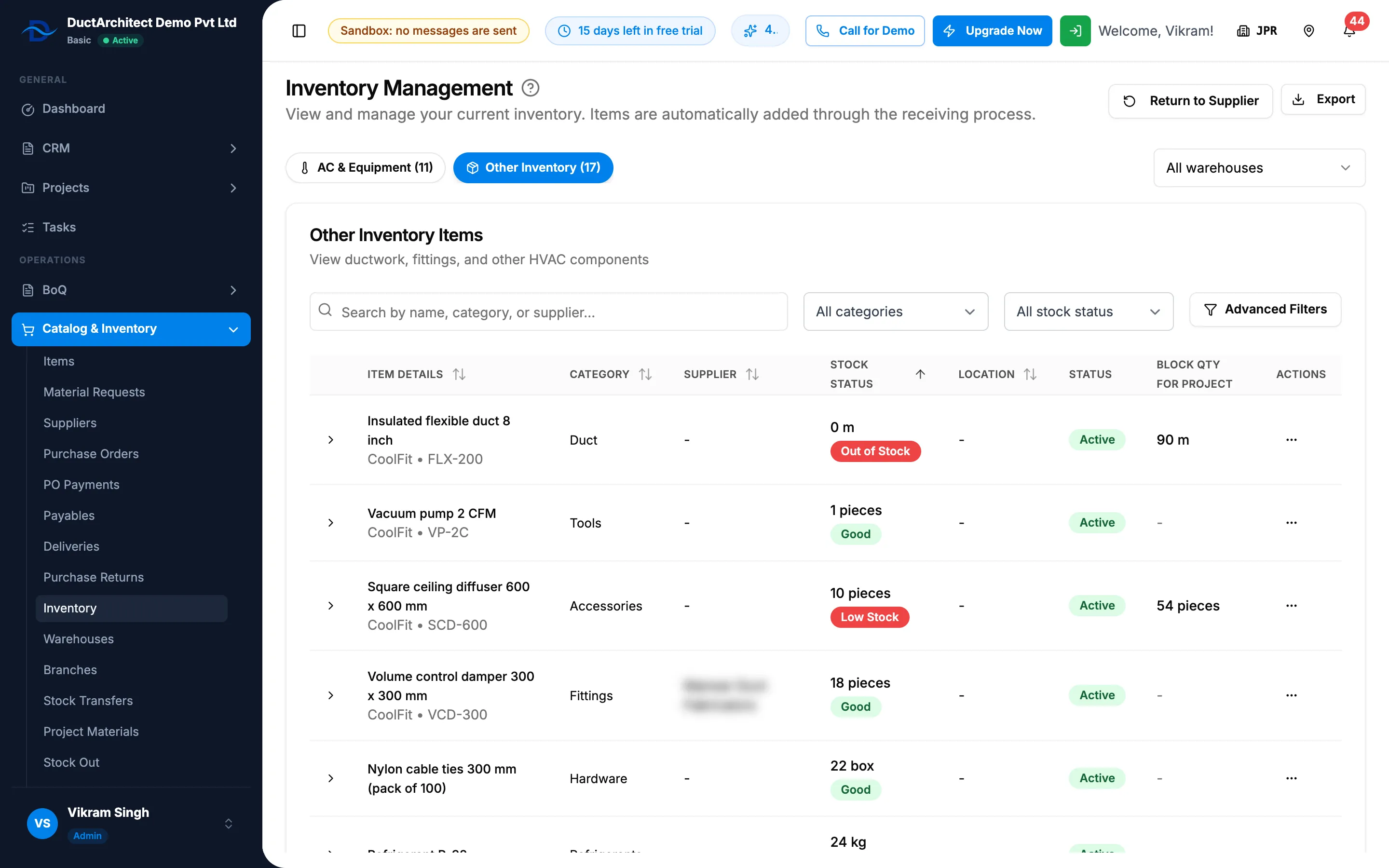
Step 2. The Inventory page with its two tabs and the Stock Status column. -
Type in the search box: "Search by name, make, model, or supplier..." on AC & Equipment, "Search by name, category, or supplier..." on Other Inventory.
-
Choose a category, and a stock status: All stock status, In Stock, Out of Stock or Low Stock.
-
For more, select Advanced Filters: Supplier, Status and Price Range (Min price, Max price). Clear All removes them.
See the split by warehouse
- With two or more warehouses, choose the warehouses in the warehouse filter beside the tabs.
- On an item's row, select the chevron (Show warehouse split) to see the quantity in each warehouse.
Export the list
- Select Export, then the format. The file covers the open tab with its filters, warehouses and sort.
Reorder a low stock item
- On the item's row, select Reorder in the actions, or select its Low Stock badge ("Reorder this item").
- A new purchase order opens for the item. Purchase orders are completed in the Purchase module. See Create a purchase order.
Result
Each row shows the quantity and unit in Stock Status with a badge: Out of Stock, Low Stock or Good. A "[number] [unit] defective" note shows stock you cannot issue. Block Qty for Project shows stock reserved for projects. The Inventory and item pages: columns, badges and movement types explains each column.
Export the list: the file, named after "Inventory", downloads.
Next: Read an item's lots, serial numbers and movements.
If something is different
- An item is not on the Inventory page: the page lists only items that have stock records. An item that was never received or given opening stock is on the Items page only.
- "No AC systems in inventory" or "No other items in inventory": nothing on that tab has stock yet. Stock comes from deliveries, in the Purchase module, or from the opening stock import.
- "Reserved and available quantities are shown for all warehouses.": you picked some of your warehouses. Reserved and available figures still count all of them, and Low Stock is not offered in the stock status filter.
- No warehouse filter or chevron: your company has one warehouse. See Stock Transfers or the warehouse columns are missing.
- No Reorder: see Reorder is missing on a low stock item.
- Return to Supplier, in the page header beside Export, sends stock back to a supplier. It belongs to purchase returns, in the Purchase module, and needs Add on Purchase returns; saving the return also needs Receiving Order. See Return stock to a supplier.
- Available is lower than in stock: see Available quantity is lower than the stock on hand.
- "Error loading inventory data": select Try Again. "Warning: Suppliers not loaded": select Retry Loading Suppliers.