
Before you start
- You need Inventory Management and Add on Items.
- Your company's plan is active.
- To pre-select a tax slab on purchase orders, set up your tax slabs first. See Tax slabs: add, edit, set default, delete.
Steps
-
In the sidebar, select Catalog & Inventory › Items. "Inventory Items" opens.
-
Select Add Item. The "Add New Inventory Item" box opens.
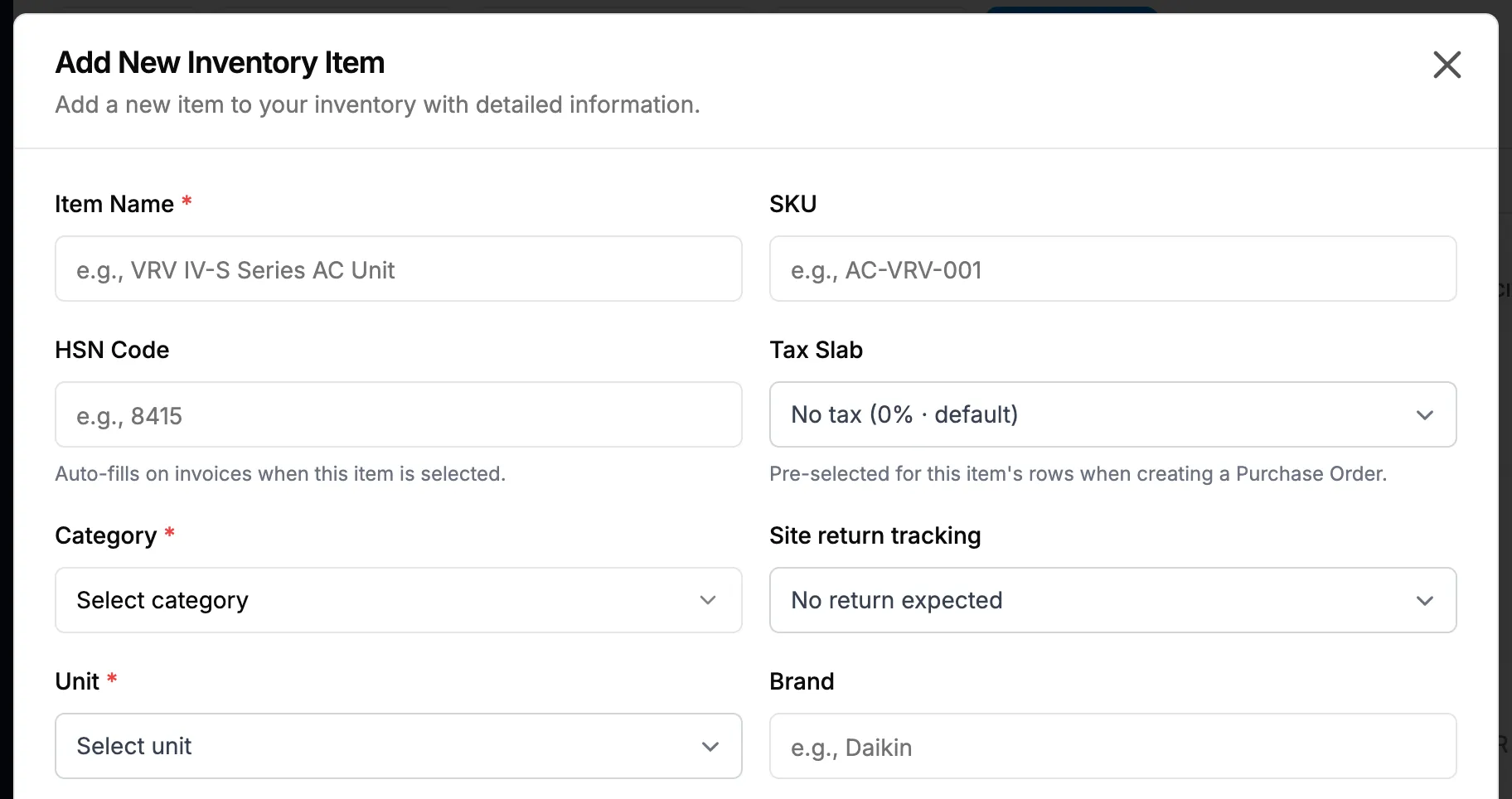
Step 2. The Add New Inventory Item box with Item Name, SKU, Category and Unit. -
Fill in the main fields:
Field Required What to enter Item Name Yes Up to 100 characters. SKU No Your stock code. Up to 50 characters, no spaces, unique. HSN Code No Up to 20 characters. Fills in on invoices when the item is picked. Tax Slab No One of your company's tax slabs, pre-selected on purchase orders. Starts on your company's default slab, for example "No tax (0% · default)". Category Yes One of the 21 fixed categories. Site return tracking No Company asset: always comes back; Material: track leftover returns; or No return expected (the default). Unit Yes The units of the chosen category. The first one is picked for you. Brand No Pick a brand, or type a new name to create one. Model No The model. Minimum Stock No The level at or below which the item shows Low Stock. 0 by default. Status No Active, Inactive or Discontinued. Starts at Active. Standard type No Optional: links this item to the BoQ standards library for automatic procurement mapping. -
For an AC unit or other equipment, fill in Equipment type, Capacity (TR), Rated airflow (CFM) and ESP (in. w.g.). See Set the equipment type and capacity of AC units.
-
For a machine you will service, set Serviceable machine and Maintenance Template. See Give a serviceable item a maintenance template.
-
Fill in Location, Description and Specifications if you use them.
-
Select Add Item.
Add and Edit Inventory Item: every field lists every field and its conditions.
Result
The message "Inventory item created successfully" shows. The item is on the list with Active unless you chose another status. It has no stock yet: stock comes from deliveries, in the Purchase module (see Receive a delivery against a purchase order), or from the opening stock import.
Next: Import opening stock, if you already hold this item.
If something is different
- No Add Item button: you do not have Add on Items. If the whole menu is missing, see The Catalog & Inventory menu, or a page in it, is missing.
- An upgrade box or a plan warning opens: see Add Item or Add Stock Out opens a plan or upgrade box.
- "Item name is required", "Category is required" or "Unit is required": fill in the field.
- "SKU cannot contain spaces" or "SKU already exists": change the SKU.
- "[Unit] cannot have decimal values. Please enter a whole number.": the unit counts whole pieces. Use a whole number in Minimum Stock.
- No Equipment type, capacity or Maintenance Template fields: they show only for some categories. See Equipment type, capacity or maintenance template is missing on the item.
- "No tax slabs yet: add them in Settings › Tax.": your company has no tax slabs. Leave Tax Slab empty, or add them first.
- Many items at once: use Download template and Bulk upload on this page, or Data Import. See Import your item catalog from Excel.