
Before you start
- You need Inventory Management and Add on Stock.
- Your company has two or more active warehouses. See Add a warehouse.
- Only sellable stock can be moved.
Steps
-
In the sidebar, select Catalog & Inventory › Stock Transfers. "Stock Transfers" opens.
-
Select New Transfer. The box says the transfer "is recorded as soon as you save it and cannot be edited afterwards; it can be reversed while the stock is still at the destination."
-
Choose the From warehouse and the To warehouse.
-
Pick the Transfer date. It starts on today and cannot be later than today.
-
In Item 1, search for an item by name or SKU ("Search an item by name or SKU").
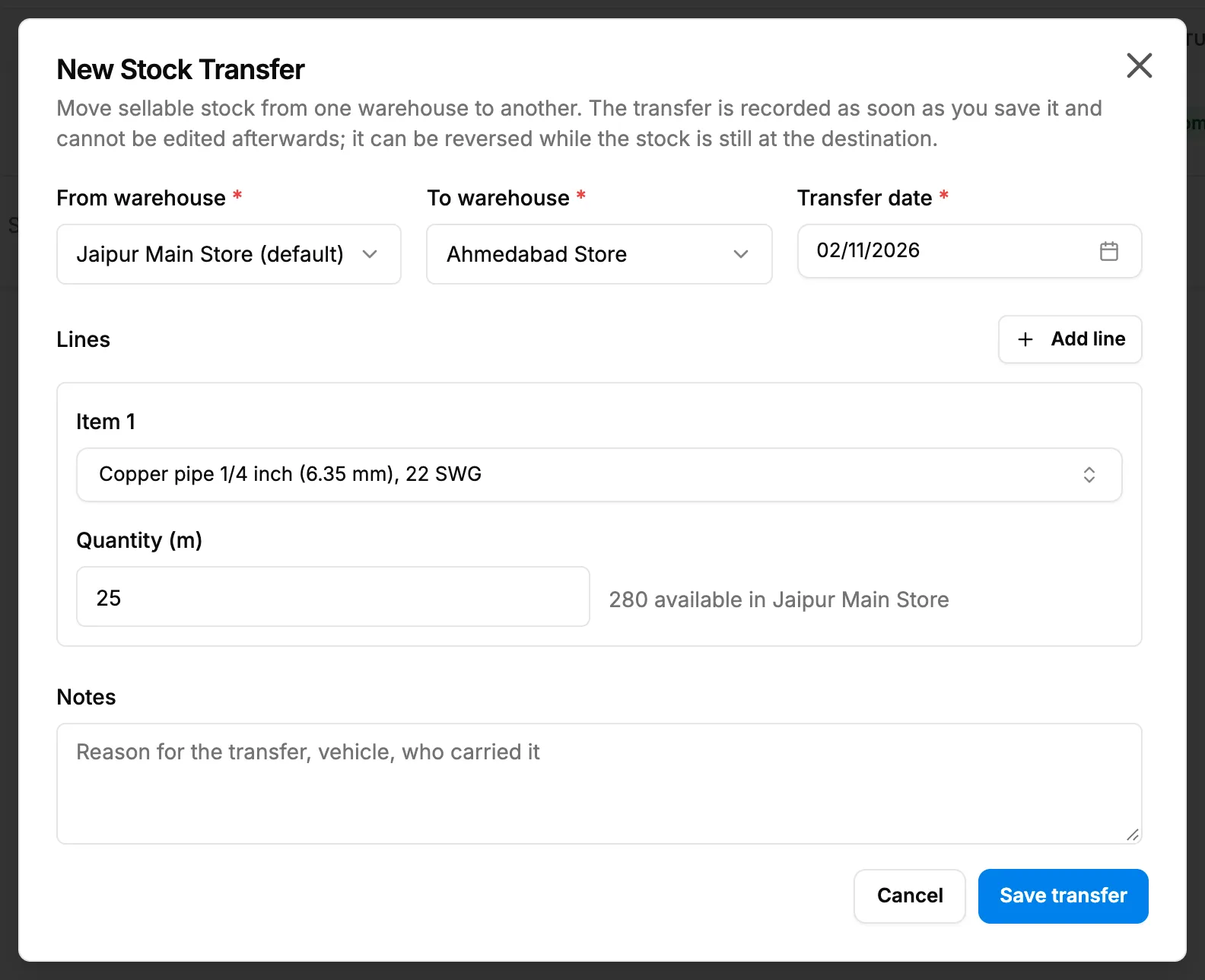
Step 5. The New Stock Transfer box with the warehouses, the date and one line. -
For bulk stock, enter the Quantity. For a serialised item, tick the serial numbers in "Serial numbers in [warehouse] ([number] of [number] chosen)".
-
To move another item, select Add line and repeat.
-
In Notes, add the reason, the vehicle or who carried it, if you want.
-
Select Save transfer.
Result
The message "Transfer [number] saved" shows. The transfer is on the list with a number like TRF-[year and month]-[number] and Completed. Each item gets a "Transfer to" and a "Transfer from" movement with the other warehouse and the transfer number.
Transfer date is a date. The time it was recorded is kept as a date and time.
Next: Find, view or reverse a stock transfer.
If something is different
- No Stock Transfers in the sidebar, or New Transfer is greyed out with "Transfers need two active warehouses.": see Stock Transfers or the warehouse columns are missing.
- "Choose two different warehouses": the from and to warehouses are the same.
- "Choose the from warehouse to see what can be transferred.": pick From warehouse first.
- "Choose an item": a line has no item.
- "Quantity must be greater than 0" or "Enter a quantity or choose at least one serial number": fill in the line.
- "No items match.": no item matches your search.
- A mistake after saving: the transfer cannot be edited. Reverse it and record a new one.