
Before you start
- You need Inventory Management and Add on Sales returns. To see the page, View on Sales returns.
- The sales return was created from its invoice with "Record sales return". It is a Draft. See Record a sales return or issue a credit note from an invoice.
Steps
Open Sales Returns
-
Open any DuctArchitect page.
-
In your browser's address bar, replace the part after the domain with /sales-returns and press Enter. "Sales Returns" opens: "Customer returns against sales. Create one from an invoice’s “Record sales return”."
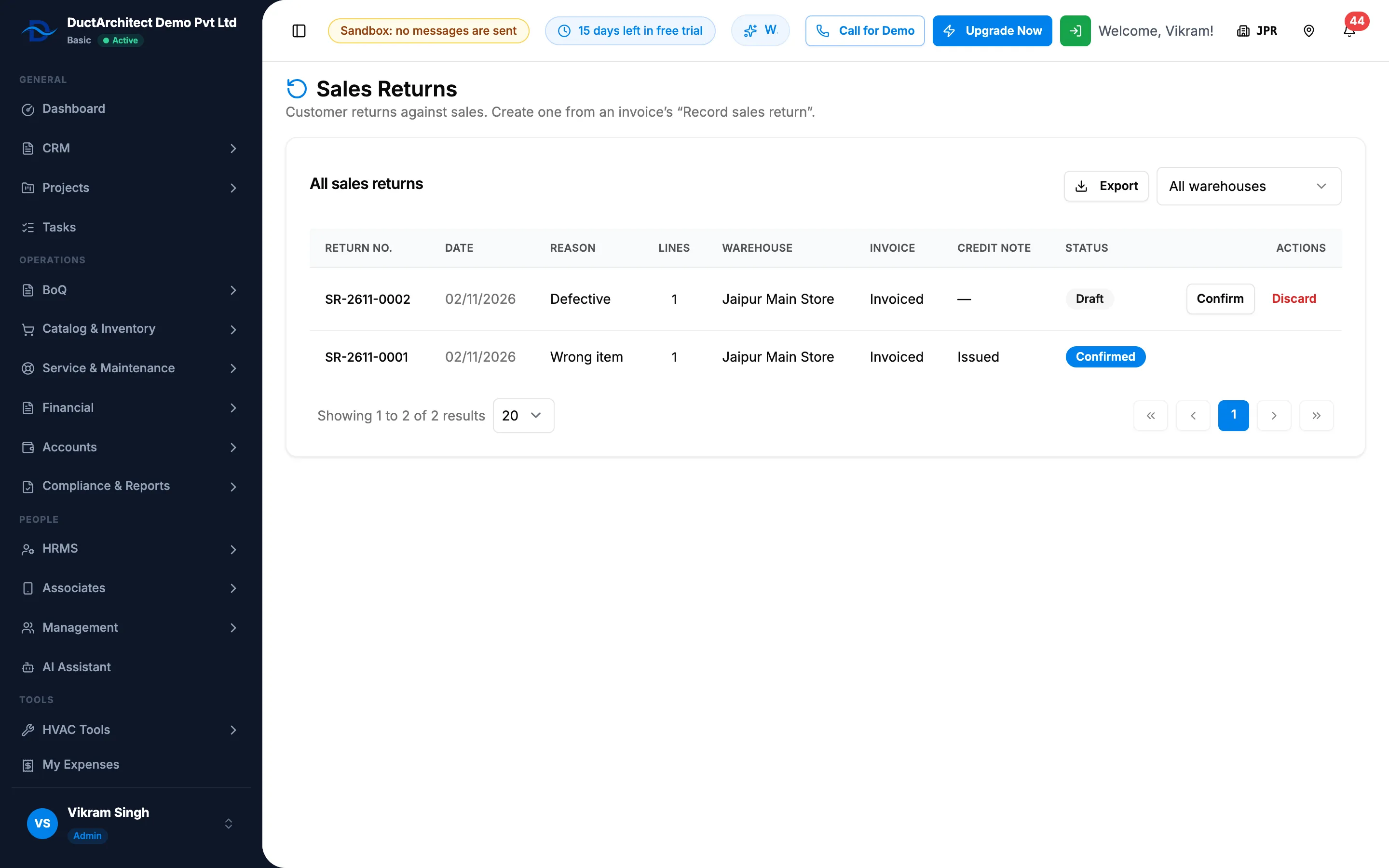
Step 2. The Sales Returns page with All sales returns and a draft row.
Confirm a draft
- On the draft's row, select Confirm. There is no choice of settlement on this page.
Discard a draft
- On the draft's row, select Discard. The box asks "Discard draft [number]?": "The draft has not moved any stock or raised a credit note. Discarding it frees its lines for a new return."
- Confirm.
Result
Open Sales Returns: the card All sales returns lists Return No., Date (a date), Reason (Defective, Wrong item, Not working or Other), Lines, Warehouse, Invoice ("Invoiced"), Credit Note ("Issued"), Status and Actions. With none: "No sales returns yet."
Confirm a draft: "Sales return confirmed, credit note issued" shows for an invoiced return, otherwise "Sales return confirmed". The status is Confirmed. Each line is restocked by its disposition: "Restock: sellable", "Restock: defective" or "Defective: return-to-supplier candidate", with a "Sales return" movement.
Discard a draft: "Draft [number] discarded" shows, and its lines can go on a new return.
If something is different
- No Confirm or Discard: the return is already confirmed, or you do not have Add on Sales returns.
- A confirmed return was wrong: this screen has no undo for a confirmed return. Submit a request with the return number.
- The page has no menu entry: Sales Returns is not in the sidebar and no screen links to it. See The Catalog & Inventory menu, or a page in it, is missing.
- Several warehouses: filter the list by warehouse. Export downloads a file named after "Sales-Returns".