
Before you start
- You need Inventory Management and Edit on Items.
- AC Unit Recommendations offers an item only when its category is AC Systems and its equipment type is set. See How AC unit recommendations work.
Steps
Set it on one item
-
In the sidebar, select Catalog & Inventory › Items.
-
In the item's row, under Actions, select Edit Item.
-
In Category, choose AC Systems. The equipment fields appear.
-
In Equipment type, choose the type of unit or plant. The list has 11 types: "Room split (hi-wall, cassette, floor standing)", "Ductable split", "Packaged / rooftop unit", "VRF outdoor unit", "VRF indoor unit", "Chiller", "AHU", "FCU", "Pump", "Cooling tower" and "Boiler". Three more choices are for items that are not one of these: "Other cooling or heating machine", "Other air moving equipment" and "Accessory, never listed as a machine". Help text under the field describes the type, for example "Room split (hi-wall, cassette, floor standing). Counted towards the project's selected capacity."
-
In Capacity (TR), enter the nameplate capacity.
-
In Rated airflow (CFM), enter the nameplate airflow: "Used for duct generation."
-
In ESP (in. w.g.), enter the external static pressure, if you have it.
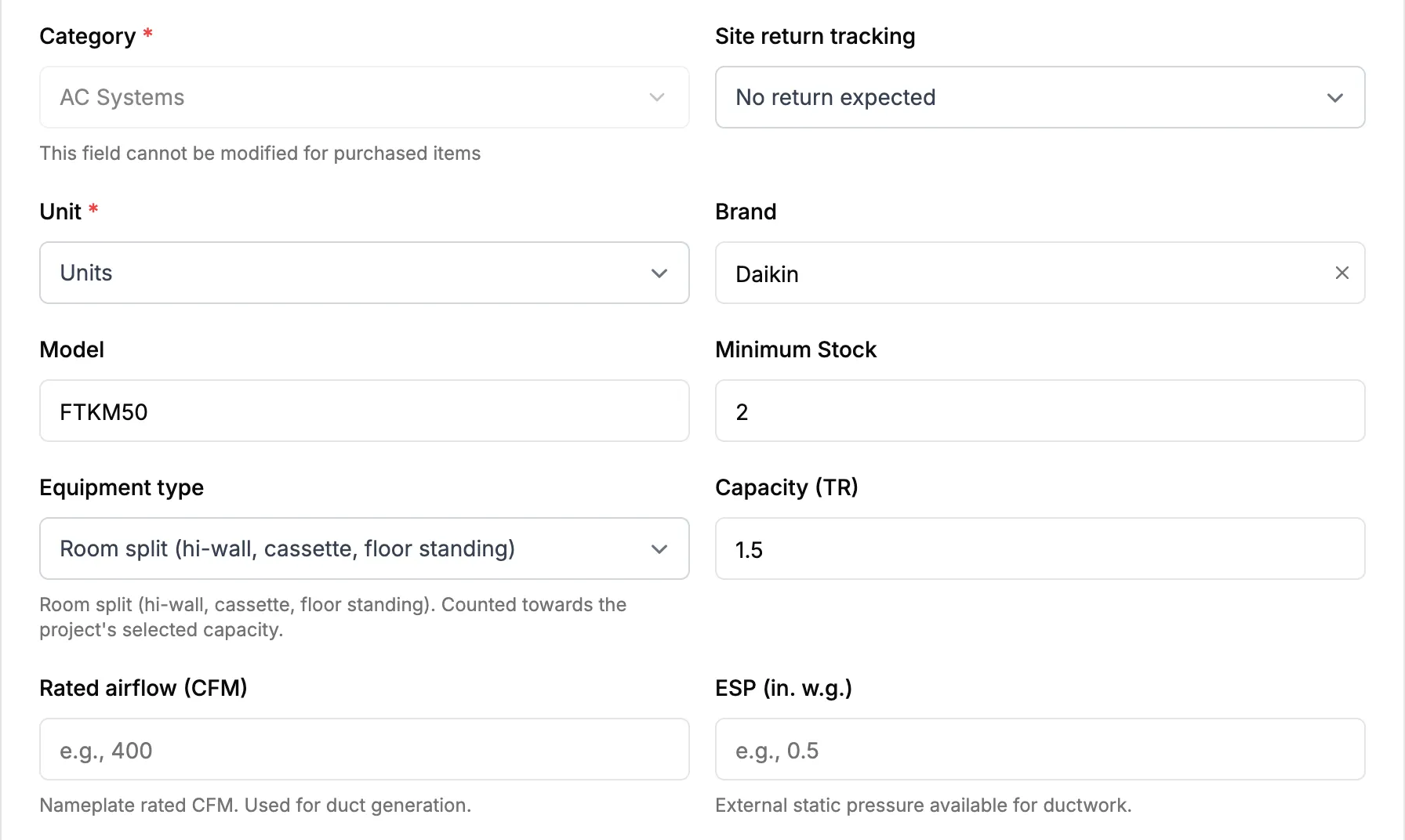
Step 7. Equipment type, Capacity (TR), Rated airflow (CFM) and ESP on an AC Systems item. -
Select Save Changes.
Set the type on many items at once
-
In the sidebar, select Catalog & Inventory › Items.
-
In the equipment type filter, choose Type not set. To narrow it, choose AC Systems in the category filter.
-
Tick the items to change. To take every item that matches, tick the whole page, then select Select all [number] items matching this filter.
-
In the bar that appears, choose the type.
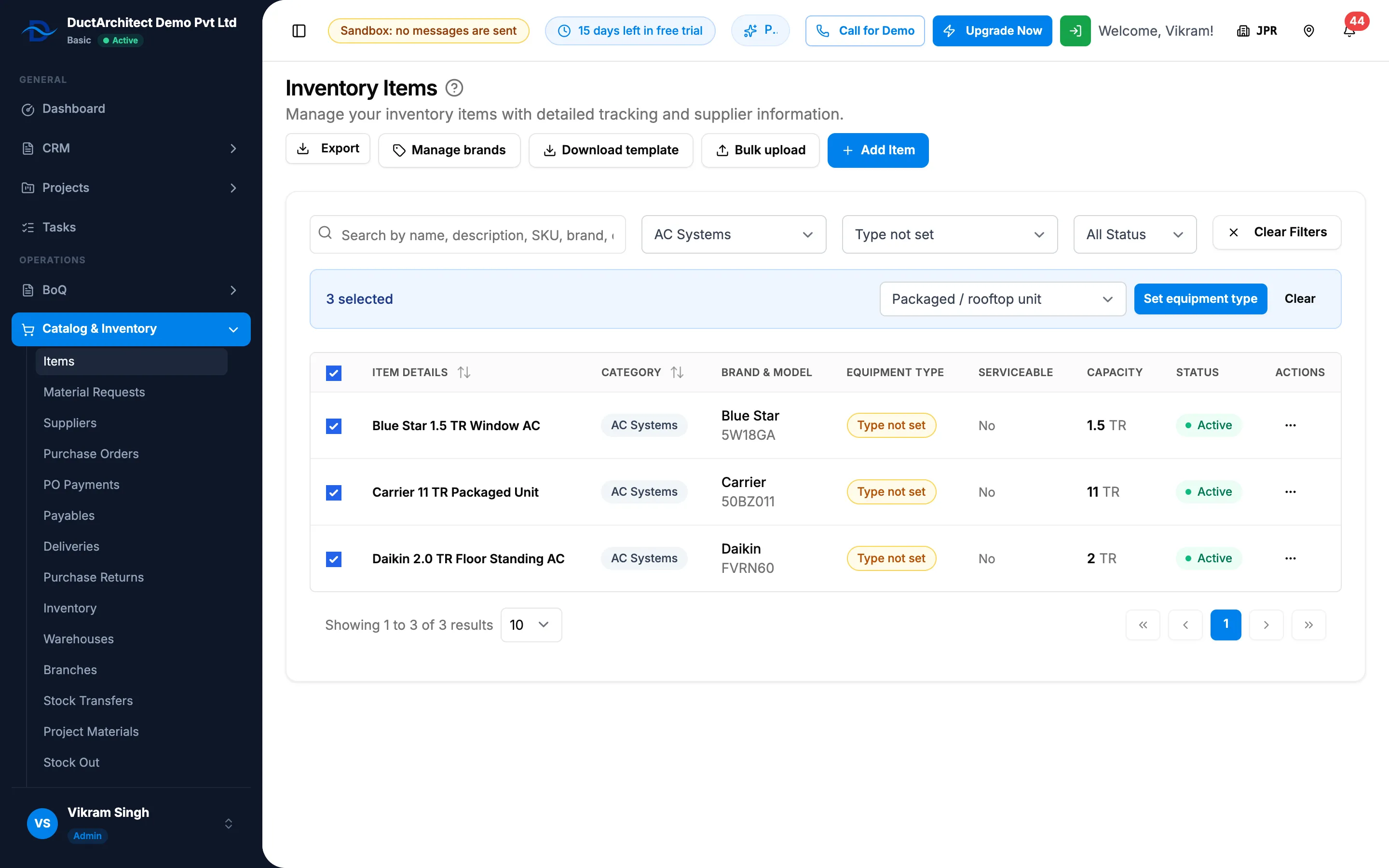
Step 4. The bulk bar with the selected count, the type list and Set equipment type. -
Select Set equipment type. The box asks "Set equipment type to [type] for [number] item(s)?".
-
Select Set type.
Result
Set it on one item: the message "Inventory item updated successfully" shows. Set the type on many items at once: "[number] item(s) updated." shows.
The Equipment type column shows the type, and Capacity shows "[number] TR". AC Unit Recommendations now offers the item for projects of that system type. See Open AC Unit Recommendations for a project.
If something is different
- No Equipment type or Capacity fields: they show only for the AC Systems and Equipment categories. See Equipment type, capacity or maintenance template is missing on the item.
- An amber "Type not set" in the list: the item is in AC Systems, has a capacity, and has no type. The form shows "Set an equipment type so this item appears on the right system selection page."
- Category is locked: the item is on a purchase order. See I can't change an item's details.
- To clear a type on many items: choose Not set in the bar.
- AC Unit Recommendations still says "No equipment found": see "No equipment found" or "Type not set".