
Before you start
- To find and view transfers, you need Inventory Management and View on Stock.
- To reverse a transfer, you also need Delete on Stock. The transfer is Completed, and its stock is still at the destination.
Steps
Find and view a transfer
- In the sidebar, select Catalog & Inventory › Stock Transfers.
- Filter by Warehouse (from or to), From date, To date and Status (All statuses, Completed, Reversed). Clear filters removes them.
- On the transfer's row, select View transfer. "Transfer [number]" opens with the warehouses, the date, who recorded it, whether it was reversed, the notes, the Lines and the Stock movements.
Reverse a transfer
-
Open the transfer with View transfer.
-
In the footer of the box, beside Close, select Reverse transfer. The box "Reverse this transfer?" says: "Every unit of [number] goes back from [to warehouse] to [from warehouse]. This works only while the stock is still at [to warehouse]; the reversal is recorded as new movements and cannot be undone."
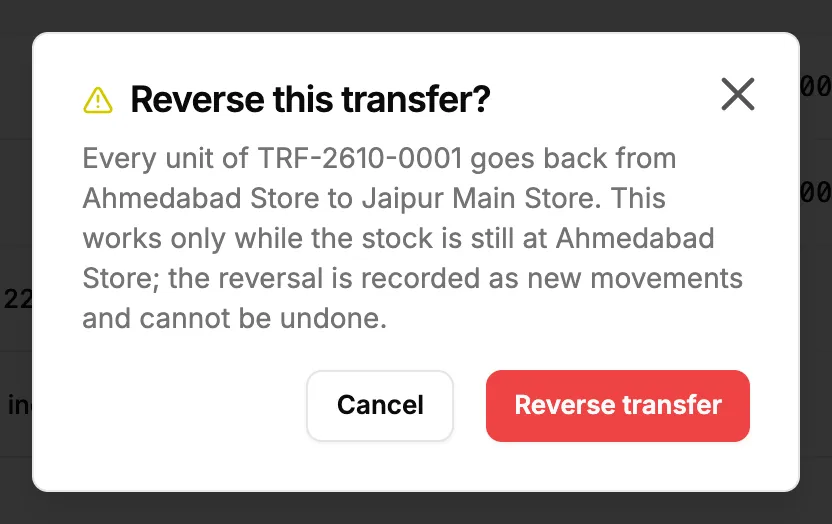
Step 2. The Reverse this transfer? box. -
Select Reverse transfer.
Export the list
- Select Export, then the format.
Result
Find and view a transfer: the list shows Number, Date, From, To, Items, Units, Status and Recorded by.
Reverse a transfer: "Transfer [number] reversed" shows. The status is Reversed, and each item gets "Transfer reversed, returned to" and "Transfer reversed, received from" movements.
Export the list: the file, named after "Stock-Transfers", downloads.
If something is different
- No Reverse transfer, or the reversal is refused: see A stock transfer cannot be reversed.
- "No transfers found": "Record a transfer to move stock between warehouses." With filters on: "Try different filters."
- No Export button: you do not have Can export lists.