
Before you start
- You need Inventory Management and Edit on Stock outs to edit the details later. When you add a stock out, Add is enough.
- To generate a delivery challan, the details need a vehicle number, a challan type and a deliver-to address.
Steps
-
In the sidebar, select Catalog & Inventory › Stock Out.
-
On the stock out's row, select View Details. "Stock Out Details" opens with the transport details panel.
-
Select Edit transport details. The box says "Changes here never touch the issued items or stock quantities. Every change is recorded in the change history."
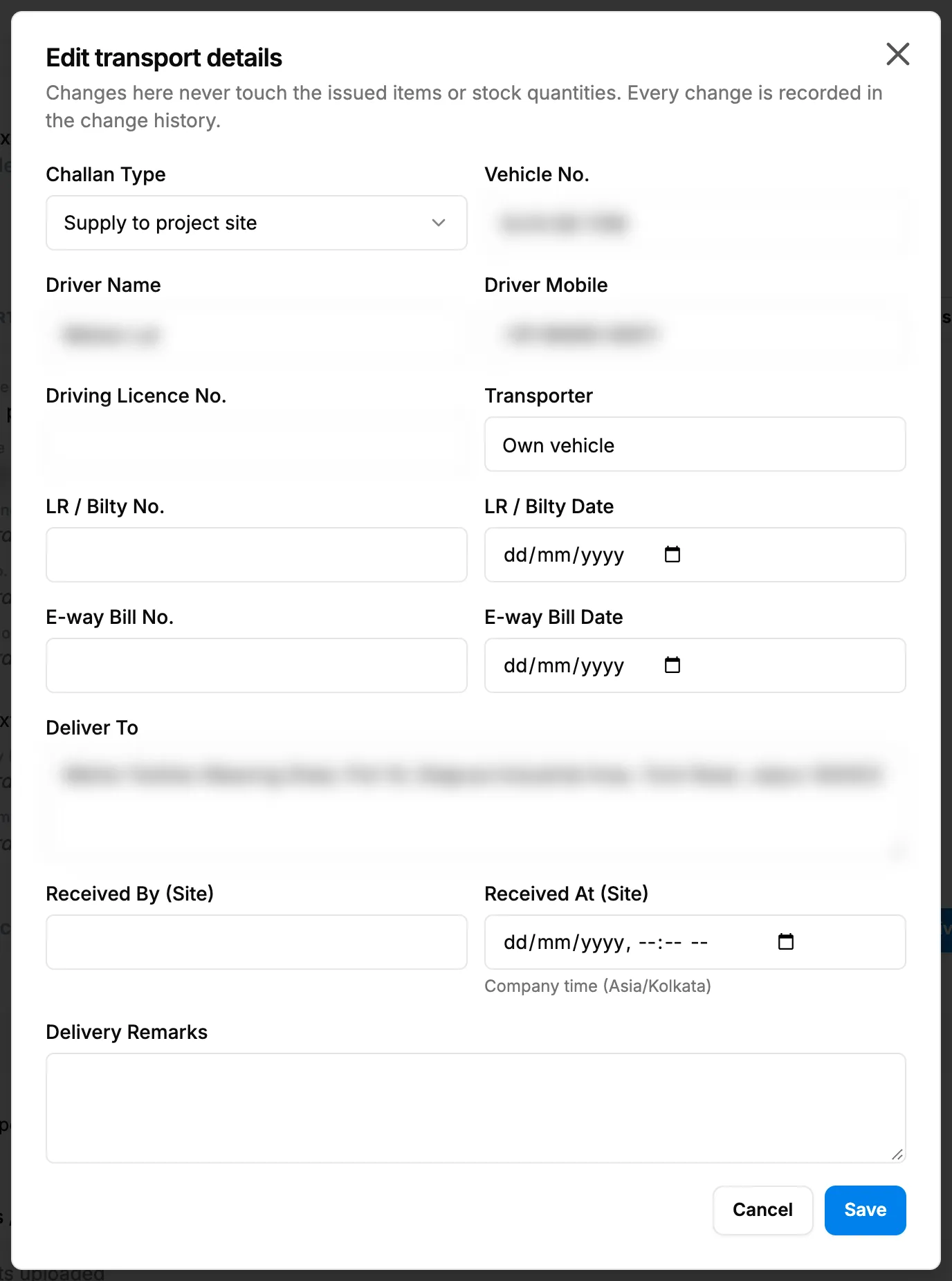
Step 3. The Edit transport details box with Challan Type, Vehicle No. and the driver fields. -
Fill in the fields:
Field Required What to enter Challan Type No Supply to project site, Job work, Sale on approval, Return to supplier or Others. Needed to generate the challan. Called Delivery Type outside India. Vehicle No. No Needed to generate the challan. Driver Name No The driver. Driver Mobile No The driver's phone. Driving Licence No. No The driver's licence. Transporter No The transport company. Called Carrier outside India. LR / Bilty No. No The LR or bilty number. Called Transport Document No. outside India. LR / Bilty Date No A date. Called Transport Document Date outside India. E-way Bill No. No India only. E-way Bill Date No India only. A date. Deliver To No The delivery address. Needed to generate the challan. Received By (Site) No On edit only: who received the items at the site. Received At (Site) No On edit only: a date and time in company time, not earlier than the issue. Recording it marks the challan Delivered. Delivery Remarks No On edit only. -
Select Save.
Result
"Transport details saved" shows. If nothing was changed, "Nothing changed" shows. The panel shows the new details; empty fields read "Not recorded". The next challan download prints them.
With Received At (Site) recorded, the challan becomes Delivered, if it was generated. See How a delivery challan moves from Not generated to Delivered.
If something is different
- When you add a stock out: the same fields are in Transport details (optional) on the issue form, without the site fields.
- No Edit transport details: you do not have Edit on Stock outs.
- Delivery Type, Carrier and Transport Document instead of Challan Type, Transporter and LR / Bilty, and no e-way bill fields: your company is outside India. See The document says Delivery Note, not Delivery Challan.
- Generate Delivery Challan is refused: see I can't generate a delivery challan.