
Before you start
- You need Inventory Management.
- To set a warehouse as the default, it is Active.
- To deactivate a warehouse, it is not the default and holds no stock.
Steps
Edit a warehouse
- In the sidebar, select Catalog & Inventory › Warehouses.
- On the warehouse's row, select Edit. The box says "Changes apply to new purchase orders. Purchase orders already placed keep the address printed on them."
- Change the fields you need.
- Select Save Changes.
Set the default warehouse
- On the Warehouses page, select Set as default on the warehouse's row.
Deactivate a warehouse
-
On the Warehouses page, select Deactivate on the warehouse's row. The box "Deactivate Warehouse" says: "Deactivate [name]? It will no longer be offered as a delivery address on new purchase orders. Existing purchase orders are not affected, and the warehouse can be reactivated later."
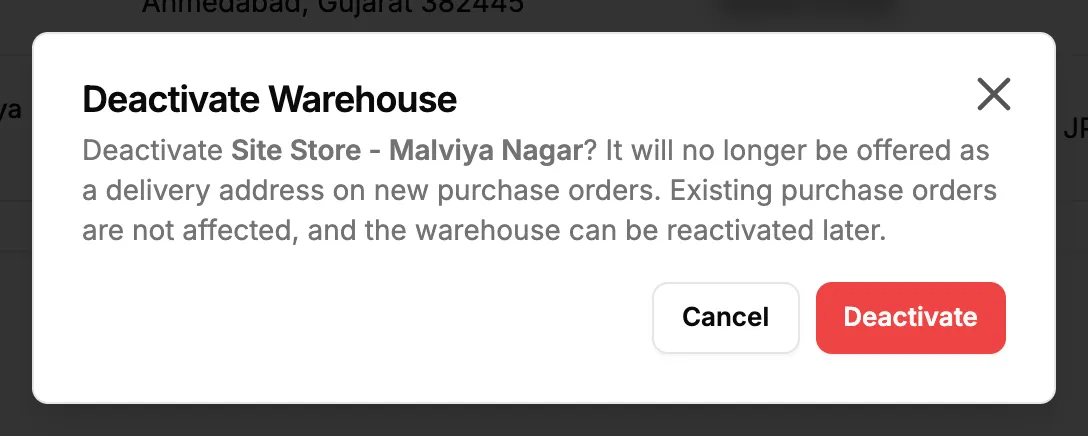
Step 1. The Deactivate Warehouse box. -
Select Deactivate.
Reactivate a warehouse
- On the Warehouses page, select Reactivate on the inactive warehouse's row.
Result
Edit a warehouse: "Warehouse updated" shows. New purchase orders use the new details.
Set the default warehouse: "[name] is now the default warehouse" shows, and the Default badge moves to it. There is always exactly one active default warehouse.
Deactivate a warehouse: "[name] deactivated" shows. The row shows Inactive, and the warehouse is no longer offered on new purchase orders.
Reactivate a warehouse: "[name] reactivated" shows, with Active.
If something is different
- Set as default is greyed out with "Reactivate first": the warehouse is inactive. Reactivate it first.
- Deactivate is greyed out with "Still holds stock. Transfer it out first.", or there is no Deactivate on the default: see A warehouse cannot be deactivated or set as default.
- No Actions column: you do not have Inventory Management.
- Your company is down to one active warehouse: Stock Transfers leaves the sidebar, and the warehouse pickers and columns are hidden.