
Before you start
- You need Purchase Orders, Add on Purchase orders, and Can see purchase costs.
- To pick the supplier and the items you also need View on Suppliers and View on Items.
- The supplier is Active. See Add a supplier.
- The items are in the catalog. See Add an item to the catalog.
- Your company has a currency and, for tax on the lines, tax slabs. See Tax slabs: add, edit, set default, delete.
Steps
Create a new order
-
In the sidebar, select Catalog & Inventory › Purchase Orders. "Manage your purchase orders and supplier procurement."
-
Select Add Purchase Order. "Add Purchase Order" opens: "Add a new purchase order for your supplier."
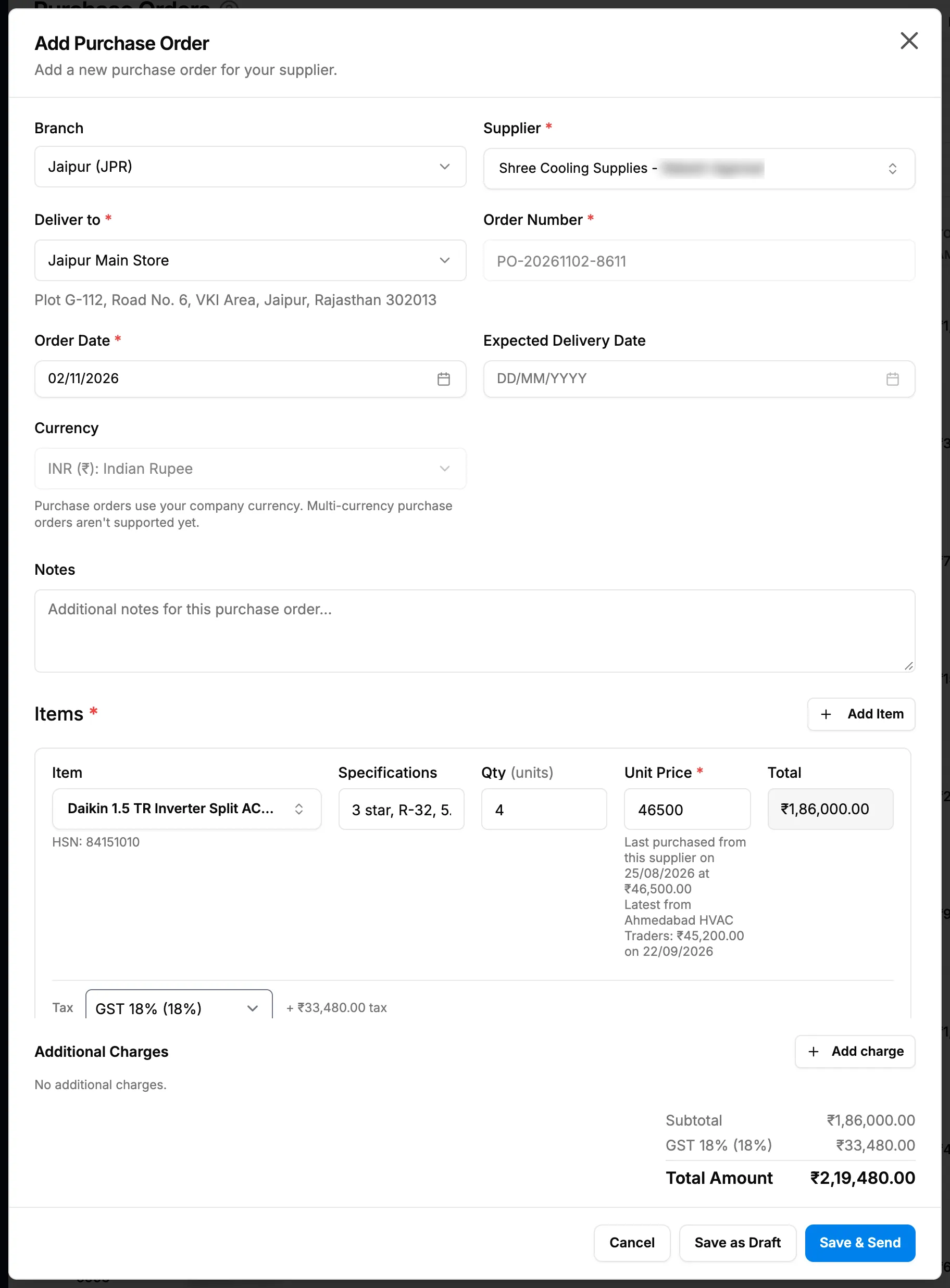
Step 2. The Add Purchase Order box with Supplier, Deliver to, Order Number and the item lines. -
Fill in the order details:
Field Required What to enter Branch Yes Only when your company shows branches and has more than one active branch. Starts on your working branch. Supplier Yes Search and pick an active supplier. Deliver to Yes The warehouse the goods go to, or Other address. See Choose where a purchase order is delivered. Order Number Yes Suggested as PO-[order date]-[four digits]. Read only. Order Date Yes A date. Starts on today. Expected Delivery Date No A date, not before the order date. Currency No Your company currency. Fixed: "Purchase orders use your company currency. Multi-currency purchase orders aren't supported yet." Notes No Anything the supplier or your team should know. -
On the first line under Items, pick the Item. Its specifications, unit price and tax slab fill in, and its HSN shows under the item.
-
Enter the quantity in Qty ([unit]).
-
Check the Unit Price. The last purchase rate shows under it. See Use the last purchase rate on a purchase order.
-
Check the tax on the line's second row: "Tax [slab] + ₹[amount] tax".
-
For each other item, select Add Item and repeat steps 4 to 7.
-
To add freight, packing, insurance or loading, select Add charge. See Add freight and other charges to a purchase order.
-
Check the totals: Subtotal, Additional charges, a row per tax rate and Total Amount.
-
Select Save as Draft to keep working on it, or Save & Send to mark it sent.
Add and Edit Purchase Order: every field lists every field and its rules.
Start from Reorder on the Inventory page
- On Catalog & Inventory › Inventory, select Reorder on a low stock item. See Check stock levels on the Inventory page.
- "Add Purchase Order" opens with the supplier and the item filled in. Qty is the shortfall below the item's minimum stock, with "Suggested from minimum stock". Unit Price is the last purchase rate ("Last purchase price"), or empty; it never takes the catalog price.
- Check the line, add any others, and save as in steps 9 to 11.
Start from a material request line
- On an approved material request line, select Raise PO. See Issue stock or raise a purchase order against a request line.
- "Add Purchase Order" opens with the item and the line's open quantity.
- Complete the order and save. The person who raised the request is told the line was ordered.
Start from a copy of another order
- On the order's row, open the row menu and select Duplicate. "Duplicating purchase order..." shows.
- The message "Purchase order duplicated as [new number]" shows. The copy is a Draft numbered [original number]-COPY-[number].
- Open the copy with Edit Order and change what you need. See Edit a purchase order.
Duplicate is not offered on a cancelled order.
Result
The message "Purchase order created successfully with receiving order" shows. The order is on the list as Draft or Sent, with its item count, supplier, Order Date and Total Amount. Email Status reads "-".
Save & Send marks the order sent but does not email the supplier. A sent order appears on Pending Receipts, ready to receive.
Next: Email a purchase order to the supplier, then Receive a delivery against a purchase order.
If something is different
- No Add Purchase Order button: you need Add on Purchase orders and Can see purchase costs. See Purchase amounts show Restricted or are refused.
- "Add Purchase Order…" turns into an upgrade box: your plan's purchase order limit is reached. See Add Supplier, Add Purchase Order or Delivery Items opens a plan or upgrade box.
- The supplier is not in the list, or the field says "You cannot view suppliers.": see A supplier is missing from the purchase order's supplier list.
- The order is refused on save: see A purchase order cannot be saved.
- No Branch field: your company has one active branch or does not show branches.
- "Could not load reorder details" or "Could not start reorder": open Reorder again from the Inventory page. "You do not have permission to do this.": you need Add on Purchase orders.
- Raise PO is refused: the request line must be approved, for the same item, and not already fully ordered.