
Before you start
- You need Receiving Order and View on Receivings.
- To export Pending Receipts, Can export lists.
Steps
See what is waiting to be delivered
- In the sidebar, select Catalog & Inventory › Deliveries. "Delivery" opens: "Receive items against purchase orders and track inventory transactions." Pending Receipts shows, soonest expected delivery first.
- Search with "Search by PO number or supplier...", or choose Sent or Partially Delivered in the status filter. Clear Filters removes them.
- Read each row: PO Details (number and items), Supplier, Status, Expected Delivery ("Not set" when empty) and Progress (units received of units ordered, with a bar and a percentage).
- To see the lines, open the row menu and select View PO Details. Items & Receiving Status shows each line's Ordered, Received, Remaining and a status: Pending, Partially Delivered or Fully Received.
- To download the list, select Export, then Export Excel or Export PDF.
Find a past receipt
-
Select Receipt History: "All completed receipts and inventory transactions", newest first.
-
Search with "Search by receipt number, PO number, or supplier...". With more than one warehouse, pick warehouses in the warehouse filter.
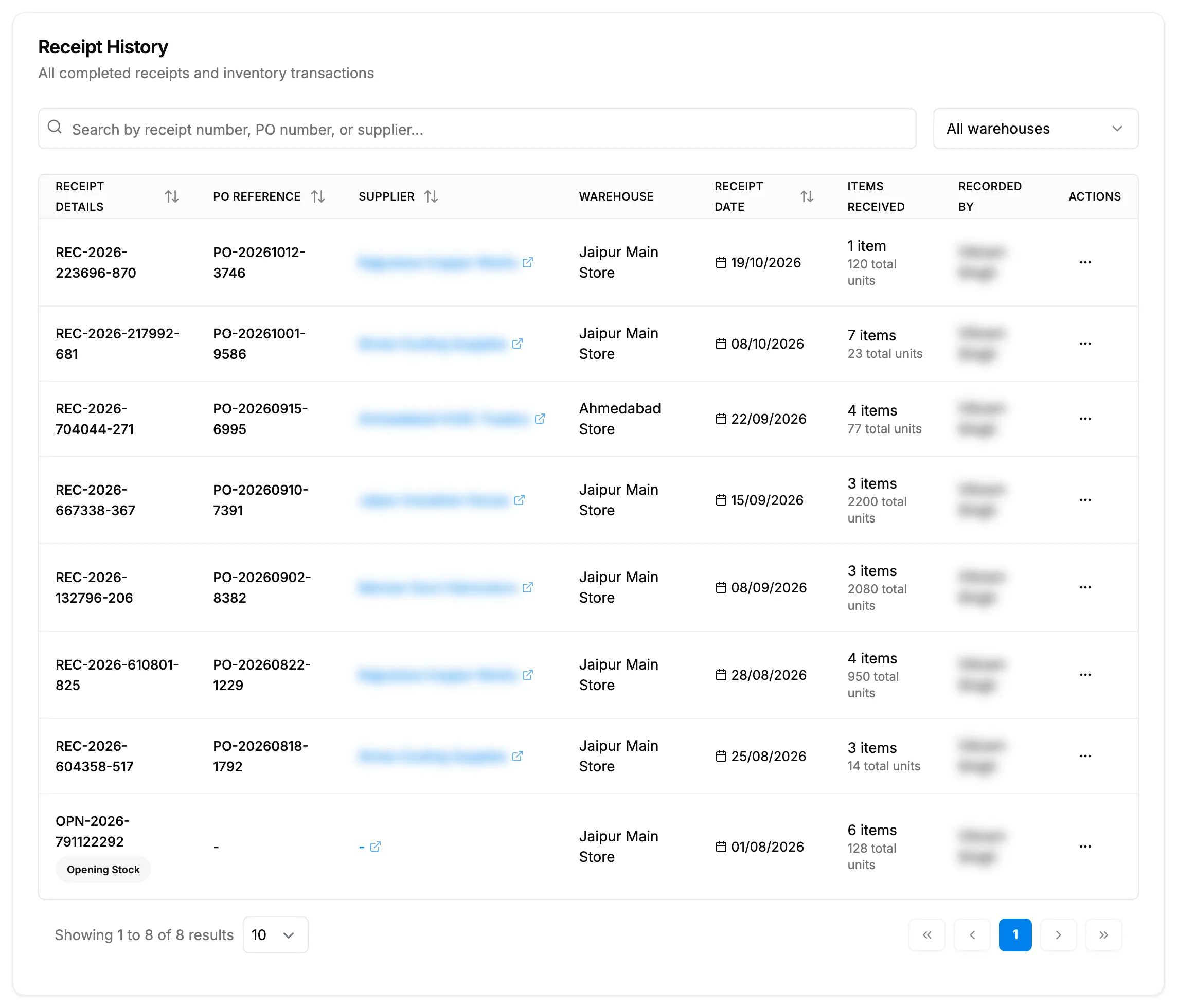
Step 2. Receipt History with Receipt Details, PO Reference, Warehouse and Items Received. -
On a receipt's row, open the row menu and select View Receipt. Receipt Details shows the receipt number and date, the purchase order, who recorded it, each item with Ordered and Received, its serial numbers, any units returned to the supplier, the Receipt Notes and the Supplier Invoice.
Download a goods receipt note
- On the receipt's row in Receipt History, open the row menu and select Download Receipt.
- The PDF [receipt number].pdf downloads and "Receipt downloaded" shows.
The note is headed with your company or the order's branch, "Ref: [receipt number]", the supplier and "PO Reference: [PO number]", and lists each item with Rate, Ord.Qty, Rec.Qty and Amount, then the totals.
Result
You see where each order stands and every receipt recorded. View Invoice opens the supplier's invoice when one was attached.
If something is different
- "No pending receipts": "All purchase orders have been fully received or there are no approved orders." Purchase orders have no approval: the list shows sent and partly received orders only.
- An order you expect is missing: see A purchase order is not in Pending Receipts, or Receive is missing.
- A receipt with an Opening Stock badge: it comes from your opening stock import. PO Reference and Supplier read "-". It has no purchase order, cannot be edited or returned, and Download Receipt is greyed: "Not available for opening stock imports".
- Recorded By reads "Not recorded": the receipt is older than the movement history.
- The status reads "confirmed": the order has a status no screen sets; it can still be received.
- No warehouse column or filter: your company has one warehouse.
- Receipt History has no Export: only Pending Receipts can be exported.
- "Failed to generate receipt PDF": try again.