
Before you start
- You need Purchase Orders and View on Purchase orders.
- To see amounts and download the PDF, Can see purchase costs.
Steps
View the order
-
In the sidebar, select Catalog & Inventory › Purchase Orders.
-
On the order's row, open the row menu and select View Details.
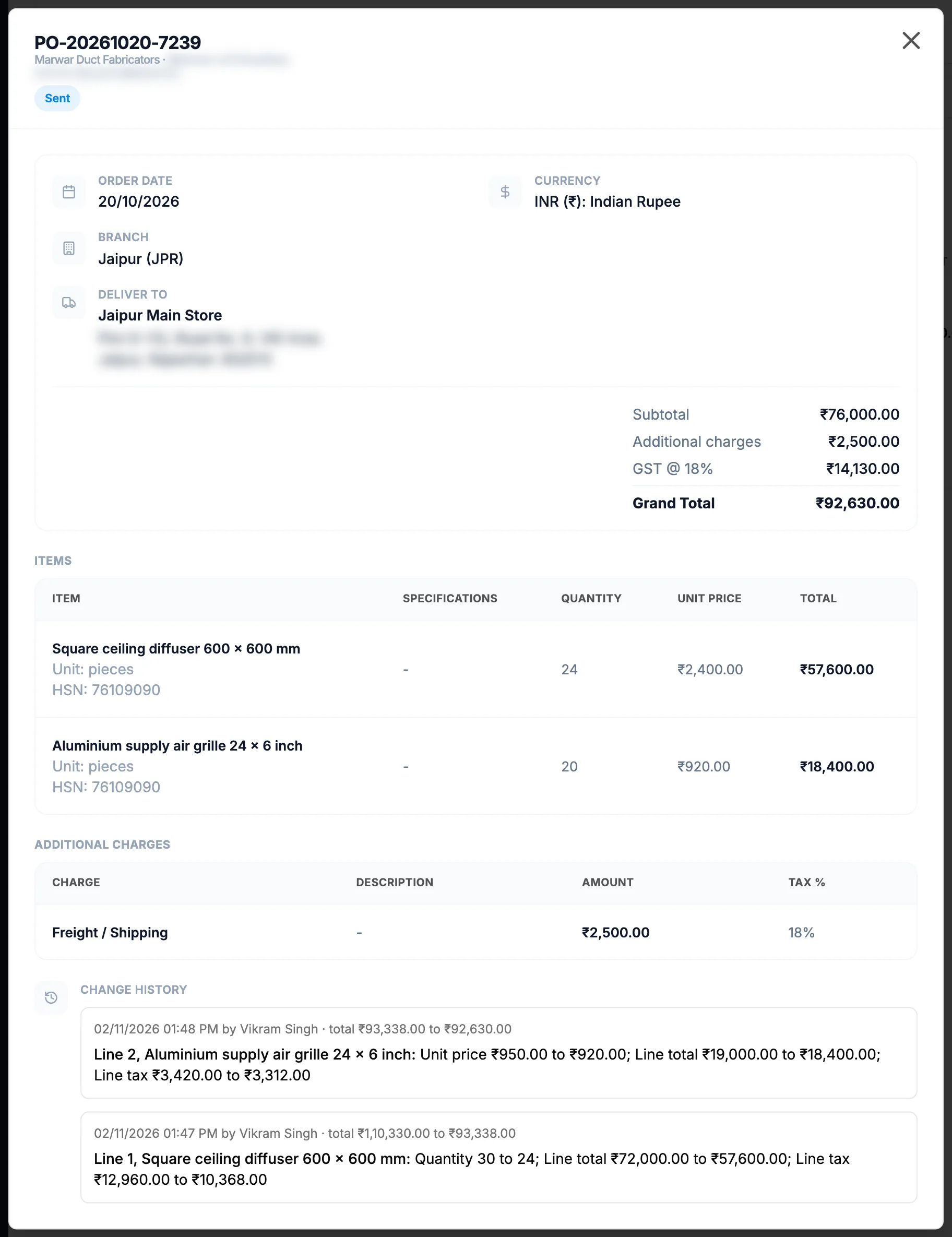
Step 2. View Details with the order header, totals, Items and Change history. -
Read the parts of the box:
- The header: the order number, "[supplier name] · [contact person]", the supplier's tax number (GSTIN in India) and the status.
- Order Date, Currency, Branch and Deliver to.
- The totals: Subtotal, Additional charges, tax rows such as "GST @ 18%", and Grand Total.
- Items: each item with its unit and HSN code, Specifications, Quantity, Unit Price and Total.
- Additional Charges, when the order has any.
- Returned to Supplier, when stock went back: each return's number, date, reason, who returned it, the items and serial numbers.
- Notes.
- Change history: every save of lines or charges, newest first, "[date and time] by [name]", with the old and new values. "No line changes since this purchase order was created." when there are none.
Download the PDF
- On the order's row, open the row menu and select Download PDF.
- The file purchase-order-[order number].pdf downloads and "PDF downloaded successfully" shows.
The PDF is titled "PURCHASE ORDER" and shows FROM (your branch or company), SUPPLIER, SHIP TO (the delivery address), the items, ADDITIONAL CHARGES, the totals ending Grand Total, and NOTES.
Result
You see the whole order without changing it. The PDF is the same document the supplier gets by email.
If something is different
- Amounts read "Restricted", and no Download PDF: you do not have Can see purchase costs. See Purchase amounts show Restricted or are refused.
- "PDF cannot be downloaded for cancelled purchase orders.": a cancelled order has no PDF.
- The PDF says Partially Received, the list says Partially Delivered: it is the same status, worded differently.
- The status pill is the same blue for every status: the list's badge shows the status colour.
- Outside India the box shows "Tax @ [rate]%": the PDF names your tax type instead.
- "The change history could not be loaded.": close the box and open it again.
- A single Tax row instead of a row per rate: older orders, and orders with no tax, show one Tax row.