
Before you start
- You need Purchase Orders and View on Purchase orders.
- To export, Can export lists. To see amounts, Can see purchase costs.
Steps
Search and filter
-
In the sidebar, select Catalog & Inventory › Purchase Orders.
-
Type an order number or a supplier name in the search box ("Search by order number, supplier or item...").
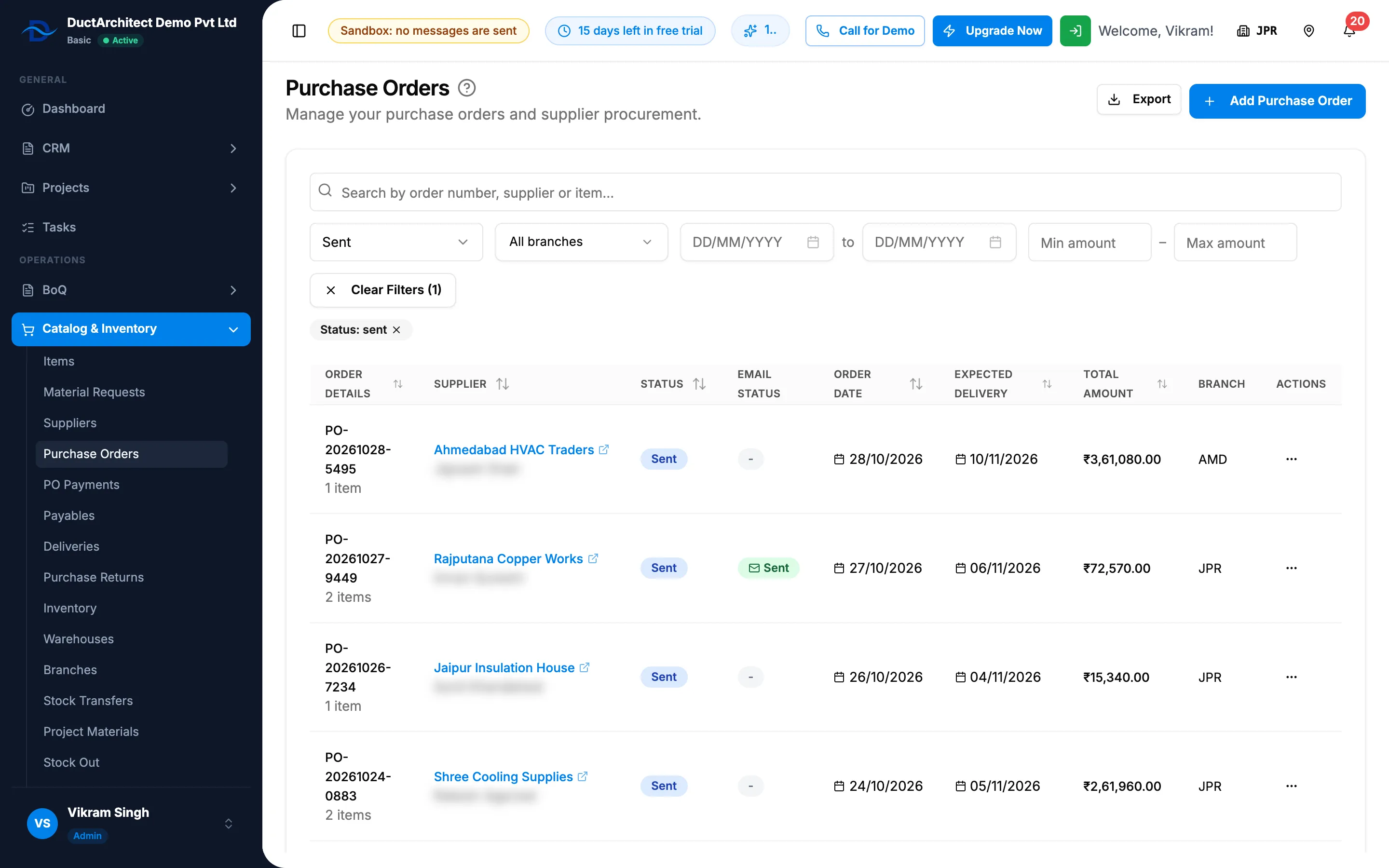
Step 2. The Purchase Orders list with the search box, the filters and the Status and Email Status columns. -
To narrow the list, set any of:
- the status: All Statuses, Draft, Sent, Partially Delivered, Delivered, Partially Returned, Returned to Supplier or Cancelled;
- the branch, when your company shows branches;
- the order date range, two dates with "to" between them;
- Min amount and Max amount, on the order's total.
-
Each filter you set shows as a chip, for example "Search: [text]"; select its x to clear it. Clear Filters ([number]) clears them all.
-
The newest order date is at the top. Select a column header to sort: Order Details, Supplier, Status, Order Date, Expected Delivery or Total Amount.
Select the supplier's name on a row to see its contact details and payment terms. Open in Suppliers opens the supplier list filtered to it.
Export the list
- Set the search and filters you want.
- Select Export, then Export Excel or Export PDF.
Result
The list shows the matching orders with Order Details (number and item count), Supplier, Status, Email Status, Order Date, Expected Delivery ("Not set" when empty) and Total Amount. Export: a file named after "Purchase-Orders" downloads with every matching order in the list's order.
Next: View a purchase order, its change history and its PDF.
If something is different
- "No purchase orders found": "Try adjusting your search criteria or create a new purchase order."
- Searching for an item finds nothing: the search covers order numbers and supplier names only. See An item cannot be found on the Purchase Orders page.
- The status chip reads "Status: sent" or "partially_received": it shows the stored word for the status, in lower case. "partially_received" is Partially Delivered.
- No Confirmed in the status filter: no screen sets that status.
- Total Amount reads "Restricted": you do not have Can see purchase costs.
- No Export button: you do not have Can export lists.
- No Branch column or filter: your company has one active branch, or does not show branches.